
- Last Updated

Checking Game News
 STOVE Sign-up
 STOVE Login
 Device
 Game Entry
 Payment
 Other Settings
 Cancel Game
 Withdrawal
Service Overview
While playing, users can check new events and notices via on-screen popups, and while the game is not running, they can receive news via push notifications. STOVE supports both. Popups and push can be used separately, or combined to announce events more effectively.
| Feature | Role | Supported platforms | User condition |
|---|---|---|---|
| Popup | Shows in-game event and notice screens as SDK-based popups | Mobile, PC | Available after login |
| Push notification | Sends event and notice alerts to the user's device | Mobile (Android / iOS / Fire OS) | Users who consented to receive push |
Key Concepts
| Term | Description |
|---|---|
| Popup recurrence settings | Set the popup display cycle by day, week (Mon–Sun), or month (1st–last day). The cycle can be specified by a specific date or the nth weekday (months without the specified date are treated as no-display) |
| FCM / APNS / ADM | The messaging service of each platform that delivers push to Android (FCM) / iOS (APNS) / Fire OS (ADM) devices |
Usage Scenarios
Viewing Event Popups
When a user connects to the game or enters a specific screen, an event or notice popup appears. By display method, popups are divided into automatic, manual, news, and community popups; the game studio selects the type and timing and registers and manages them in Partners.
| Popup type | Display method | Mobile | PC |
|---|---|---|---|
| Automatic popup | Full-screen popups appear in sequence without a touch on in-game entry Mainly used in the game lobby for event and ad banners |
 |
|
| Manual popup | Called on a specific UI touch or screen entry Shown at a designated position (location 1–5), with timing controlled by the game studio |
|
|
| News popup | Called on clicking a designated UI Gathers notice and event banners on one screen; clicking links to a landing URL or the community |
|
|
| Community webview | Called on clicking the news popup or a designated UI Shows the STOVE community home in a logged-in state (the SDK interface is required) |
|
|
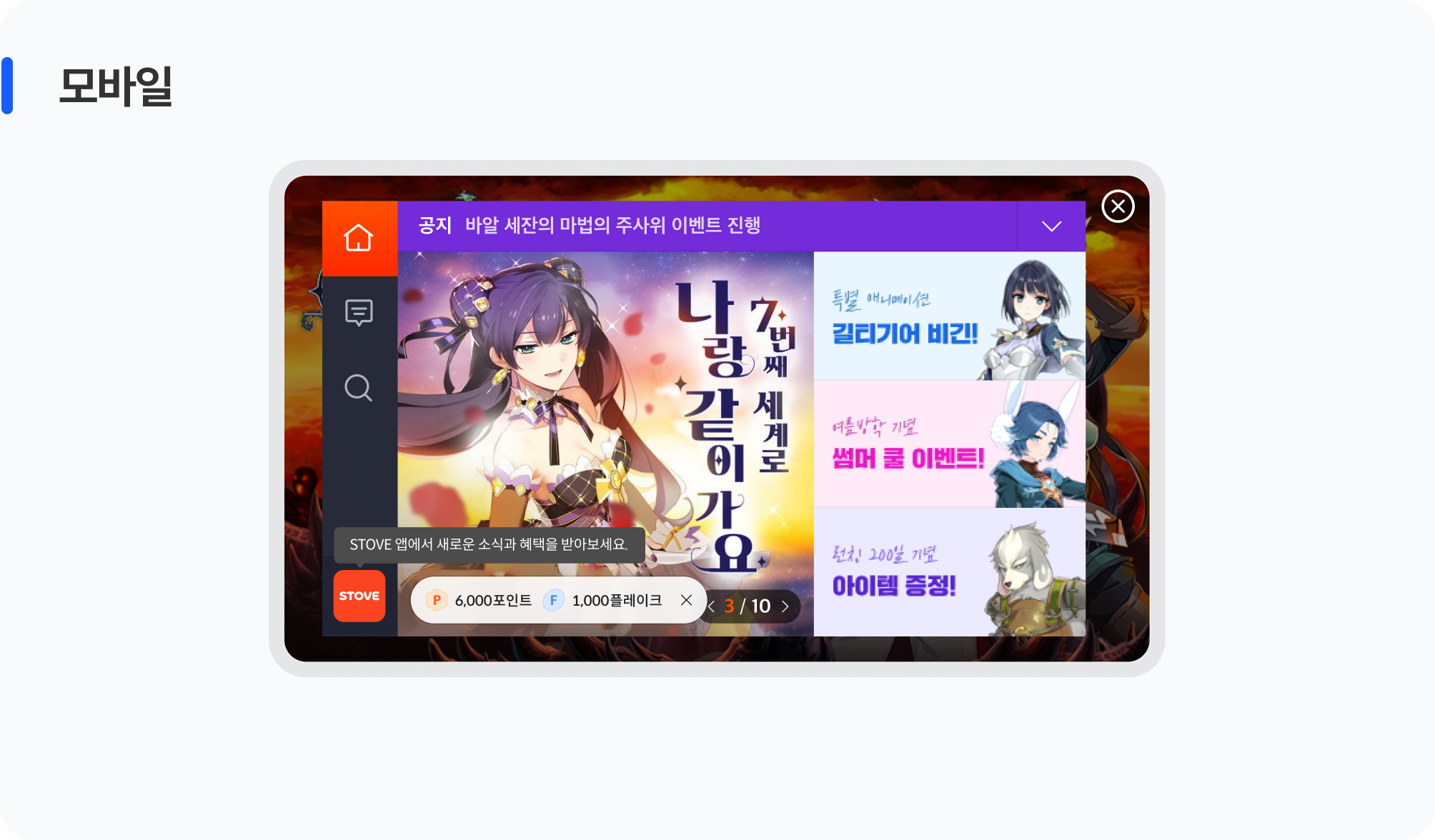
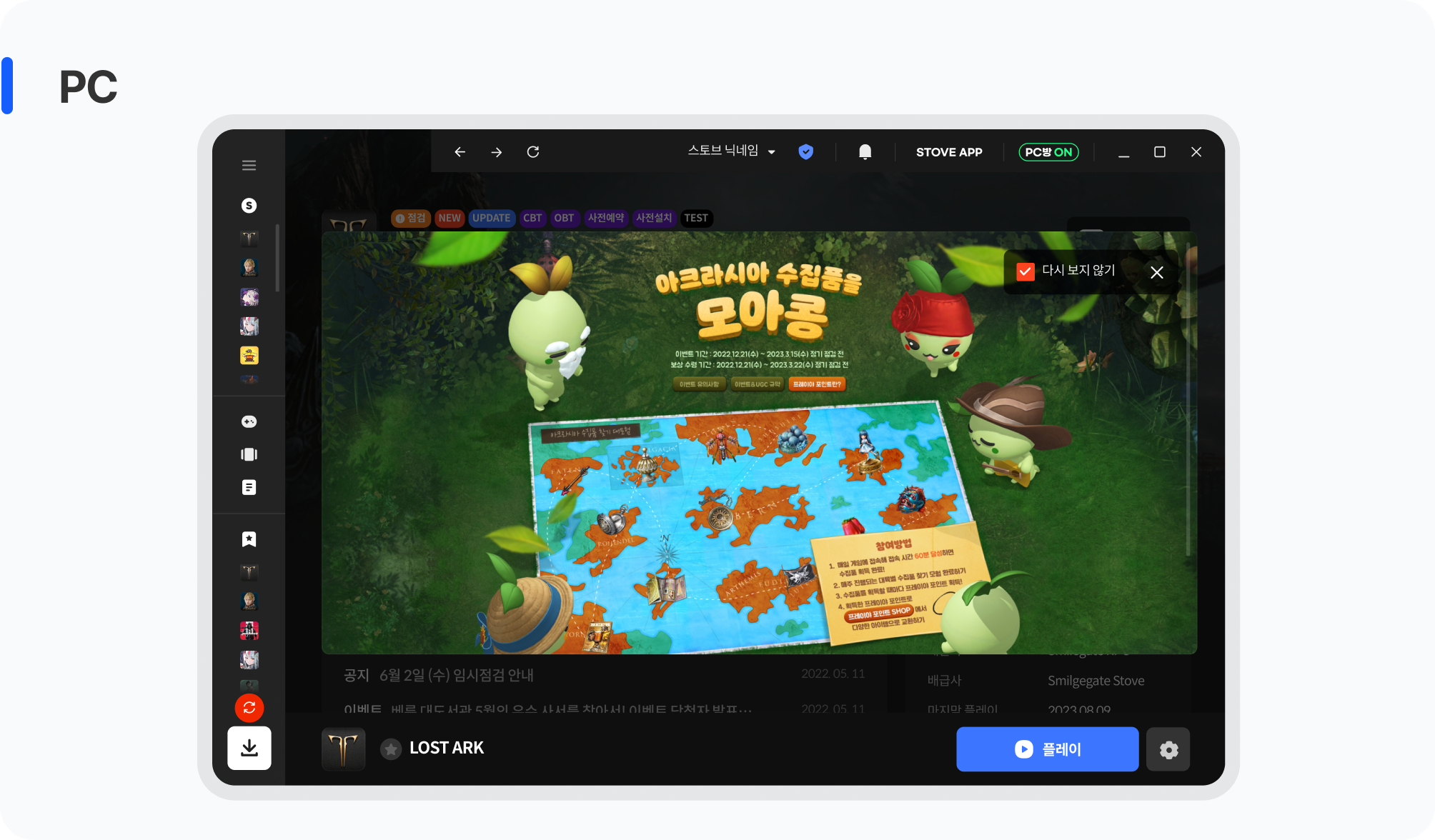
Keep this in mind
Calling the community webview with a regular URL logs the user out. Using the SDK community interface is required to keep the logged-in state.
The "Don't show for N days" option on PC popups works locally. Even with the same account, the popup appears again when accessing from a different PC.
| Item | Mobile (STOVE Mobile SDK) | PC (PCSDK View SDK) |
|---|---|---|
| Popup UI delivery method | Provides the popup UI directly via the SDK's built-in WebView | Provides the WebView UI directly from v3.1.0 |
| Initialization condition | Popups can be called after the user completes login | The Base SDK must be initialized before the View SDK, in that order |
| Popup management | Configured per event screen in Partners | Configured per event screen in Partners (all game types supported) |
Keep this in mind
Calling the PC SDK popup API closes all existing popup windows before opening a new one. View SDK features do not work before the Base SDK is initialized.
Receiving Push Notifications
Users can receive news about new events and notices via push notifications even when the game is not running. Whether to receive notifications is up to the user, and they can turn it on or off anytime in the in-game settings.
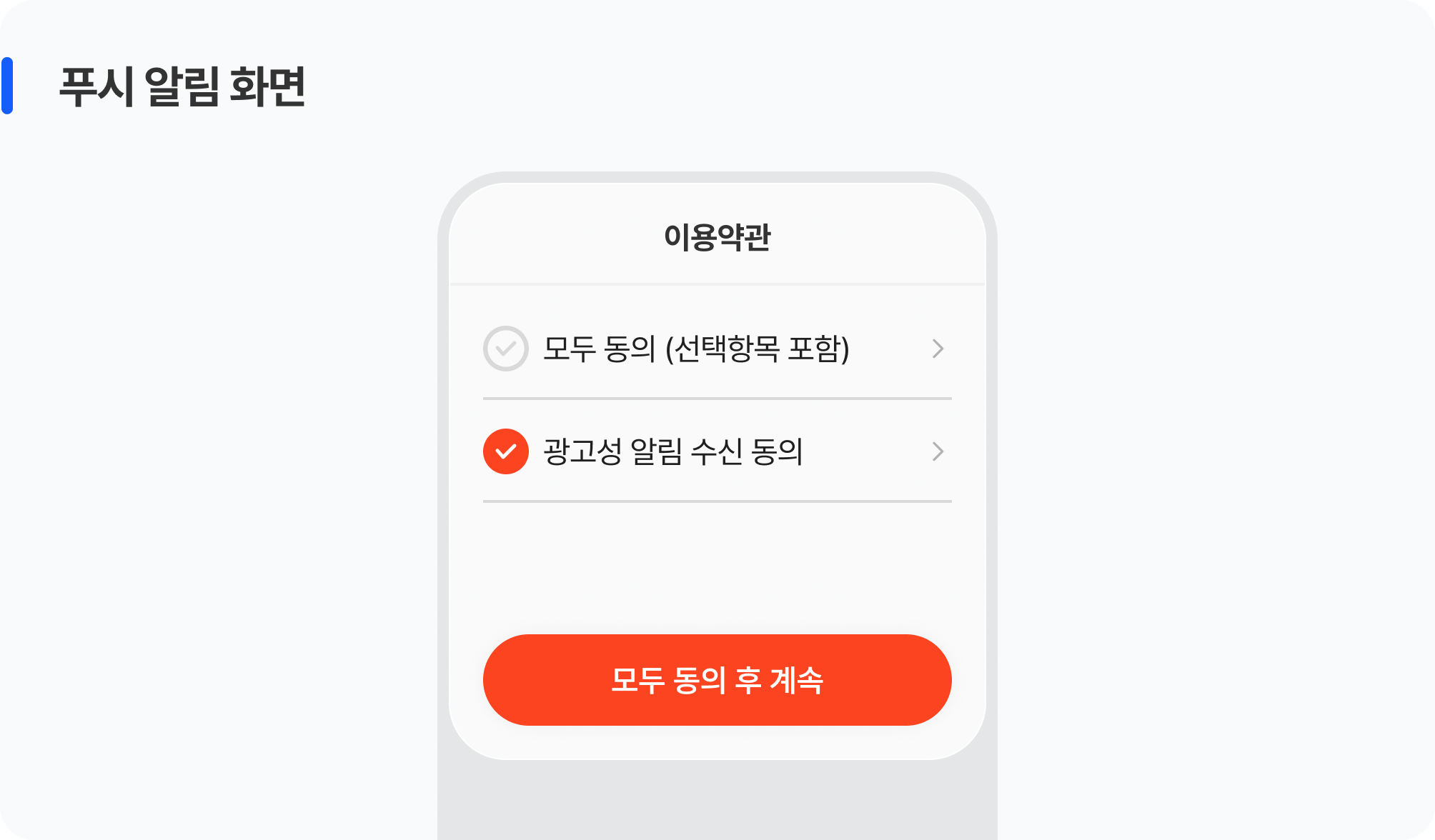
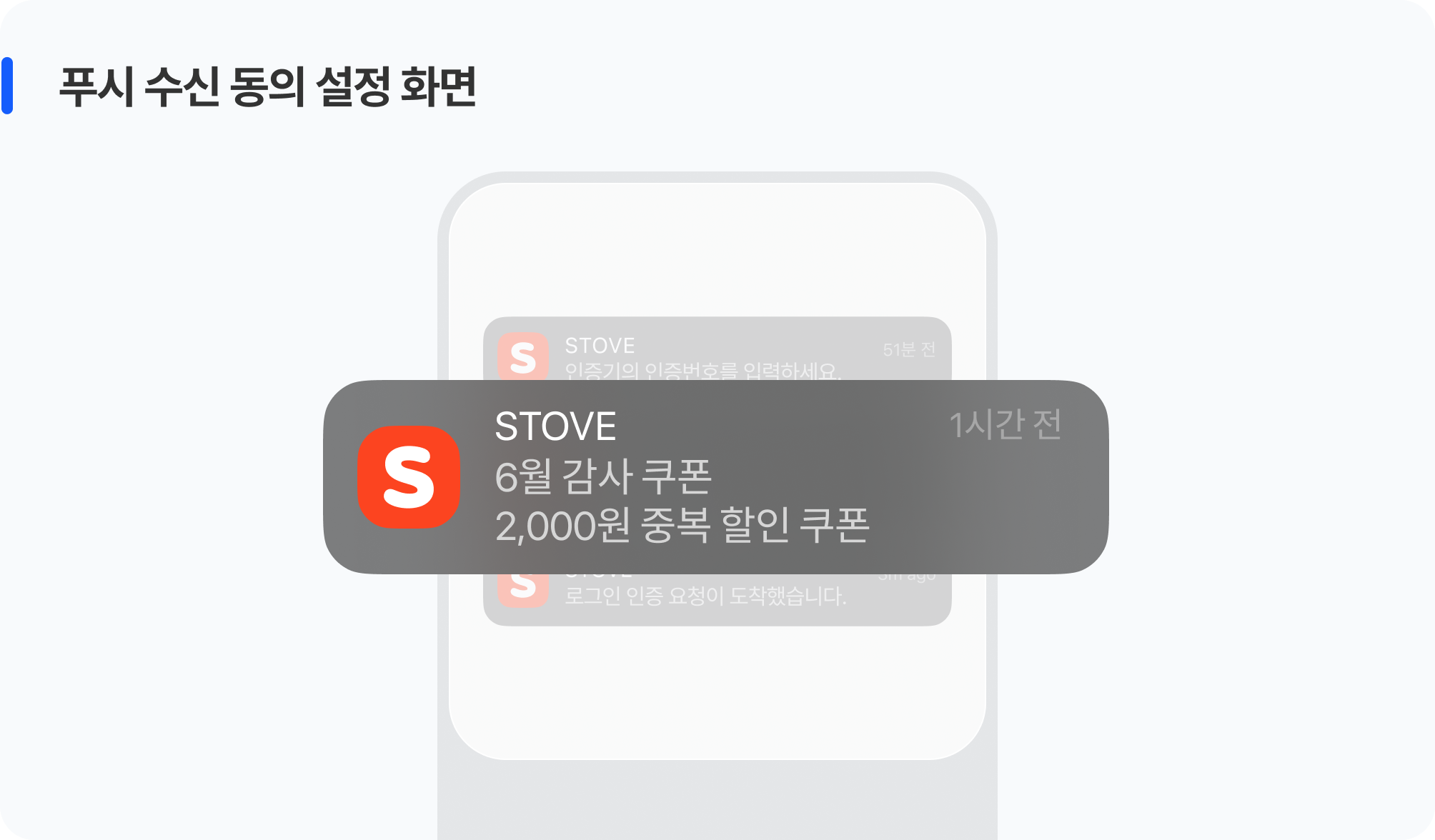
Users receive push notifications only if they have consented. The consent timing and default receive settings differ by service country.
| Target | Consent timing | Receive settings |
|---|---|---|
| South Korea (KR) | At the terms-agreement step during sign-up | Provides optional consent items for promotional and nighttime push Nighttime push consent is available only with promotional consent; toggled ON/OFF in the in-game settings |
| Global (non-KR) | No separate consent step at sign-up | Both daytime and nighttime are ON by default Toggled ON/OFF in the in-game settings, but the nighttime push setting UI is not shown in-game |
This is the integration information for a game studio to send push notifications. Check the supported messaging services and sending methods.
| Service | Target devices | Notes |
|---|---|---|
| FCM | Android | Uses Firebase Cloud Messaging HTTP v1 |
| APNS | iOS | Uses token authentication (TOKEN) |
| ADM | Fire OS (Amazon) | Amazon Device Messaging |
| Sending method | Description |
|---|---|
| Partners sending | Immediate, scheduled, and recurring (daily/weekly/monthly) sending from Partners. Supports local-time sending, controlled directly by the operations team |
| Server individual sending | The game server calls the individual push sending API for a specific member (API Access Token required) |
| Server group sending | The game server calls the group sending API for all users of a specific game or market |
Keep this in mind
ㅁ In Korea, users who consented to promotional push must be sent a re-consent notice every 2 years from their last consent date (Article 50 of the Network Act). STOVE sends this notice automatically.
ㅁ For games operating with multiple worlds, push is sent based only on the world the user last accessed.
ㅁ Push is received on all logged-in devices. However, if multiple accounts are used on one device, it is sent based only on the most recently accessed account.
ㅁ If the user logs out (including remote logout) or requests STOVE account withdrawal, push is not sent to that device.
ㅁ If the user cancels a game, push for that game is no longer sent from the moment the cancellation is complete.
Integration Overview
Overall Implementation Flow
| Step | Owner · Activity | Details |
|---|---|---|
| Step 1 | Game studio planning team Decide the event method |
Decide the popup types and push sending methods and pass them to the publishing technical contact |
| Step 2 | Game studio planning team · publishing contact Configure Partners |
ㅁ Register popup content in Partners ㅁ Register push authentication keys per market (FCM / APNS / ADM) |
| Step 3 | Game studio development team Client integration |
ㅁ Implement SDK popup calls (set the call location and timing per type) ㅁ Implement an in-game push ON/OFF settings screen (including nighttime push for KR) |
| Step 4 | Game studio development team Server integration |
When using server API sending, integrate the individual and group sending APIs |
| Step 5 | Game studio QA team Verify and deploy |
Check required and recommended items with the checklist, then verify and deploy in the order Sandbox → Live |
Decisions to Make Before Starting
Before starting popup and push integration, please decide the items below internally within the game team first.
| Decision item | Options and details | After deciding |
|---|---|---|
| ① Popup types to use | Choose among automatic/manual popups, news popups, and community popups | After finalizing the types, register the popup content in Partners For PC games, select 'PC game' in the platform field when registering |
| ② Push sending method | Partners sending: the operations team sends immediately, on schedule, or recurring (no development needed) Server API sending: the game server sends directly to users or groups The two methods can be combined |
When using server API sending, apply for an API Access Token through the publishing technical contact |
| ③ Whether the service is offered in Korea | When servicing in Korea, additional compliance requirements for promotional and nighttime push apply * For details, see Roles and Responsibilities and the Checklist |
For global-only games, tell the development team not to show the nighttime push setting UI in-game |
Roles and Responsibilities
These are the areas STOVE handles and the areas the game studio implements directly for popup and push integration.
 What the STOVE platform provides
 What the game studio must implement
Environment Guide
Integration testing must always be done first in the Sandbox environment, and applied to the Live environment only after verification is complete.
| Category | Sandbox | Live (Production) |
|---|---|---|
| API Host | https://api.gate8.com | https://api.onstove.com |
| Purpose | For development and QA testing only. No impact on real users. | The actual production environment. Deployed after QA is complete. |
Checklist
| Category | Role | Check item |
|---|---|---|
| Required | Game client | Verify the SDK initialization order
|
| Required | Game client | Verify correct display for each popup type
|
| Required | Game client | Verify push authentication key issuance per market and Partners registration
|
| Required | Game client | Verify the push receive ON/OFF control implementation
|
| Required | Game client | Verify that the nighttime push UI is not provided for global users
|
| Recommended | Game server | Verify server direct-sending API integration (when server sending is used)
|