
- Last Updated

Registering a Device
 STOVE Sign-up
 STOVE Login
 Device Registration
 Game Entry
 Payment
 Other Settings
 Cancel Game
 Withdrawal
Service Overview
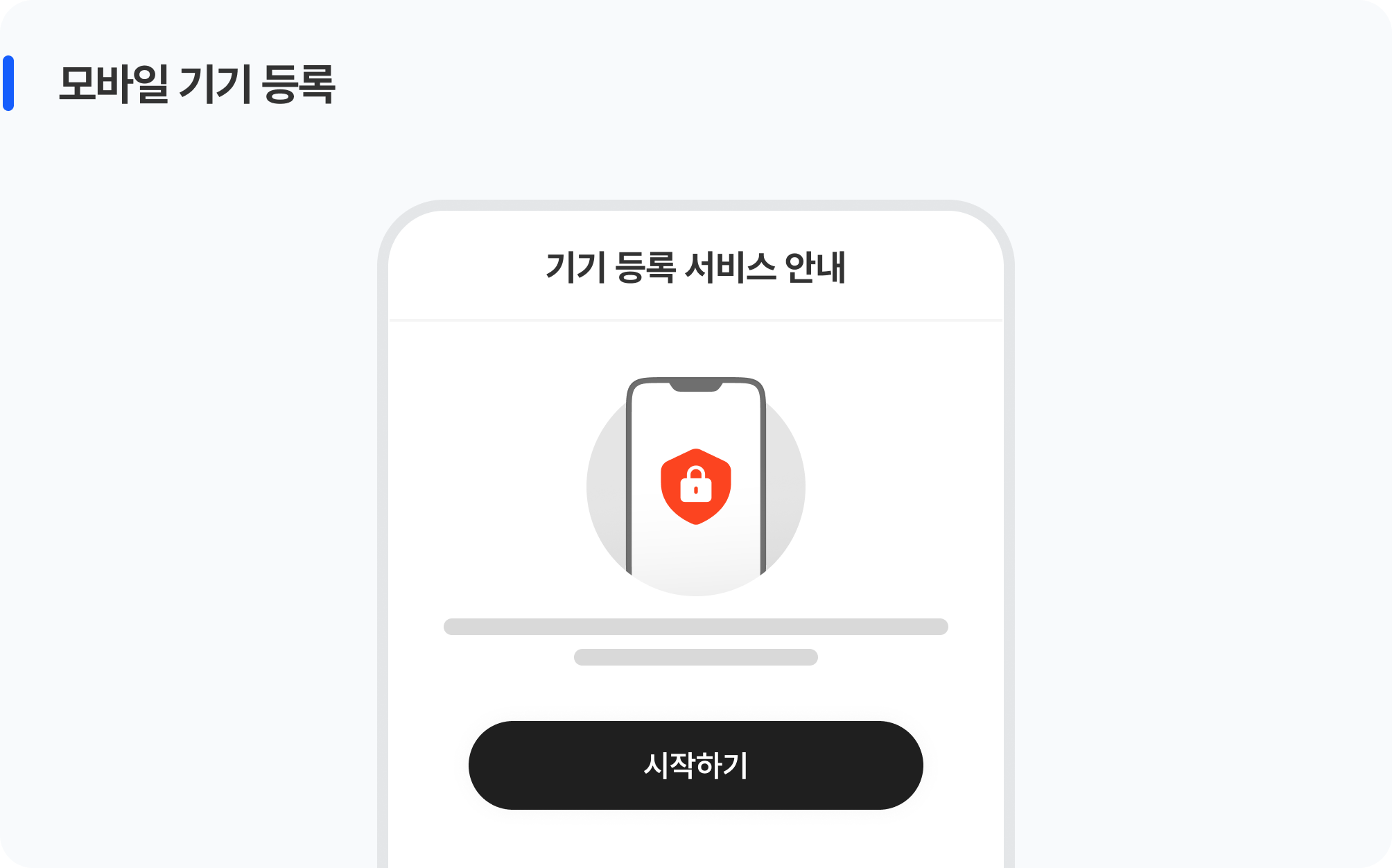
Users can register their frequently used devices in advance and strengthen security so that the game can be accessed only from registered devices. Even if account information is leaked, no one can log in from an unregistered device, which prevents account takeover and unauthorized access through external devices.
| Item | Details |
|---|---|
| Available platforms | Management features are provided separately for the mobile and PC platforms |
| Eligible users | Registered members only (guest accounts cannot use it) |
| Registration limit | Up to 10 devices per account per game (default 5; to change, request it from the publishing technical contact) |
| Registration restriction | The same device cannot be registered more than once |
| Handling on withdrawal | Mobile: when game cancellation is complete, the registered device information for that game is deleted automatically PC (Designated PC): when STOVE account withdrawal is complete, the registration information is deleted automatically (account-wide) |
Keep this in mind
Virtual devices such as emulators are detected and blocked from registration, and device registration is also restricted when an IP-bypass program is used.
Key Concepts
Understanding the features and behavior provided on each platform before integrating the game makes the rest of the content easier to follow.
| Category | Mobile Platform | PC Platform |
|---|---|---|
| Feature | Device registration | Designated PC |
| Concept | Allows game access only from registered mobile devices | Allows login only from the designated PC |
| Device identification | UDID·ADID | Collected PC information (manufacturer, product name, serial number, etc.) |
| Identity verification | Backup email / mobile possession verification | Identity verification is performed on a non-designated PC |
| Scope | Applied per game / registered members only | At PC launcher login / South Korea accounts only |
Usage Scenarios
This organizes the user experience by platform, from registering a device, to accessing the game from a registered device, to managing registered devices.
Because the screens and flow that users encounter differ between mobile and PC, it is easier to understand them separately.
Mobile Platform
This is the process of a user registering a device for the first time on the registration screen.
If the game applies device registration as required, the game can only run after registration; if applied as optional, the user can play without registering and only sees the registration screen when using certain content.
Entering the Registration Screen by Situation
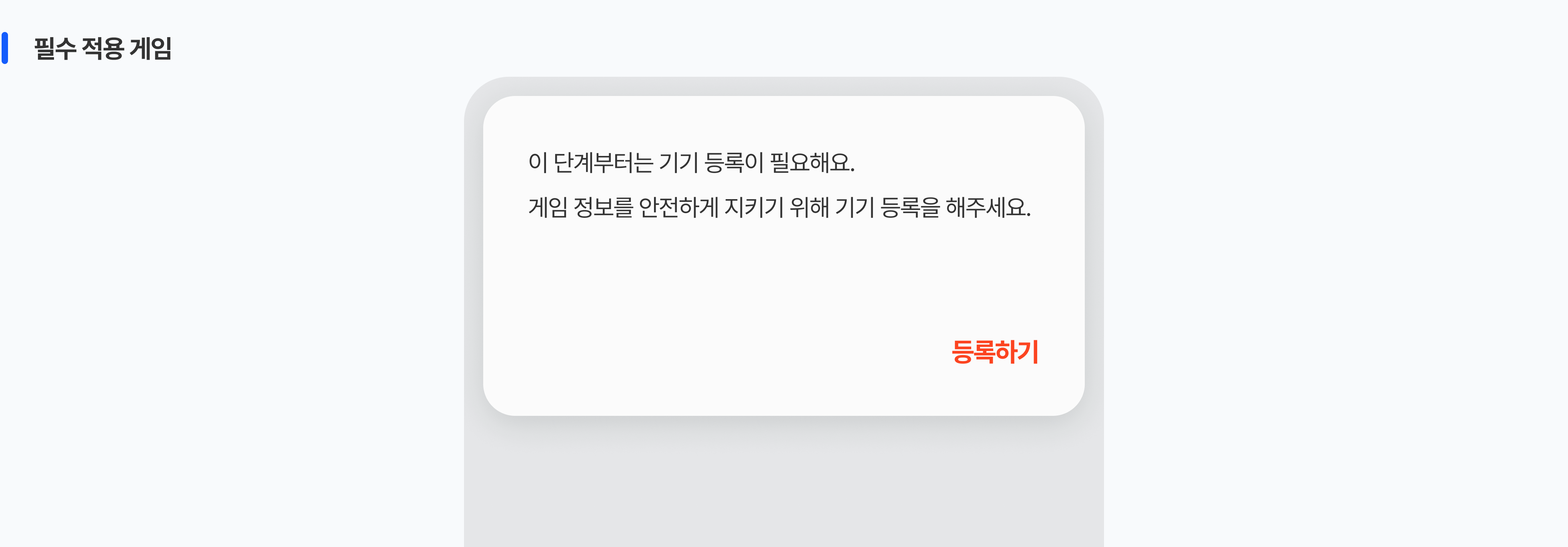
Users encounter the device registration screen in the following situations. The moment they enter it depends on the game's implementation approach and the user's actions.
| Target game | User situation and entry point | Example notice screen |
|---|---|---|
| Games with required registration | On first access from an unregistered device, the registration pop-up is forced right after login | "Device registration is required" notice screen |
| Common (required / optional) | On access from a new device, the pop-up appears when an unregistered device is detected | "You accessed from a new device" notice screen |
| Games with optional registration | The pop-up appears when entering certain security-protected content | "Available after device registration" notice screen |
| Tapping the "Device Registration" icon directly on the intro or settings screen | Device registration service notice screen |
Registration Steps
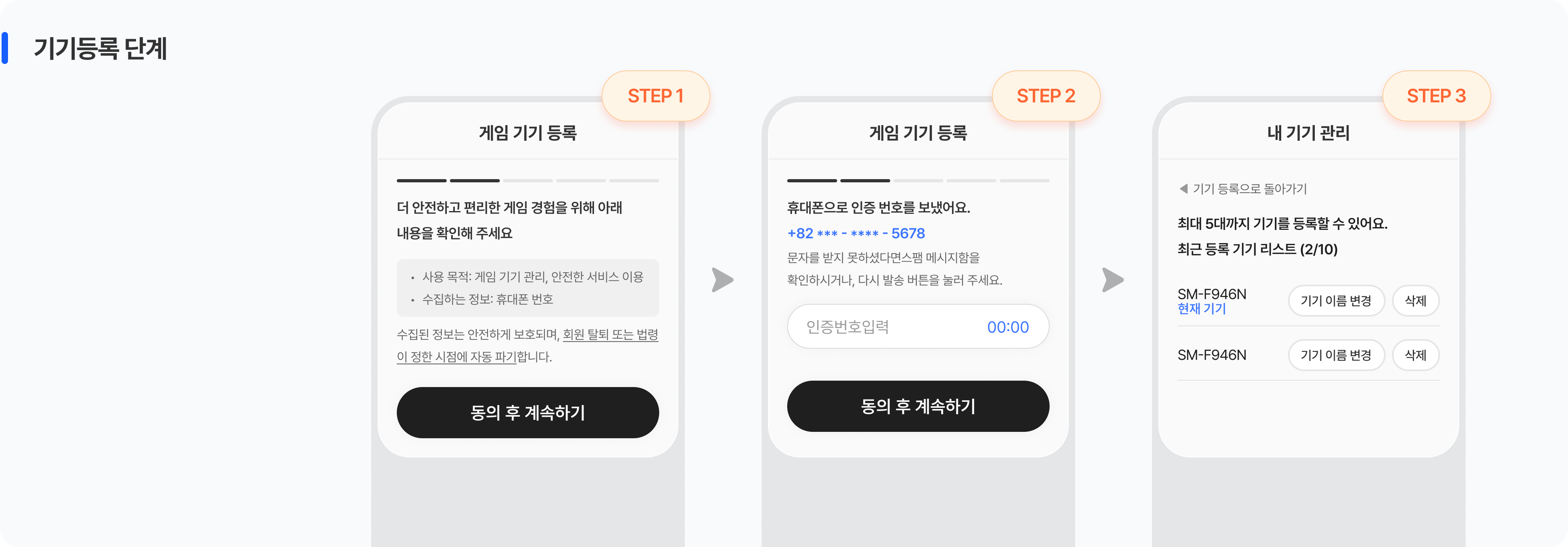
A user who enters the registration screen completes registration through the steps below. Since all screens are provided identically by the platform, users experience the same flow in any game.
| Step | Screen | What the user does | Decision points / branches |
|---|---|---|---|
| Step 1 | Service introduction and terms agreement | Learn what device registration is and why it is needed Agree to the terms, then tap 'Continue' |
Closing the pop-up and leaving is also an option (if closed, see 'Path When Registration Is Not Completed' below) |
| Step 2 | Identity verification | Select a verification method and enter the verification code | If the primary method is difficult, you can switch to the alternate method If not received or entered incorrectly, resend or retry |
| Step 3 | Set the device name and complete registration | Check or edit the auto-filled device name Tap the 'Complete Registration' button |
If the registration limit is exceeded, branch to the 'My Device Management' screen On completion, return to the original path (launching the game or entering content) |
Path When Registration Is Not Completed
If a user closes the screen without completing registration, the screen they see next differs depending on the game's implementation approach.
| Implementation approach | What the user sees | Next path |
|---|---|---|
| Required | "Device registration is required" notice UI | Re-show the registration pop-up to encourage registration. Logging the user out is not recommended due to the risk of drop-off |
| Optional | Notice that the content is unavailable | Other paths in the game work normally. The pop-up is re-shown when entering the content again |
Exceptions During Registration
Not every user completes registration in one go. In the situations below, a separate notice screen appears in the middle of the registration flow, or progress is blocked.
| Exception | Notice the user sees | Possible next path |
|---|---|---|
| Registration limit exceeded | "You have exceeded the number of devices you can register" | Go to My Device Management → delete an existing device → retry |
| Verification code not received | The verification screen stays (a resend button appears) | Resend within the validity period or switch to the alternate method |
| Verification code entered incorrectly 5 times | "The verification session has expired" | Request a new verification code and retry |
| Attempt to register the same device again | "This device is already registered" | The existing information is kept without a separate registration |
| No verification method on the account | Screen to enter a mobile number or backup email | Enter the information and verify → on completion, it is saved to the account automatically |
When registering or deleting a device, users go through identity verification. The screen they see differs depending on the verification methods saved to the account, and even the same user can alternate between the primary and alternate methods depending on the situation.
Identity Verification Method
Identity verification at device registration is performed with two methods registered to the STOVE account: a mobile number and a backup email. Immediately after login, the platform first checks which methods are saved to the account, and the screen and verification method the user sees differ by the number of registered methods, as follows.
| Methods registered to the account | Identity verification behavior |
|---|---|
| Both registered (mobile number / backup email) |
Verification starts automatically with the primary method You can switch to the alternate method via 'Verify another way' The first-registered method is the primary and the additionally registered method is the alternate (the primary method can be changed directly) |
| Only one registered | Verification proceeds automatically with the only registered method Registering an additional alternate method is recommended for stronger security If the information needs to change, contact customer support |
| No method registered | A screen to enter a mobile number or backup email is shown The entered information is saved to the account automatically after verification (reused thereafter as a common verification method) |
Verification Code Sending and Entry Rules
Mobile and backup email use the same number of verification-code digits and entry method, but the verification code's validity period and re-request limits differ.
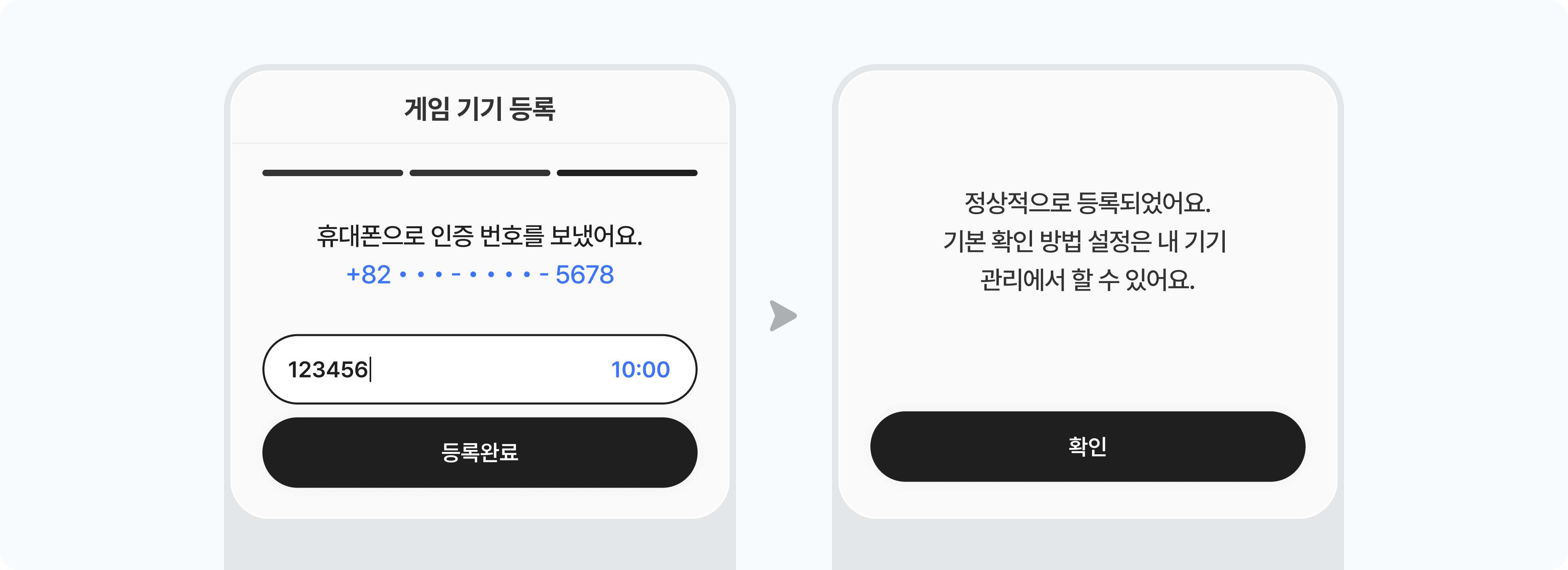
| Item | Details |
|---|---|
| Sending the verification code | The verification code is sent to the entered mobile number Verification code validity: 3 minutes If not received, you can re-request it with the 'Resend' button |
| Entering the verification code | Enter the received verification code Limited to 5 incorrect entries per verification code (a new code is required) Per the same game and mobile number, a code can be requested up to 3 times per minute and 20 times per day |
Keep this in mind
· Identity verification is handled per STOVE account (MemberNo), so once registered, you do not need to register again for other games under the same account.
· If you reset the verification method set as the primary method (backup email or mobile number), all device information registered to that account is reset as well.
· If a verification method needs to be changed, it can only be handled through customer support.
This is the screen used when you want to change or clean up registered devices. Follow the path below to go to the device management screen.
| Entry point | Path |
|---|---|
| Direct entry during normal play | In-game settings menu or world selection screen → tap the 'Manage Devices' button |
| Branch entry during the registration flow | Registration-limit-exceeded notice → tap the 'Go to My Device Management' button |
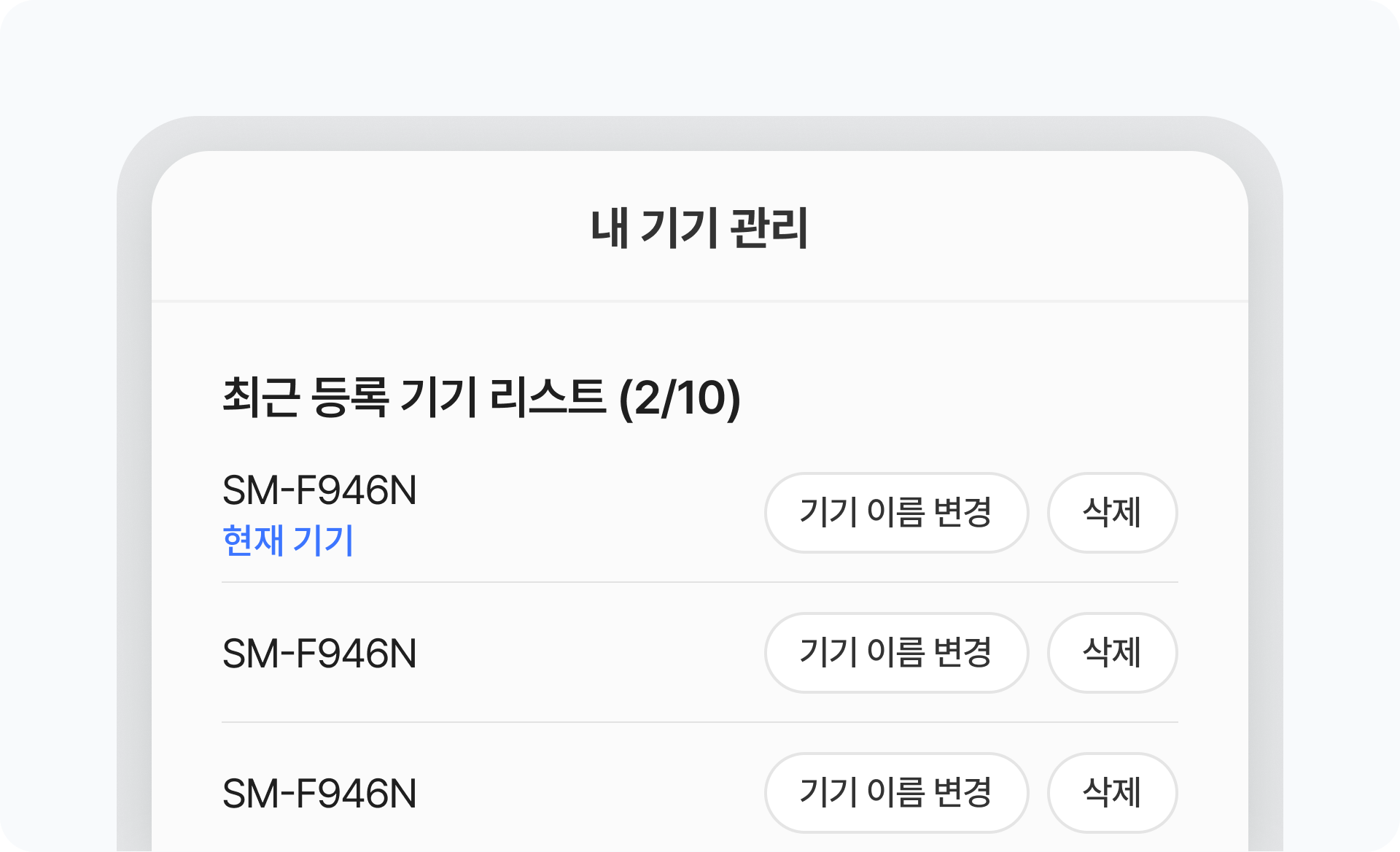
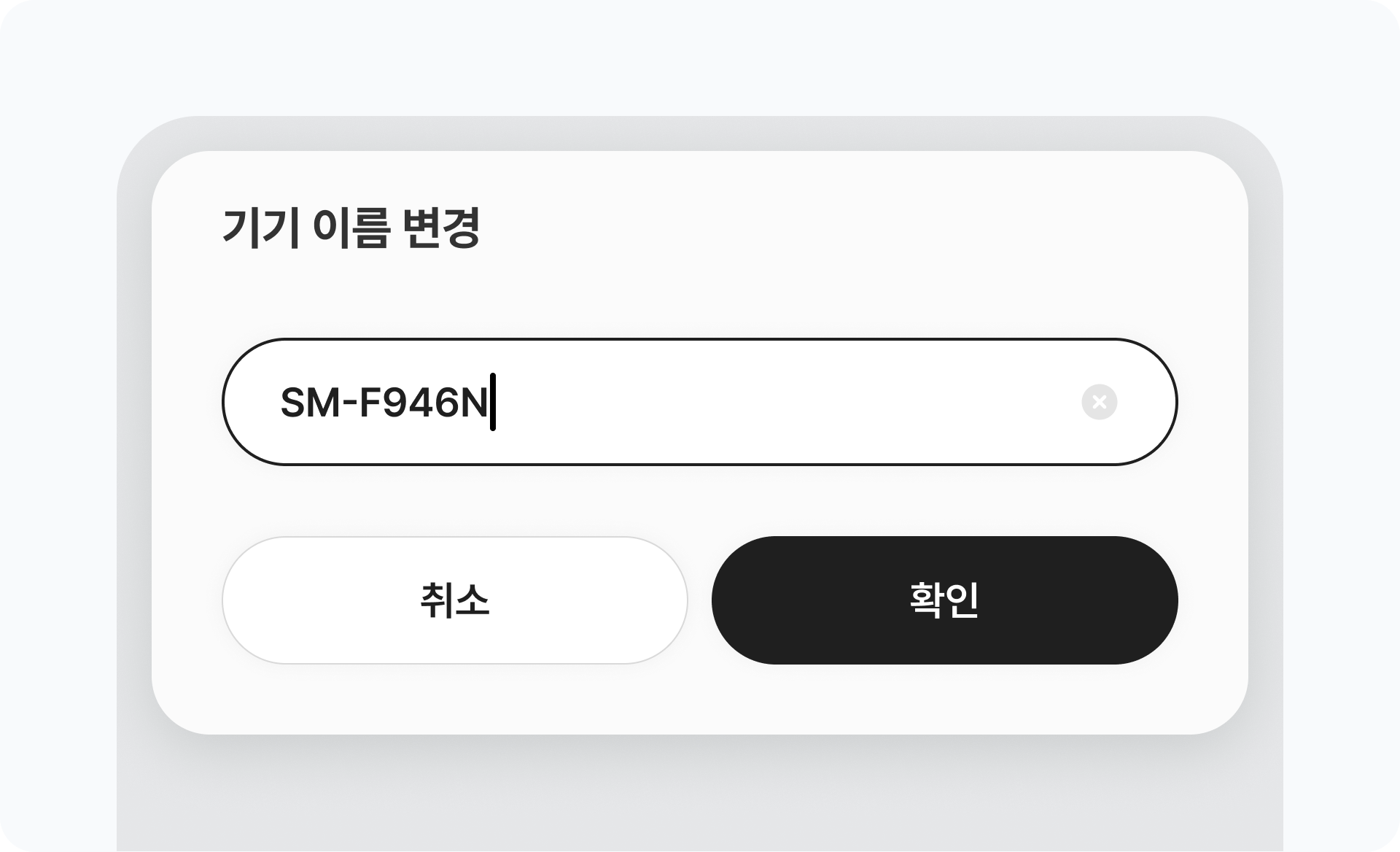
On the My Device Management screen you can perform the tasks below. General tasks such as renaming or deleting a device are handled immediately without additional verification. However, when changing a verification method itself, identity verification is performed once more for security.
| Task | Details | Identity verification |
|---|---|---|
| Rename a device | Select a device from the list and edit its name | Not required |
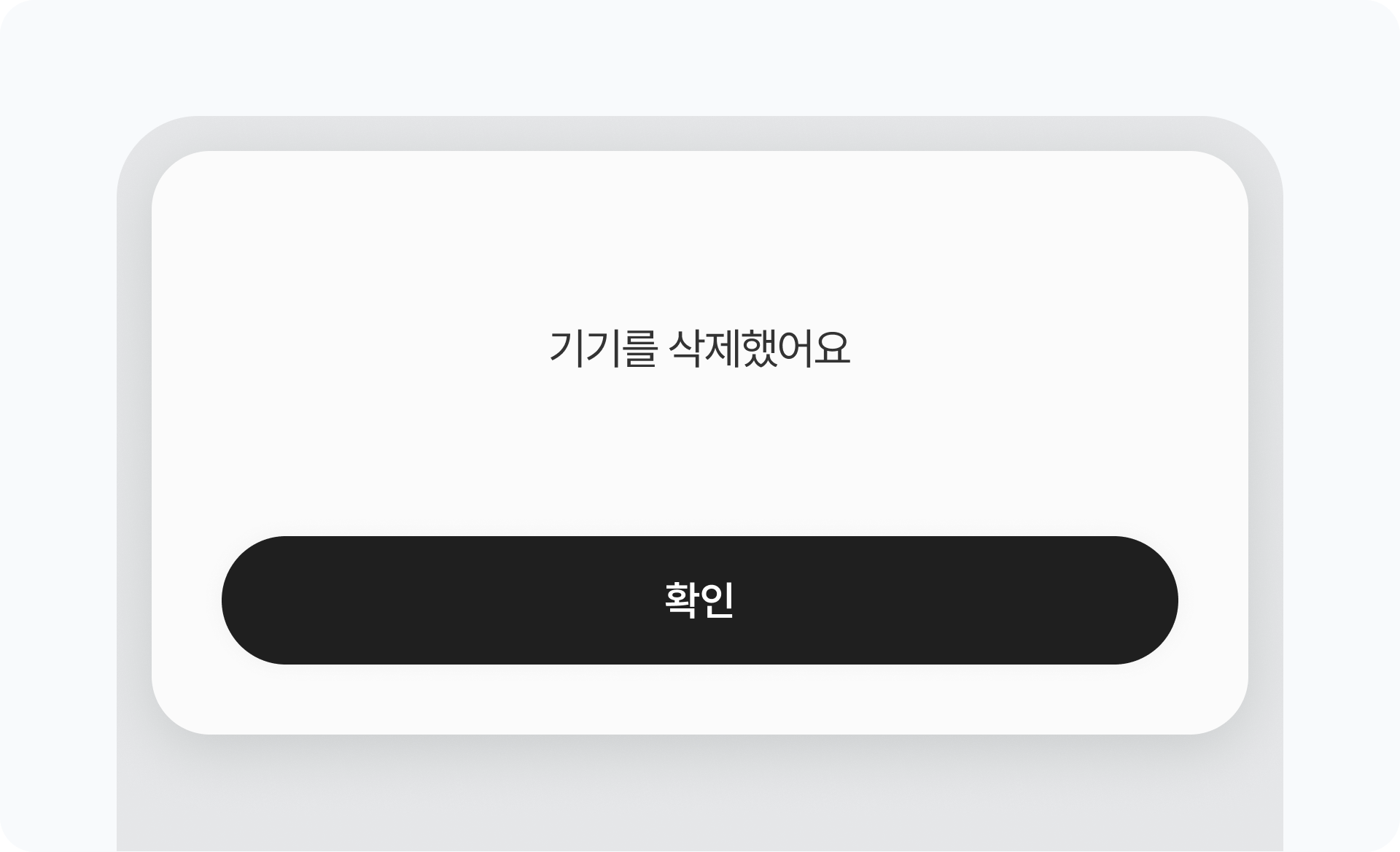
| Delete a device | Delete individually from the registered device list | Not required |
| Change the primary verification method | Choose the default among the already-registered verification methods | Not required |
| Change the mobile number | Enter the new number and verify | Required |
| Change the backup email | Enter the new email and verify | Required |
| Register an alternate verification method | Add an unregistered verification method (for stronger security) | Required |
Behavior When Deleting a Device
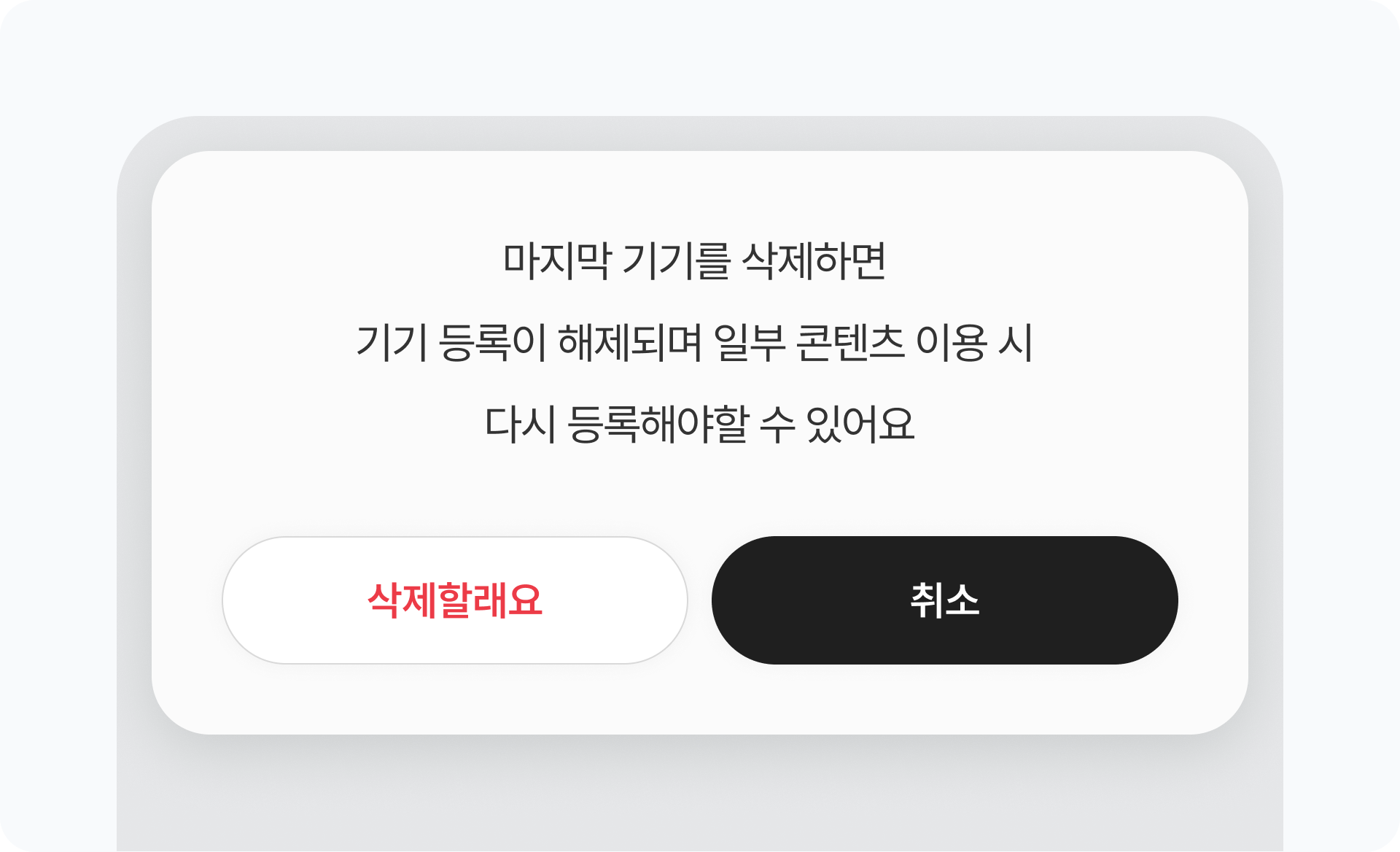
A registered device can be deleted even while it is currently connected. Deleting it keeps the current logged-in state intact, because device registration is only checked at login. Instead, from the next login the device becomes unregistered, so reconnecting shows the device registration pop-up.
Handling on Service Cancellation
When you cancel a service (game) that has device registration, the registered device information (device type, model name, OS information, etc.) is also deleted automatically. However, the backup email and mobile number saved to the STOVE account itself are retained, so they can continue to be reused as device registration verification methods in other games.
PC Platform
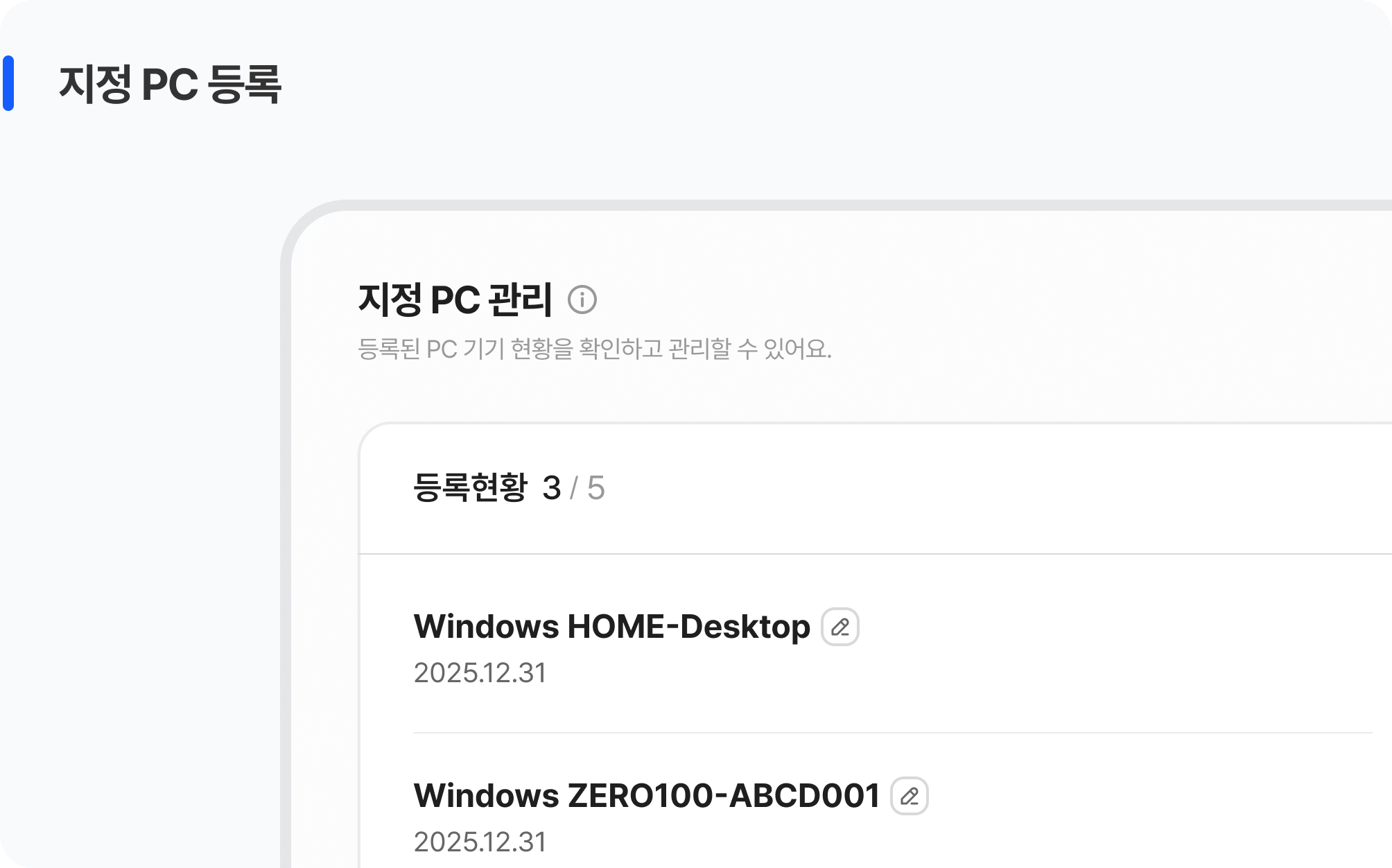
A Designated PC is a security feature that allows login only from a specific PC the user has registered in advance. It operates separately from mobile device registration, and applies only when an account whose sign-up country is South Korea logs in through the STOVE PC client (launcher). It does not apply to the mobile app, web, or global accounts, and setup and deletion can be done only on the STOVE PC web.
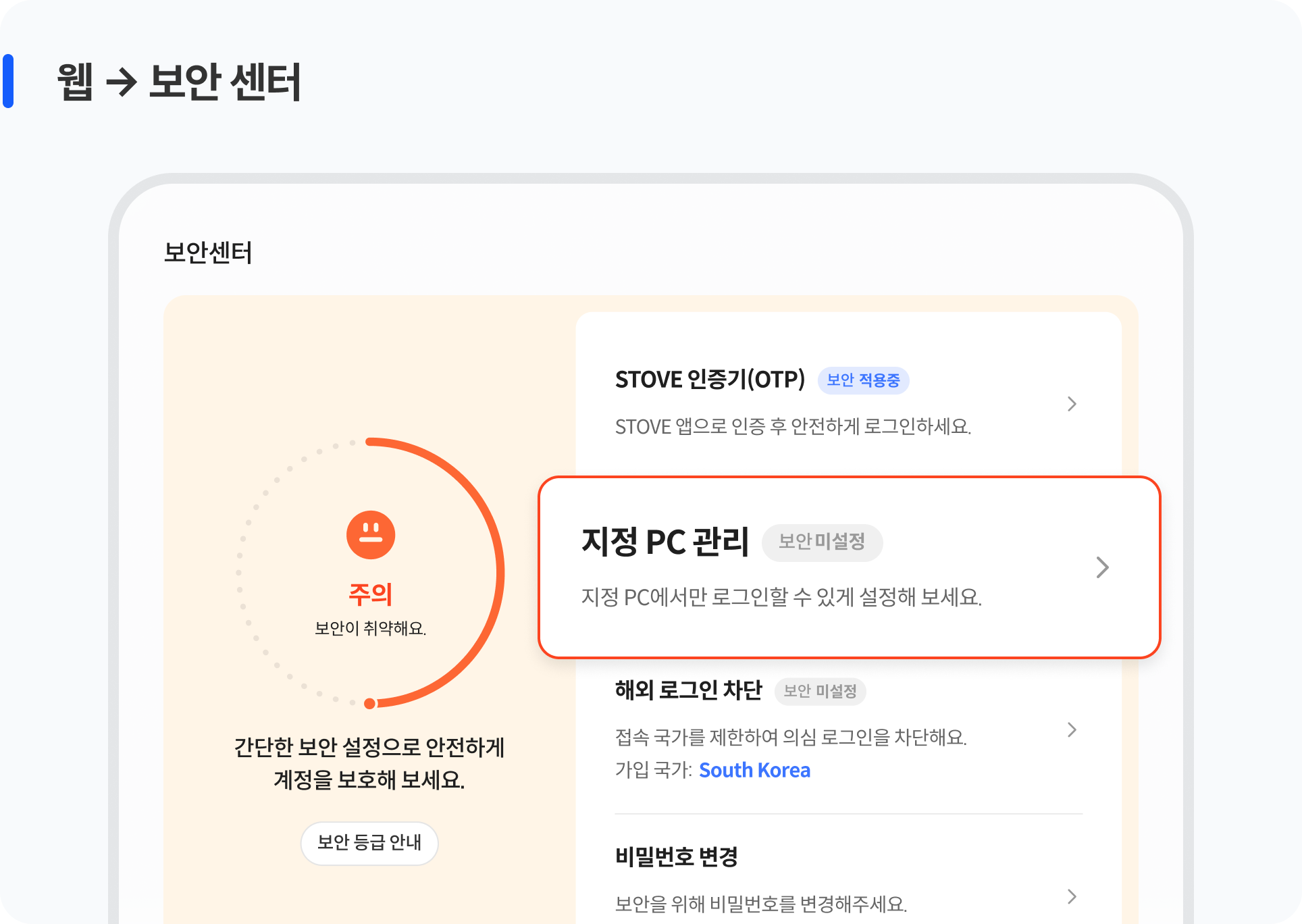
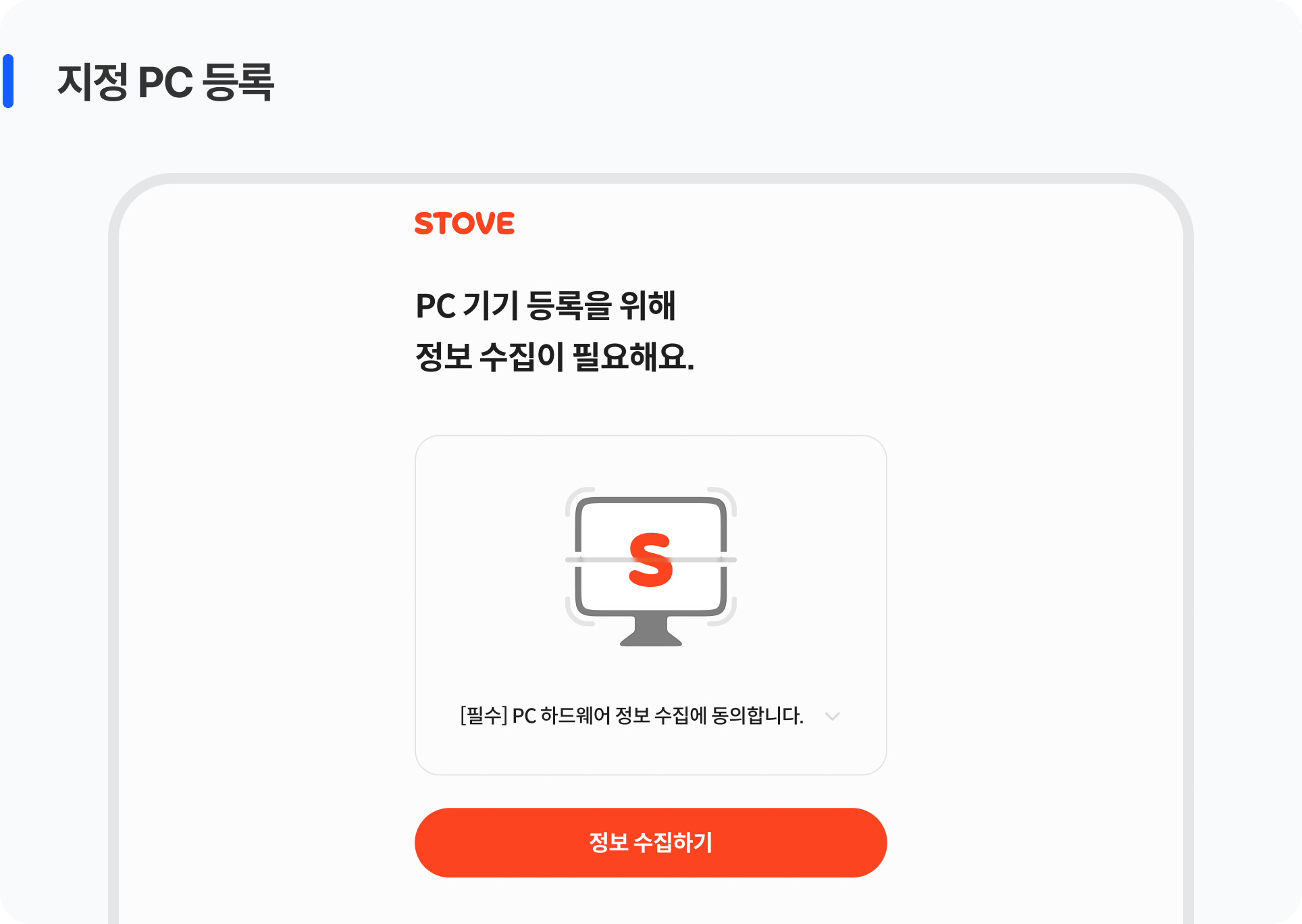
This is the process of registering a frequently used PC as a Designated PC. On the PC to be designated, log in to the STOVE web, then go to Security Center → Manage Designated PCs. When you consent to collecting that PC's information, the information is saved, and once identity verification is completed, Designated PC registration is complete and the list is updated.
When a user logs in through the PC client, the next screen differs depending on whether the currently connected PC is a registered PC.
| Connected PC status | Screen the user encounters |
|---|---|
| Registered PC | Log in directly (no additional steps) |
| Unregistered PC | After identity verification, log in once or newly register that PC Verification methods: mobile / OTP authenticator If verification succeeds, login is possible; if it fails, login is not possible |
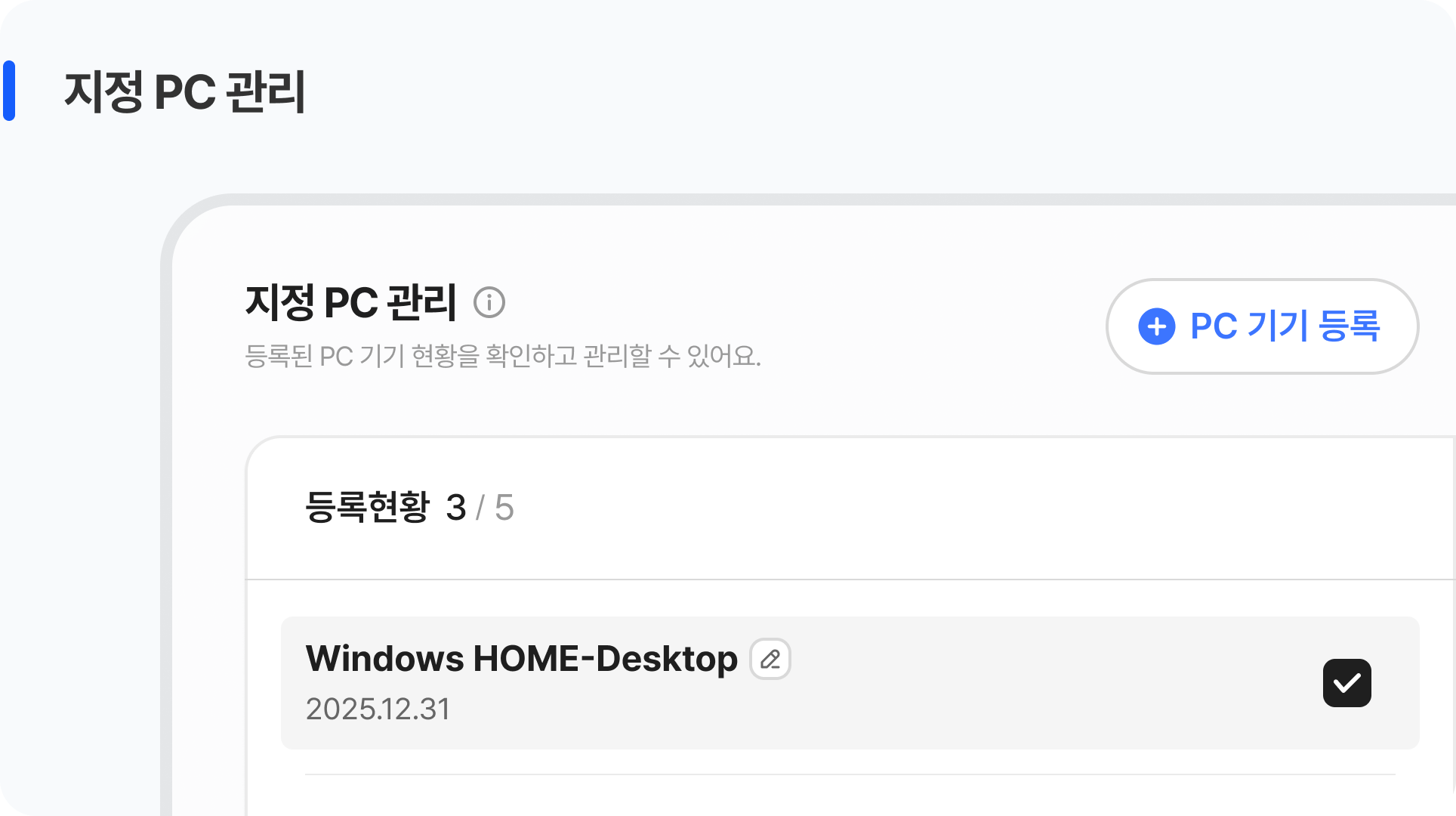
Registered PCs can be managed in the Security Center on the STOVE web. Enter via My Info → Security Settings (Security Center) → Device Management. Unlike mobile, deletion always requires identity verification. Because a Designated PC is an account-wide security setting, it requires stricter verification than mobile device management.
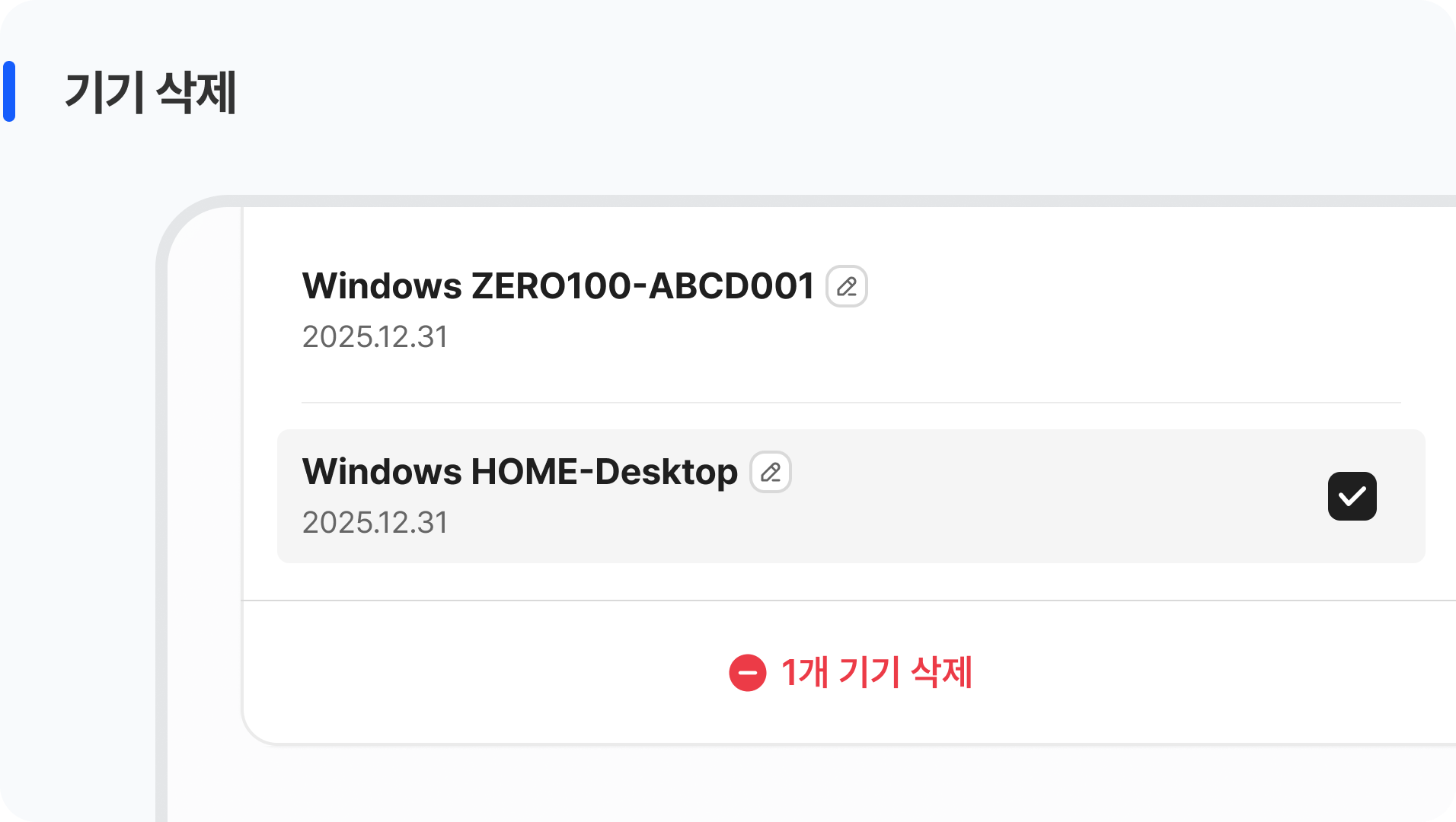
| Task | Details | Identity verification |
|---|---|---|
| Rename a device | Edit within a 2–20 character range | Not required |
| Delete a device | Deletion proceeds after verifying with the primary method Reconnecting from a deleted PC requires new registration |
Required |
| Delete the last device | Deletion proceeds after a warning message is shown (deletion effectively disables the Designated PC feature) |
Required |
Handling on Account Withdrawal
When STOVE account withdrawal is complete, the registered Designated PC information is also deleted automatically. Canceling an individual game does not affect the Designated PC setting. (This is because a Designated PC is an account-wide security setting.)
Integration Overview
Decisions to Make Before Starting
Before applying the mobile device registration service, please decide the items below internally within the game team first.
| Decision item | Options and details | After deciding |
|---|---|---|
| ① Choose the enforcement level | Required setting The game can only be used after device registration is complete Accessing from an unregistered device forces the registration pop-up Optional setting At first the game can be used without device registration Once registered even once, the pop-up appears on unregistered devices thereafter |
After deciding, request the setting change from the publishing technical contact |
| ② Set the device registration limit | Configurable from 1 to 10 devices per account per game (for mobile devices / default 5) Designated PCs are fixed at up to 5 per account (not changeable) |
If you want a number other than the default (5), request it from the publishing technical contact |
| ③ In-game benefits | Additional benefits such as in-game buffs and rewards can be granted based on device registration Handled by querying the registration status via a separate API |
The game team plans whether to apply benefits and the reward criteria, then passes them to the development team |
Roles and Responsibilities
These are the areas STOVE handles and the areas the game studio implements directly for device registration integration.
 What the STOVE platform provides
 What the game studio must implement
Environment Guide
Integration testing must always be done first in the Sandbox environment, and applied to the Live environment only after verification is complete.
| Category | Sandbox | Live (Production) |
|---|---|---|
| API Host | https://api.gate8.com | https://api.onstove.com |
| Web / Platform | https://www.gate8.com | https://www.onstove.com |
| Purpose | For development and QA testing only. No impact on real users | The actual production environment. Deployed after QA is complete |
Checklist
| Category | Role | Check item |
|---|---|---|
| Required | Game client | Verify the device registration setting method
|
| Required | Game client | Verify STOVE Mobile SDK integration
|
| Required | Game client | Handle showing the device registration pop-up
|
| Required | Game client | Handle incomplete device registration
|
| Required | Game client | Provide an entry path to device management
|
| Required | Game client | Verify the verification process works correctly
|