
- Last Updated

Checking Maintenance & Updates
 STOVE Sign-up
 STOVE Login
 Device
 Game Entry
 Payment
 Other Settings
 Cancel Game
 Withdrawal
Service Overview
When the game server is under maintenance or a new version (update) of the game is released, users can find out before entering the game. A notice pop-up appears the moment the game is launched — on mobile when the app is launched, and on PC when the game is launched from the STOVE PC client (launcher). Access is restricted during maintenance, and if an update is available, users are guided to download the latest version.
Keep this in mind
STOVE's notice pop-up is only for informing users of the situation. The actual access blocking, forced disconnection (Kick), and resource updates are implemented by the game studio directly.
Key Concepts
| Term | Description |
|---|---|
| Maintenance notice | A notice shown to users while the game server is under maintenance. Game access is restricted until maintenance ends |
| Required update | A notice that the game can only be entered after updating to the new version. Even connected users are disconnected to update |
| Optional update | A notice that lets the user choose whether to update. Selecting 'Later' allows continued use with the current version |
| Applying an update | The process of downloading the latest version per the notice. Installed from the market (Google Play / App Store) on mobile and from the STOVE PC client (launcher) on PC |
Usage Scenarios
Receiving Maintenance Notices
When maintenance begins, users see a maintenance notice pop-up when they launch the game, and access is restricted until maintenance ends. Users who were already connected are disconnected along with the notice, and after maintenance ends they can enter the game normally by relaunching.
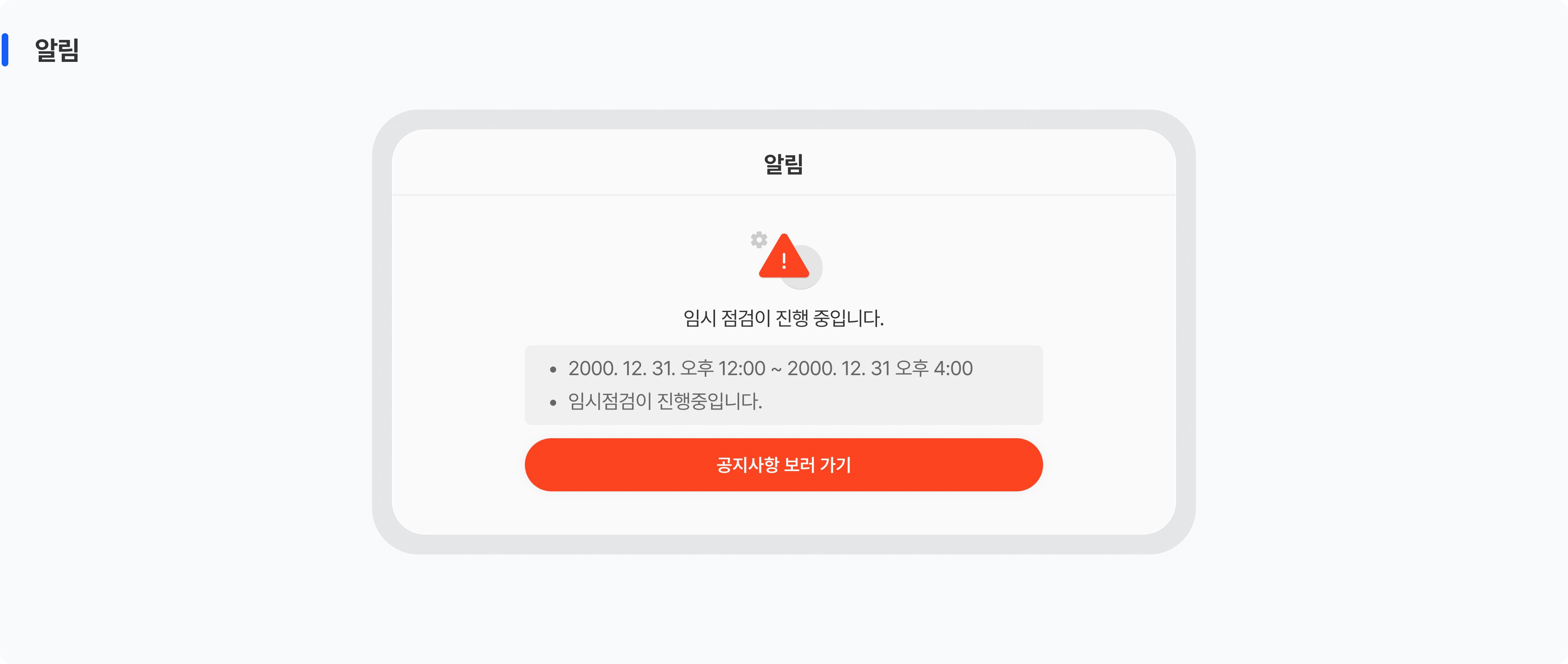
| User situation | Screen and behavior the user experiences |
|---|---|
| When maintenance starts while connected to the game | The connection ends along with a maintenance notice pop-up Selecting 'OK' closes the app or moves to a waiting screen |
| When launching the game during maintenance | A maintenance notice pop-up appears right after launch and game entry is restricted The registered maintenance time and notice message are shown in the pop-up |
| When relaunching after maintenance ends | Enters the game normally with no maintenance pop-up |
Keep this in mind
ㅁ The maintenance pop-up is shown based on the maintenance information the game studio registers in Partners and the game operations tool.
ㅁ Disconnecting connected users (Kick) is handled by the game studio on the game server.
ㅁ If maintenance starts while the app is in the background, the SDK pop-up may not appear, so a game-server Kick is needed.
ㅁ QA and operations staff registered in the whitelist (Partners and the game operations tool) can access the game even during maintenance.
On mobile, users' network conditions and app states (foreground/background) vary, so exceptions can occur during maintenance. Since the SDK alone cannot fully handle these, you must also implement a game-server-based safeguard.
| Exception | Recommended response |
|---|---|
| When the app was sent to the background before maintenance started | The SDK pop-up may be missed when switching to the foreground → Implement a game-server Kick or a logic that re-checks the maintenance state |
| Maintenance starts during a period with no server communication (in the lobby or during single-player) |
→ Implement a logic that checks the maintenance state when server communication resumes Return a maintenance response on the next server request to show the pop-up |
| When a user whose Kick was missed stays connected | → Implement external-access blocking on the game server Prevent client-side bypass access |
| Periods with a disconnected network, such as airplane mode or the subway | → Check the maintenance state on server communication after reconnecting Retry on initialize failure |
Keep this in mind
ㅁ The SDK maintenance pop-up is only informational, so access blocking, Kick, and input blocking are implemented by the game studio.
ㅁ The game client is vulnerable to tampering, so the actual blocking is handled on the game server.
ㅁ On PC, the launcher blocks entry directly, so there are fewer exceptions. However, Kick and maintenance notices for connected users are implemented on the game server the same way.
Applying a Required Update
When an update is set as required in Partners, users can only access the game after updating to the latest version. Launching the game automatically shows the update pop-up, and users who are already connected are forcibly disconnected (Kick).
| Step | Actor | Details |
|---|---|---|
| 1 | Partners (STOVE) | Register the app update version and set the update option to 'Required' |
| 2 | Game operations tool (game studio) | Kick connected users who have not updated (excluding users on the latest version) |
| 3 | SDK / launcher (STOVE) | The update pop-up appears automatically when the app is launched ㅁ Mobile: shown at SDK initialize ㅁ PC: shown by the STOVE client (launcher) |
| 4 | User | Selecting 'Update' installs the latest version ㅁ Mobile: goes to the market (Google Play / App Store) ㅁ PC: installed from the STOVE client (launcher) |
| 5 | Game client (game studio) | Relaunch the app → check for resource updates → connect to the game |
Keep this in mind
Kick targets only users who have not updated (excluding users on the latest version).
Selecting 'Update' goes to the market (mobile) or the STOVE client (PC). Relaunching and resource updates must be implemented by the game studio.
Applying an Optional Update
If the update is not set as required, users can choose whether to update. Selecting 'Later' lets them enter the game with the current version, and users who are already connected are not forcibly disconnected.
| Step | Actor | Details |
|---|---|---|
| 1 | Partners (STOVE) | Register the app update version and set the update option to 'Optional' |
| 2 | Game operations tool (game studio) | No Kick for connected users (the update pop-up appears the next time the app is launched) |
| 3 | SDK / launcher (STOVE) | An 'Update' + 'Later' pop-up appears automatically when the app is launched ㅁ Mobile: shown at SDK initialize ㅁ PC: shown by the STOVE client (launcher) |
| 4 | User | ㅁ If 'Update' is selected: install the latest version (market on mobile, launcher on PC) ㅁ If 'Later' is selected: continue entering with the current version |
| 5 | Game client and server (game studio) | ㅁ If updating: relaunch the app → check for resource updates → connect to the game ㅁ If not updating: the game server maintains compatibility with the old client |
Keep this in mind
Users who select 'Later' for an optional update connect with the old version, so the game server must maintain compatibility with the old client.
Because the scope of Kick targets differs depending on whether the update is required or optional, the game server must accurately check the update option and handle it accordingly.
Integration Overview
Overall Implementation Flow
| Step | Owner | Activity | Details |
|---|---|---|---|
| Step 1 | Game studio planning and operations team | Decide the policy | Decide the scope of Kick targets, the whitelist management targets, and the mobile exception-handling scope, then pass them to the development team |
| Step 2 | Game studio operations team and publishing technical team | Configure Partners | Register the maintenance time and notice message (mobile and PC) Register the app version and required/optional option Register whitelist device IDs |
| Step 3 | Game studio development team | Implement the game server | Game-server maintenance settings and access blocking User Kick (based on server communication) Game whitelist management App version and update option management |
| Step 4 | Game studio development team | Implement the client | Kick pop-up and app exit/relaunch handling (mobile and PC) Re-check the maintenance state when switching to the foreground (mobile) Retry on initialize failure (mobile) |
| Step 5 | Game studio QA team | Verify and deploy | Simulate per platform with the checklist, then verify and deploy in the order Sandbox → Live |
Decisions to Make Before Starting
Before integrating the maintenance and update feature, please decide the items below internally within the game team first.
| Decision item | Options and details | After deciding |
|---|---|---|
| ① Scope of Kick targets | Handle Kick targets differently by situation (maintenance: all / required update: users who have not updated) | Pass the Kick-target filtering logic to the development team |
| ② Whitelist management targets | Platform: register device IDs in Partners Game: register accounts in the game operations tool Full access during maintenance requires registration in both places |
Collect and register the device IDs of QA and operations staff |
| ③ Mobile exception-handling scope | Recommended implementation Re-check the maintenance state when switching to the foreground or when server communication resumes Retry on initialize failure |
Finalize the implementation scope and pass it to the development team External-access blocking on the game server is mandatory |
Roles and Responsibilities
These are the areas STOVE handles and the areas the game studio implements directly for maintenance and update integration.
 What the STOVE platform provides
 What the game studio must implement
Checklist
| Category | Role | Check item |
|---|---|---|
| Required | Game client | Verify Partners maintenance settings and the SDK maintenance pop-up display (mobile)
|
| Required | Game client | Verify PC game maintenance settings and launcher display (PC)
|
| Required | Game client | Verify app update Partners settings and pop-up display
|
| Recommended | Game client | Verify mobile exception safeguards are implemented (mobile only)
|