
- Last Updated

Need a more detailed development guide?
·
·
Signing In
 STOVE Sign-up
 STOVE Login
 Device
 Game Entry
 Payment
 Other Settings
 Cancel Game
 Withdrawal
Service Introduction
This is the whole flow from a user creating a STOVE account to accessing a game. To use STOVE services, a user can sign up as a regular member with an email or SNS account, or start as a guest in a mobile game without formal sign-up.
The STOVE platform provides both the login/sign-up screens (Auth UI) and per-region regulation handling (identity verification, child protection). So the game studio doesn't need to build separate login/sign-up screens and only needs to prepare the required per-scenario integration logic.
Member Structure
Member types
STOVE members are divided into regular members and guests depending on whether they hold a STOVE account (MemberNo). The MemberNo is the account-unique identification number issued at STOVE sign-up and is the basis for distinguishing users. Here, sign-up means creating a STOVE account. Regular members are divided into email accounts and SNS simple accounts by sign-up method, and guests start per game without an account and can convert to a regular member later.
At sign-up, email verification confirms ownership.
Distinguishing sign-up and cancellation concepts
In STOVE integration, 'sign-up' and 'cancellation' are divided into the STOVE-account unit and the game unit. In particular, a user first entering a game and agreeing to the game terms is 'game sign-up', at which point a per-game identifier (GUID) is issued. STOVE sign-up (account creation) and game sign-up (agreeing to game terms) are separate, so clearly distinguish the four during integration.
| Category | Unit | Meaning | Identifier |
|---|---|---|---|
| STOVE sign-up | STOVE account | Create a STOVE account via email/SNS | MemberNo issued |
| Game sign-up | Game | Agreeing to the game terms on game entry | GUID issued |
| Game cancellation | Game | Cancel game use; delete game data/character (the STOVE account is kept) | GUID deleted |
| STOVE withdrawal | STOVE account | Delete the STOVE account itself (cancel all game use) | MemberNo deleted |
Be sure to know this
ㆍ Game sign-up (agreeing to game terms) and game cancellation are per-game actions, so one user can sign up/cancel separately per game.
ㆍ Game cancellation clears only that game and keeps the STOVE account. STOVE withdrawal deletes the entire account and cancels all games signed up for.
ㆍ Game sign-up/login are covered in this document; game cancellation/STOVE withdrawal can be checked in the Game Cancellation document.
Sign-up paths and methods
An account signed up with an email/SNS account to use STOVE services is called a 'regular member'. Regular-member sign-up can be done anywhere on the STOVE platform (web, STOVE app, PC client) and in mobile games, while guest entry is possible only in mobile games the game studio allows. The issued identifier and usage scope differ by member type.
| Category | Regular member | Guest |
|---|---|---|
| Sign-up method | Email sign-up / SNS (social) sign-up | Guest entry (start without formal sign-up) |
| Sign-up location | Web, STOVE app, PC client, mobile game | Mobile game (when the game studio allows guests) |
| Authentication | Account-ownership confirmation at sign-up ㆍ Email verification (email sign-up) or SNS verification (social sign-up) ㆍ Identity verification: real-name confirmation for South Korea PC sign-up |
None |
| Issued identifier | MemberNo (platform ID number) + GUID (per-game identifier) | GUID (per-game identifier, tied to the device) / no MemberNo |
Regular members can use all services—login, community, payment, security services, Customer Center inquiries, game cancellation/STOVE withdrawal, etc.
Guests can play mobile games and use in-game payment, the in-mobile-game community, game cancellation, regular-member conversion, and Customer Center inquiries, but can't use PC/web/app login, web/app community activity, STOVE payment, or STOVE withdrawal.
A GUID is also issued when a regular member signs up for a game, and since it's issued per game, one user can hold multiple GUIDs.
Be sure to know this
ㆍ SNS sign-up supports major social-platform accounts such as Google, Facebook, Naver, and Apple (the supported list may change).
ㆍ For global (non-KR) sign-up, date of birth and country info are collected for age confirmation and minor protection.
ㆍ Whether guests are allowed is decided by the game studio.
Sign-up Policy
Let's look at the sign-up procedure and the age criteria applied at sign-up. Sign-up is divided into regular-member sign-up and guest entry; a regular member holds both the platform ID number (MemberNo) and a per-game identifier (GUID), while a guest can hold only a per-game identifier (GUID).
Regular-member sign-up
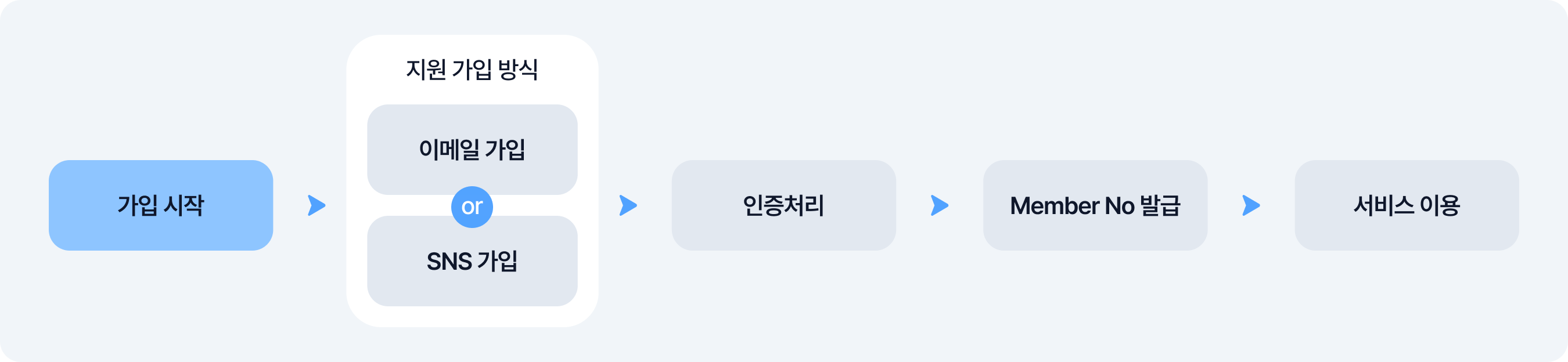
When sign-up completes, a unique identifier (MemberNo) that identifies the user is issued and becomes the basis for using STOVE services such as games, payment, device registration, and coupons.
| Item | Details |
|---|---|
| Provided environments | Mobile app (iOS/Android), PC client, web browser, mobile game (SDK) |
| Country distinction | Distinguishes South Korea (KR) and global (non-KR); authentication method and sign-up procedure differ |
| Sign-up-restricted countries | China, Vietnam, India, North Korea (sign-up not possible due to their personal-information law regulations) |
Guest-member entry
On first entry as a guest, a per-game unique identifier (GUID) is issued, and you can start the game without a separate regular-member sign-up procedure.

Terms agreement
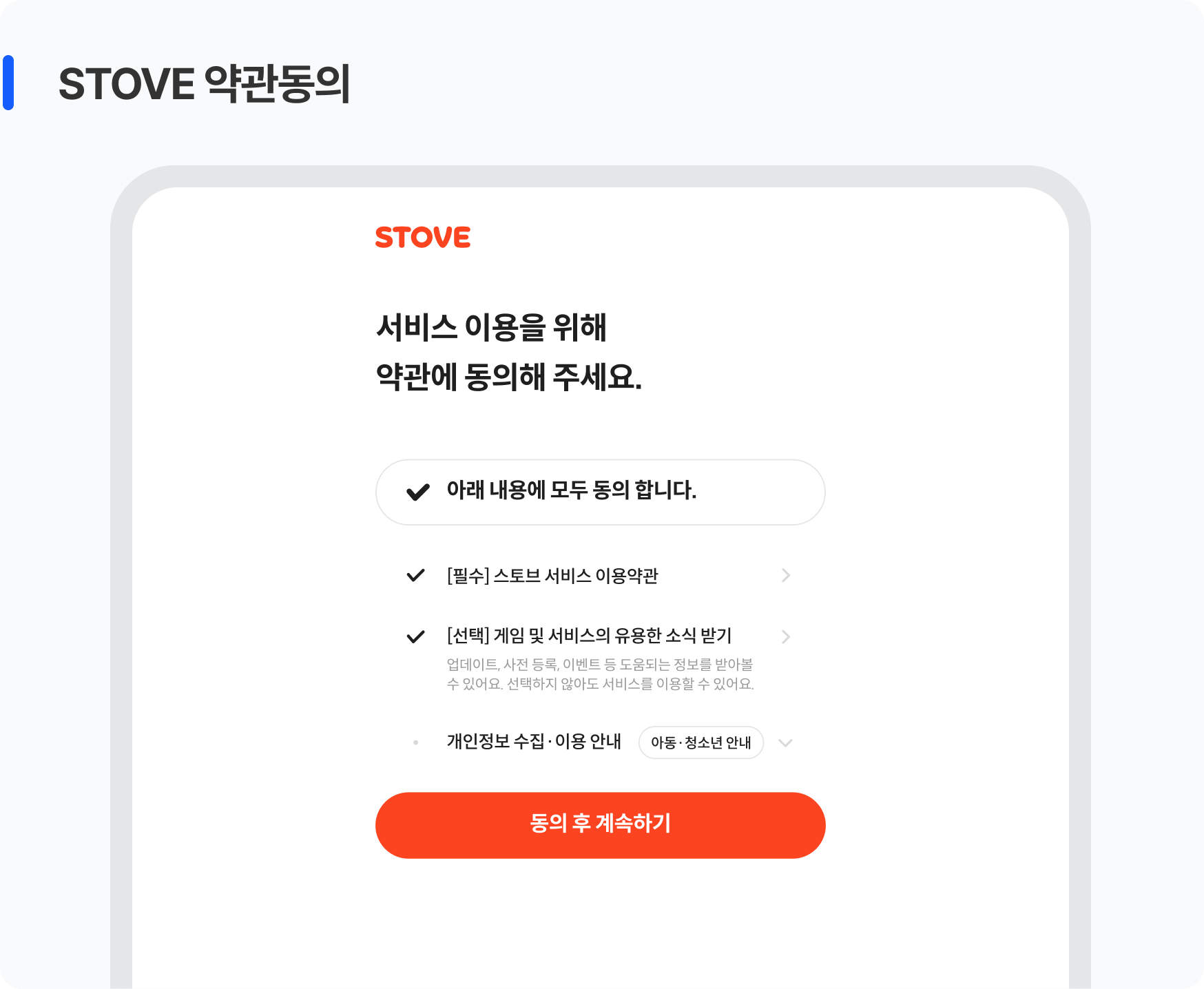
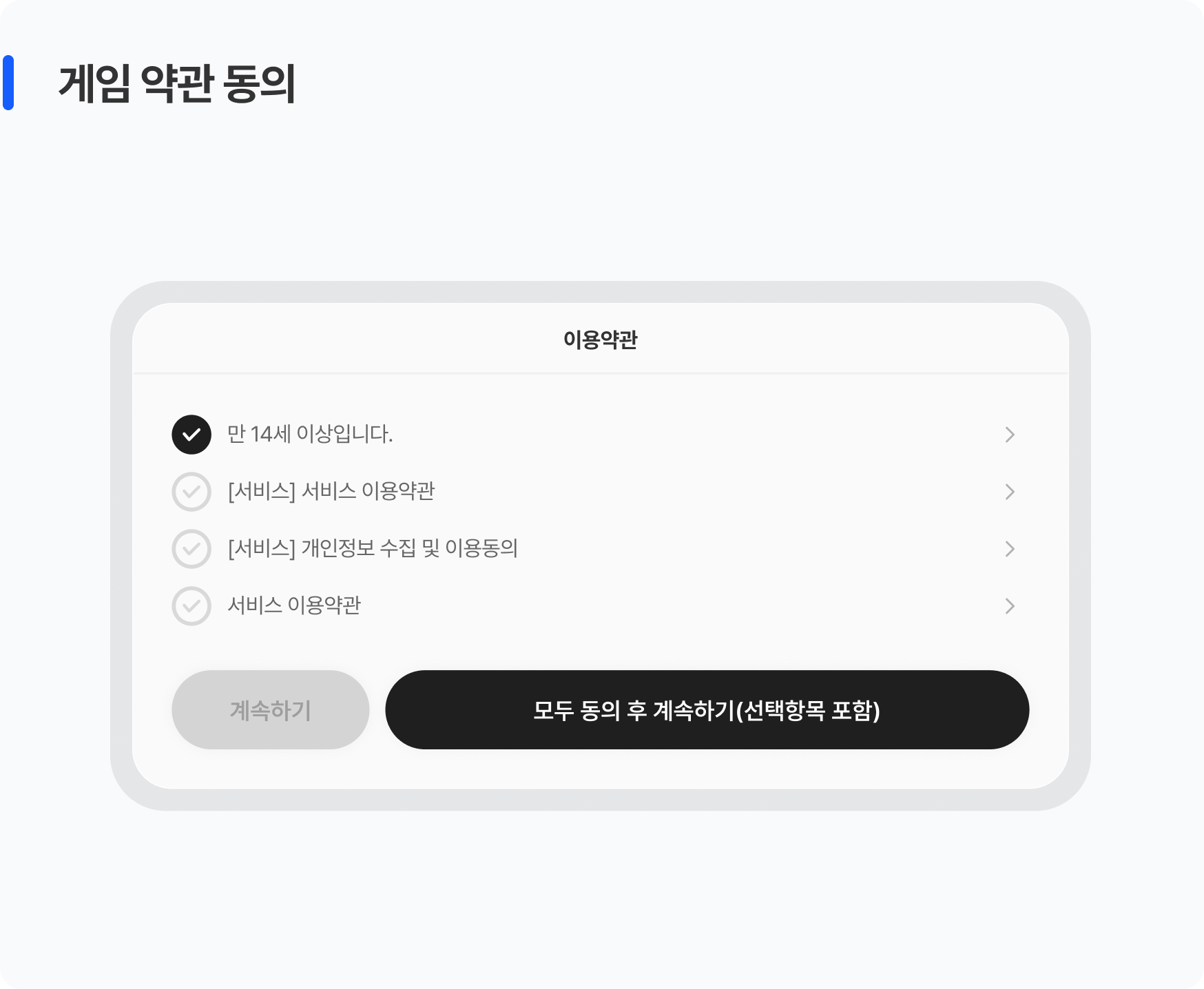
A terms-agreement procedure is provided at STOVE-service/game sign-up. The terms agreed to here are divided into the STOVE service terms and the game terms. The STOVE service terms cover use of the entire STOVE platform, and the game terms cover use of an individual game.
| Category | STOVE service terms | Game terms |
|---|---|---|
| Scope | Use of the entire STOVE platform | Use of an individual game |
| Agreement time | At STOVE sign-up | At game sign-up (game entry) |
| Withdrawal time | At STOVE withdrawal | At game cancellation |
Be sure to know this
ㆍ The service terms, paid-service terms, and privacy policy differ in content between domestic and overseas versions
ㆍ The domestic version is provided in Korean only, while the 4 other languages are provided with both the terms title and body translated
ㆍ Since STOVE doesn't service China, a Simplified-Chinese version of the privacy policy isn't provided
Sign-up age and policy
The age criteria applied at sign-up differ by country/region. In South Korea, a guardian-consent/verification procedure is added for minor users.
| Region | Minimum sign-up age | Notes |
|---|---|---|
| South Korea (KR) | Age 5 or older | Minors need guardian consent/verification (see below) |
| GDPR region (27 EU countries) and the UK | Age 16 or older | Sign-up not allowed under 16; no guardian consent needed from youth up |
| EEA (Iceland, Switzerland, Norway, Liechtenstein) | Age 13 or older | Sign-up not allowed under 13; no guardian consent needed from 13 up |
| United States (COPPA) | Age 13 or older | Sign-up not allowed under 13; no guardian consent needed from 13 up |
| Other global | Age 13 or older | Varies by country (Australia is age 15 or older; Asia varies by country). Countries allowing child sign-up: Philippines, Hong Kong, Malaysia, Indonesia, Thailand, Taiwan, Macau |
Be sure to know this (South Korea minors)
ㆍ Ages 5–13 (children): PC allows sign-up across the board, mobile is configurable per game, and guardian consent/verification is required
ㆍ Age 14 up to under year-age 19 (youth): sign-up is possible on both PC and mobile, and guardian consent/verification is required
ㆍ Guardian verification is done via guardian mobile-phone real-name verification (identity verification, including Toss verification) (global uses guardian email verification)
ㆍ One guardian (same CI) can consent for up to 5 children, and a difference of 20 or more years from the child is required
ㆍ Year-age 19 is based on January 1 of that year, and someone who is 18 is also treated as an adult
Core Concepts
| Category | Term | Details |
|---|---|---|
| Identifier | MemberNo | The platform-unique ID number issued to a regular member The baseline value for user identification; unchanged while the account is kept |
| GUID | The per-game unique identifier issued per game (held by both regular members and guests) For guests it's tied to the device, so it's inaccessible on app deletion/device change; on regular-member conversion it's linked to the MemberNo |
|
| Authentication | Email verification | Confirms ownership of the sign-up email address A 4-digit verification code is sent, valid for 10 minutes |
| Identity verification | Real-name verification for South Korean users (mobile-phone verification, including PASS and Toss) Required for PC/web sign-up, absent for mobile-game sign-up. For multi-platform games, applied once on first PC launch |
|
| Guardian verification | Confirms legal-guardian consent when a minor user signs up ㆍ KR: guardian mobile-phone real-name verification (identity verification) ㆍ Global: guardian email verification, common to PC and mobile |
|
| SNS (3rd party) sign-up | Creates a STOVE account via external-account authentication (major social platforms) No separate password needed. For multi-platform games, all STOVE login methods apply (individual selection not possible) |
|
| Simple login | One-time login number | An 8-digit number for logging in without a password (PC web/PC client) Issued based on the STOVE app login account, valid for 60 seconds |
| QR code login | Log in by scanning the QR code with the STOVE app (PC web/client) No password or extra authentication needed; for regular members who completed OTP-authenticator setup only |
Note ㆍ Token policy
ㆍ User Access Token (AT): a user session-authentication token issued after login completes. Valid for 6 hours. Auto-reissued via the Refresh Token on expiry
ㆍ Refresh Token (RT): a token for reissuing the User Access Token. Valid for 30 days. On reissue, the RT is also renewed, enabling semi-permanent login; the old token is discarded on reissue
Usage Scenarios
Regular-Member Sign-up
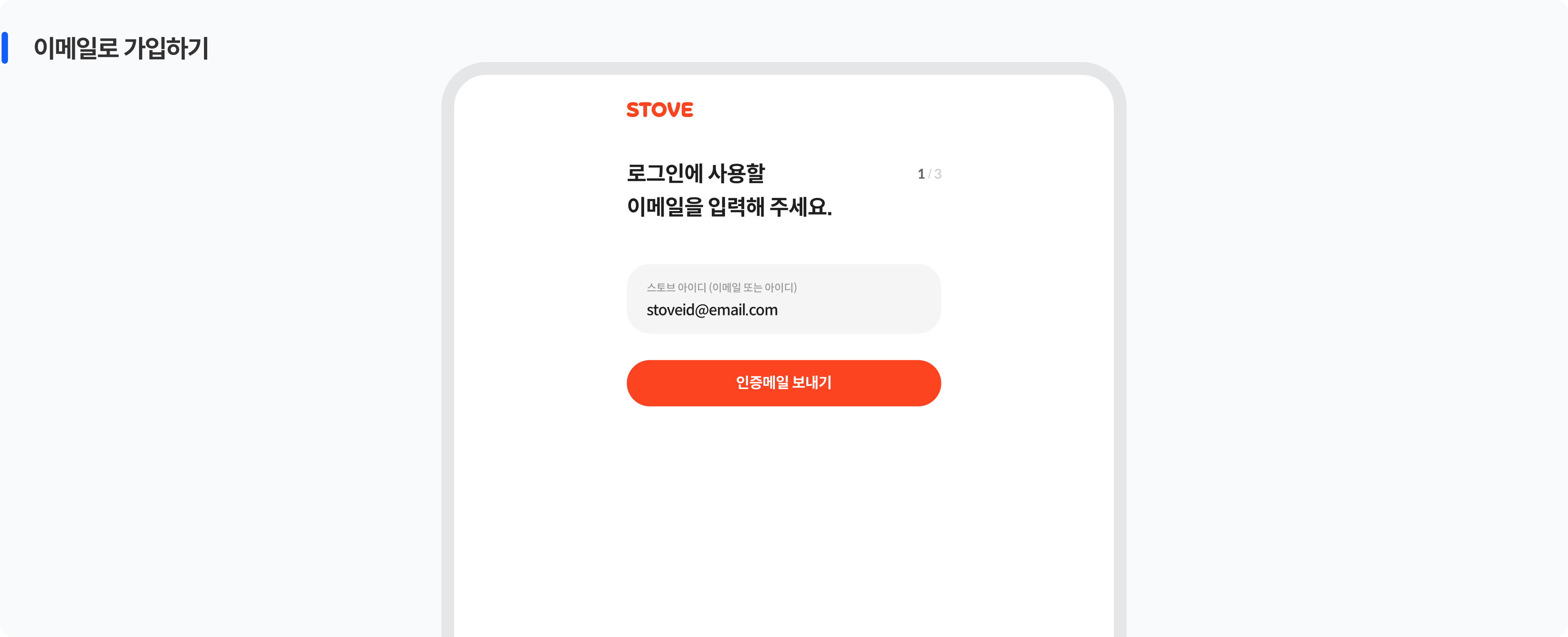
Regular-member sign-up can be done with an email or SNS account. Selecting a sign-up method on the login screen starts the sign-up flow. Logging in with an already-signed-up SNS account is automatically handled as a login without separate sign-up. The sign-up flow differs by access region (South Korea/global) and sign-up method.
| Step | Screen the user sees | Details |
|---|---|---|
| 1 | Terms agreement | STOVE service terms, and consent to personal-info collection and use (required) Receiving useful game/service news (optional) Minors (under 19, at PC sign-up): game-use guardian consent and guardian personal-info collection/use consent items are added |
| 2 | (step 1/2) Enter email address | After entering the email address, validity/duplication checks run automatically If the email is already registered, a duplication notice is shown |
| 3 | (step 2/2) Enter password | Enter at least 8 characters including letters and numbers Validity is checked as soon as text is entered Match with the password-reentry field is checked in real time |
| 4 | Sign-up complete | MemberNo issued and auto-switch to logged-in state For web sign-up, a sign-up-completion notice email is sent (not sent for mobile SDK sign-up) STOVE nickname auto-issued |
| 5 | Email verification At first login after sign-up completes |
For mobile games, email verification runs at first login after sign-up completes A 4-digit verification code is sent to the entered email (valid for 10 minutes), resend up to 5 times per hour; on 5 wrong entries the verification session expires (no resend for 10 minutes) (PC) For non-KR access, a captcha pop-up is shown before the verification code is sent |
| + | Identity verification Added at PC sign-up (South Korea) |
A step done only at PC/South Korea sign-up. Absent from the mobile-game sign-up flow Mobile-phone real-name verification is done (PASS, Toss verification supported) Sign-up not possible if 5 accounts are held with the same CI Under 19: after identity verification completes, guardian consent and guardian identity verification are additionally done |
Guest Start and Regular-Member Conversion
Guests can start the game without sign-up and later convert to a regular member to protect their game data. Let's look at the guest-start and regular-member-conversion flows in order.
Guest start
Connect right away without sign-up using the 'Start as Guest' button at the bottom of the login screen. Whether guests are allowed is set by the game studio; if not allowed, the button isn't shown.

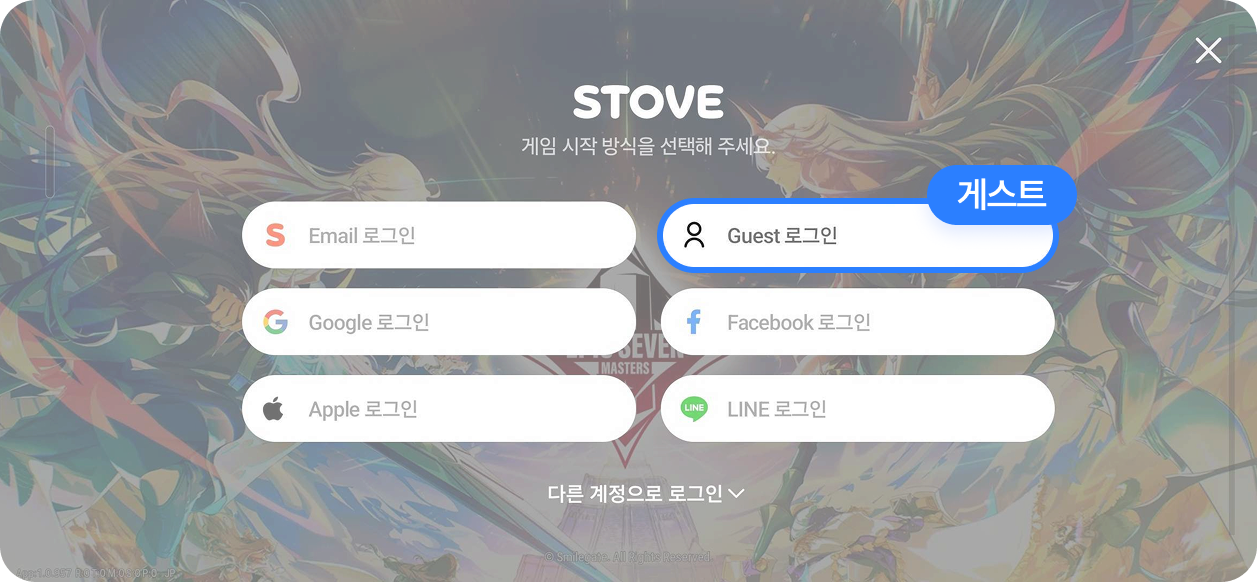
| Item | Details |
|---|---|
| Identifier issuance | A GUID (game-unique identifier) is issued per device / no MemberNo |
| Restricted features | Payment, device registration, coupon use, and some community activity aren't possible Only that game's related services on the connected mobile device are usable |
| Data retention | Game data is tied to the device — the previous guest account is inaccessible on app deletion, device change, or reset If linked to a regular-member account, it's usable on other devices too |
| Account-linking rules | An N:1 mapping structure between per-game guests and a regular-member account After linking, re-linking to another regular-member account isn't possible A linked regular-member account can't be linked to another guest of the same game |
Be sure to know this
A guest account is tied to the device, so deleting the app or changing devices makes the existing game data inaccessible.
To protect the user's game data, we recommend showing an in-game regular-member-conversion notice at key moments (payment attempt, reaching a certain level, etc.).
Regular-member conversion
Enter the regular-member-conversion screen via an in-game banner, button, or menu. The entry point is set directly by the game studio (e.g., payment attempt, device-registration attempt, reaching a certain level). When you create a regular-member account via email sign-up or SNS linking, the existing guest game data is linked automatically.
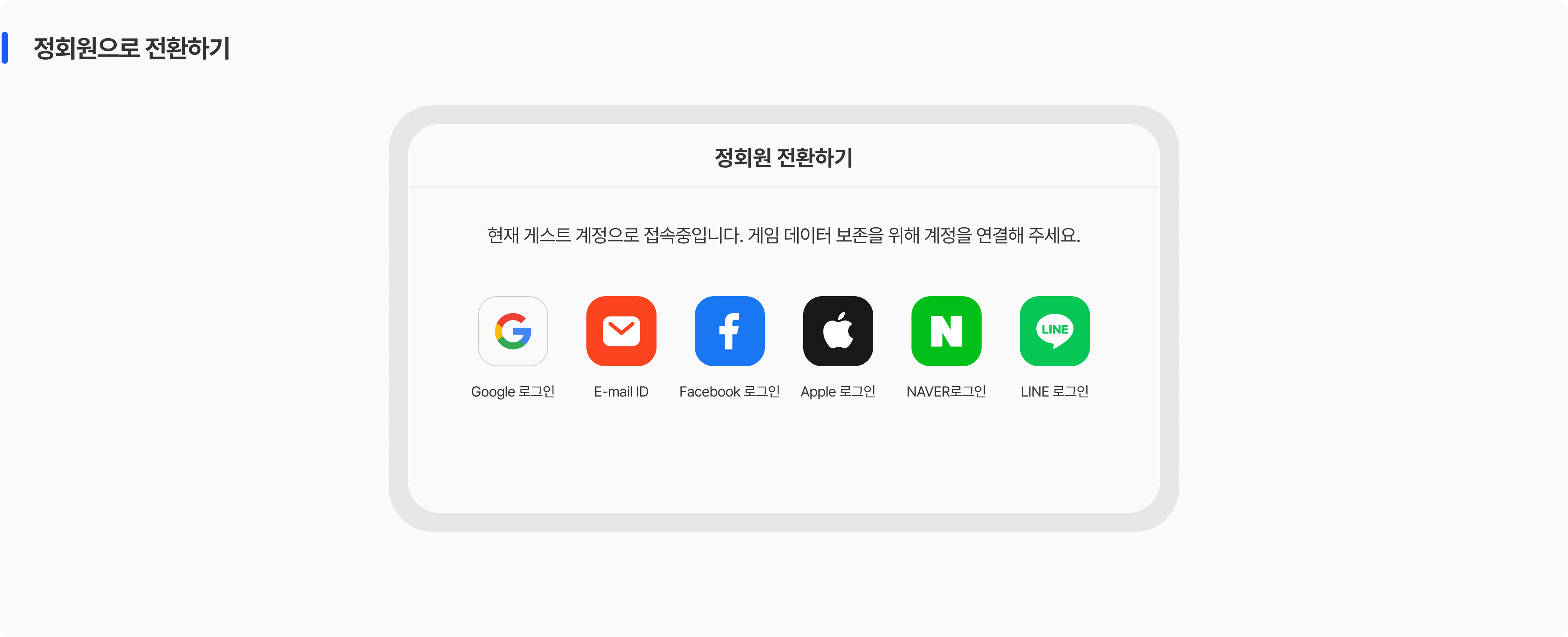
| Step | Item | Details |
|---|---|---|
| 1 | Choose the conversion method | Choose between email sign-up or SNS-account linking |
| 2 | Account creation or linking | Email sign-up: agree to terms → enter email address → set password → email verification at first login after sign-up SNS linking: SNS verification → agree to STOVE terms (PC/South Korea) an identity-verification step is added If you already hold a regular-member account: log in with that account to link |
| 3 | Game-data linking | On conversion completion, the game data linked to the guest GUID is handed over to the regular-member account The existing guest account is invalidated, and all regular-member features (payment, device registration, coupons, etc.) become usable |
Signing In
Running the app or game shows the login screen. Login methods used within the last 90 days appear first, then the per-country default order applies.
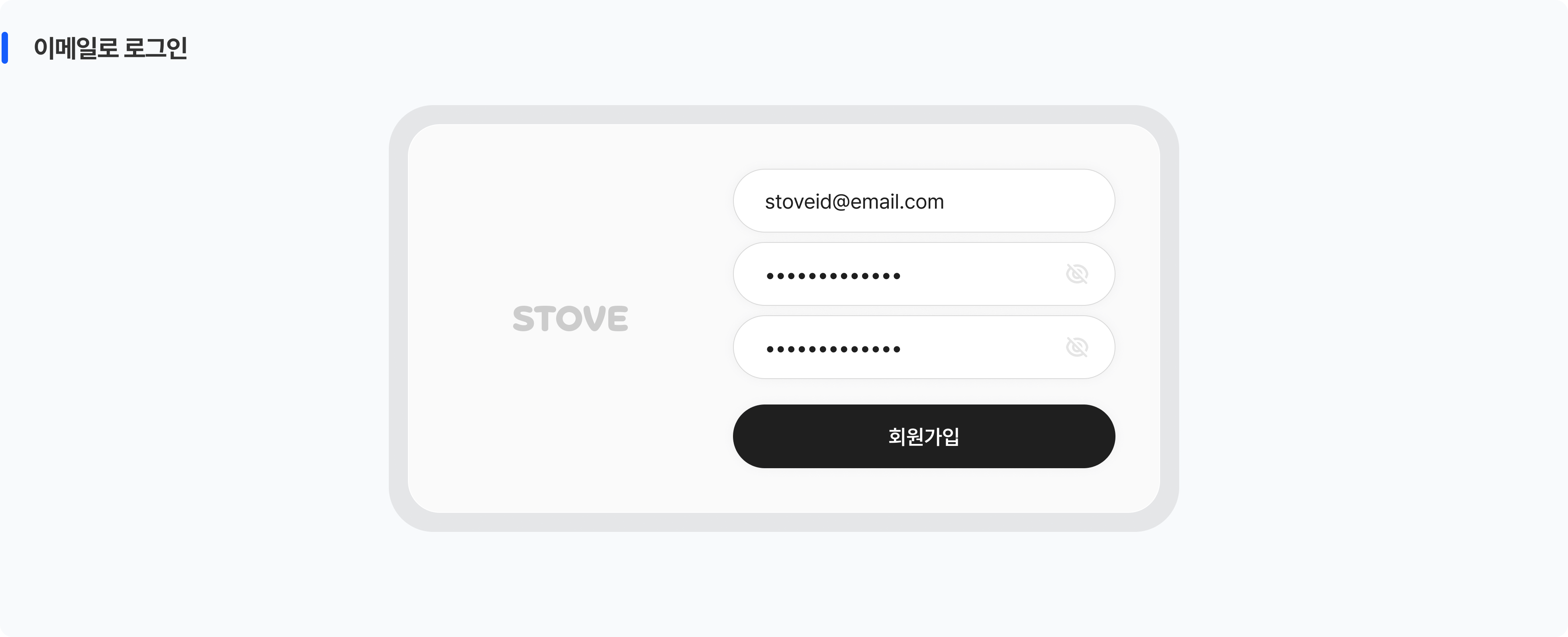
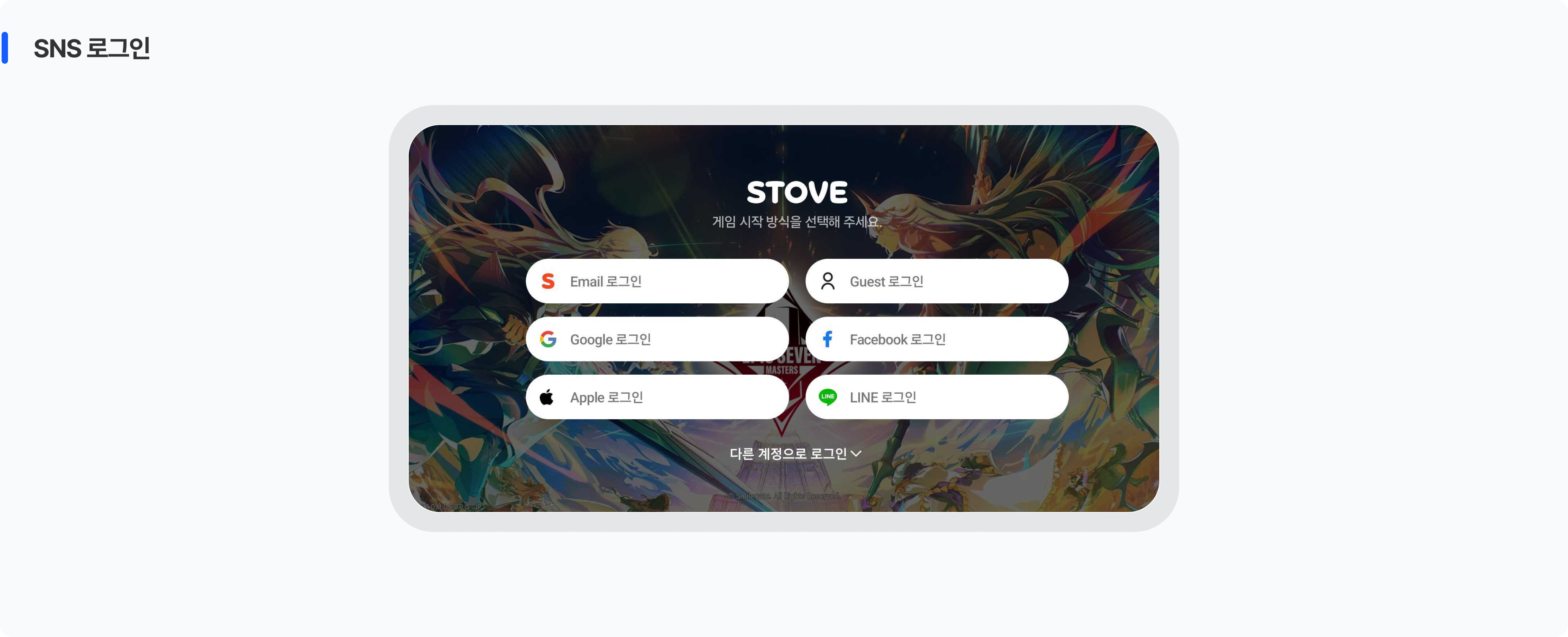
| Screen the user sees | Details |
|---|---|
| Email login | Enter the email address and password (case-insensitive, spaces auto-ignored) After mobile-SDK sign-up, email verification runs once at first web/app login |
| SNS login | Select an SNS button → SNS-platform authentication → login complete Logging in with an SNS account other than the one already signed up creates a separate new account |
| Keep logged in | Mobile games keep you logged in automatically with no option to choose (PC/web) if you choose to stay logged in, the login state is kept even after closing and re-entering the browser AT valid for 6 hours, RT valid for 30 days. Continuous use enables semi-permanent login |
| Duplicate-login handling | In multi-platform games, logging in on a new device automatically releases the existing device's login connection Only the last logged-in device stays active |
| Wrong-entry limit | On 15 wrong password entries, the account switches to protected state, released after identity confirmation (email-verified accounts: email verification / identity-verified accounts: identity verification); unverified accounts have login restricted for 5 hours Mobile games don't support instant login via a one-time login number (PC) on 6–9 wrong entries, instant login via a one-time login number is possible |
Be sure to know this
The one-time login number is issued based on the account currently logged in to the STOVE app. Please check the app's login state first.
(PC only) If temporarily locked from 6–9 wrong password entries, you can log in instantly with a one-time login number.
Mobile games don't support the instant-login feature via a one-time login number.
Integration Overview
Overall Application Flow
From the planning team's decision on the application method to QA verification and deployment, integration proceeds in the following order.
| Step | Activity | Details |
|---|---|---|
| 1 | Decide the application method Game studio planning team |
Decide the sign-up method (email/SNS), whether to allow guests, the supported SNS list, and the timing for prompting regular-member conversion |
| 2 | Request settings Game studio planning team + publishing contact |
Ask the publishing technical contact to apply SDK settings such as guest allowance and the SNS list |
| 3 | Game-client integration Game studio dev team |
Apply the STOVE Mobile SDK for mobile games and the PC SDK for PC games (PC games log in/run via the STOVE PC client) Login/sign-up screens are provided by the SDK Auth UI, so only display settings; implement the guest/regular-member-conversion UI |
| 4 | Server integration Game studio dev team |
Real-time User Access Token validation (no caching), multi-platform duplicate-login exception handling (token expiry/renewal is handled automatically by STOVE) |
| 5 | Verification and deployment Game studio QA team |
After required/recommended checks via the checklist, verify/deploy in the order Sandbox → Live |
Decisions Before Starting
These are items the game-planning department must decide directly before the game service starts. Deliver the decisions to the publishing technical contact to apply them to the SDK settings.
Whether to allow guests and the regular-member-conversion timing
Whether to allow guests is decided by the game studio; if allowed, a 'Guest Login' button appears on the login screen. To protect guest users' game data, we recommend showing a regular-member-conversion notice at the moments below.
| Item | Details |
|---|---|
| Recommended conversion-prompt timing | On an in-game payment attempt / on a security device-registration attempt / on reaching a certain level |
| Recommended notice text | "Link your account now to safely protect your precious game data. Once linked, you can use payment and event services." |
Be sure to know this
ㆍ When linking to an existing STOVE account, only an account with no history of that game is allowed.
ㆍ After conversion completes, you can't re-link to another STOVE account.
Mobile-game SNS display methods and order
For mobile games, the game studio can set the SNS methods and order shown on the login screen. PC games are applied across the board by the platform, so no separate setting is needed. It follows the per-country default order, but a method the user used within the last 90 days appears at the very top first.
| Target country | Default display order |
|---|---|
| South Korea | Email GoogleFacebookAppleNaverSteamLine GoogleFacebookAppleNaverSteamLine |
| United States, Canada, UK, Germany, France, Russia, Brazil, Australia, etc. | EmailGoogleFacebookAppleSteamLineNaver |
| Japan, Taiwan, Thailand, Macau | EmailGoogleFacebookLineAppleSteamNaver |
| Other global | EmailGoogleFacebookAppleSteamLineNaver |
Be sure to know this
Multi-platform games apply all SNS provided on the STOVE web across the board; individual selection isn't possible.
Role Division
Distinguishing what STOVE handles and what the game studio implements in login/sign-up makes it easier to communicate with the dev team. The login screen and sign-up flow are included in the SDK Auth UI, so the game studio doesn't need to implement a separate login screen.
 What the STOVE platform provides
 What the game studio must implement
Required-implementation details
① Handling multi-platform duplicate login
For security, STOVE activates only the most recently logged-in device and automatically expires the existing device's session. When the existing device's client receives a token-expired error, you must implement exception handling that safely disconnects the game, moves to the title screen, and shows a notice pop-up. (recommended text: "A login was detected on another device, so the game will close.")
② Real-time User Access Token validation
To prevent abuse, don't store (cache) the session token on the game server. You must call the STOVE authentication server on every user API request to check in real time whether the token is valid.
③ Token-validity reference
AT/RT expiry handling is done automatically by STOVE, so the game studio doesn't need to implement it separately. The Access Token (AT) has a 6-hour validity and STOVE auto-reissues it on expiry, and the Refresh Token (RT) has a 30-day validity and auto-renews with continued access, keeping you logged in.
Environment Distinction
Always run integration tests in the Sandbox environment first, then apply to the Live environment after verification completes.
| Category | Sandbox | Live (Operation) |
|---|---|---|
| API Host | https://api.gate8.com | https://api.onstove.com |
| Web / platform | https://www.gate8.com | https://www.onstove.com |
| Purpose | For development/QA testing only. No impact on real users | The actual service environment. Deployed after QA completes |
Checklist
Before the game launches, check the items the game studio set or implemented directly. STOVE handles the login/sign-up screens, age limits, and authentication, so you only need to check the items below.
| Category | Role | Check item |
|---|---|---|
| Required | Game client | SNS sign-up — verify auto-handling as login on entry with an already-signed-up SNS account
|
| Required | Game client | Multi-platform — verify existing device-session expiry and notice-pop-up display on new-device login
|
| Required | Game client | Verify the guest-allowance setting
|
| Required | Game client | Verify the supported SNS list and display order (mobile games)
|
| Recommended | Game client | Verify the regular-member-conversion prompt pop-up is shown at planned key moments
|