
- Last Updated
MCP (Model Context Protocol) Integration Guide
This guide explains how to connect to the global server via MCP settings in the Cursor environment when integrating with the STOVE Developer Center.
MCP is a standard interface for global model-context sharing, and developers need to use the STOVE SDK toolkit and API.
1. MCP Integration Overview
To support fast and accurate integration for CP companies, the STOVE Developer Center provides an AI development tool integrated with a large language model (LLM) based on MCP (Model Context Protocol). This lets you write code, browse guides, and configure settings more efficiently during integration.
This guide explains how to use such an MCP-based LLM tool in the actual integration process.
2. Integration Flow
This document is a guide based on the Cursor environment; for how to integrate other LLM tools, please refer to that tool's official documentation.
① Enter the Cursor environment ② Register the MCP global server ③ Configure mcp.json ④ Check the connection status ⑤ Integration complete
3. Prerequisites
| Item | Details |
|---|---|
| Development environment | A PC with Cursor installed |
| Required info | MCP server address (STOVE places no ACL restrictions; you only need to check the ACL policy of the environment you're accessing from) - https://api.onstove.com/developer-center-mcp |
4. Cursor Installation
- Download and install Cursor from the official site
- If you enter the MCP auto-setup URL below—a deep link—in a web browser, the STOVE Developer Center MCP connects to Cursor right away.
cursor://anysphere.cursor-deeplink/mcp/install?name=StoveDevCenter&config=eyJ1cmwiOiAiaHR0cHM6Ly9hcGkub25zdG92ZS5jb20vZGV2ZWxvcGVyLWNlbnRlci1tY3AifQ%3D%3D
5. MCP Setup Procedure
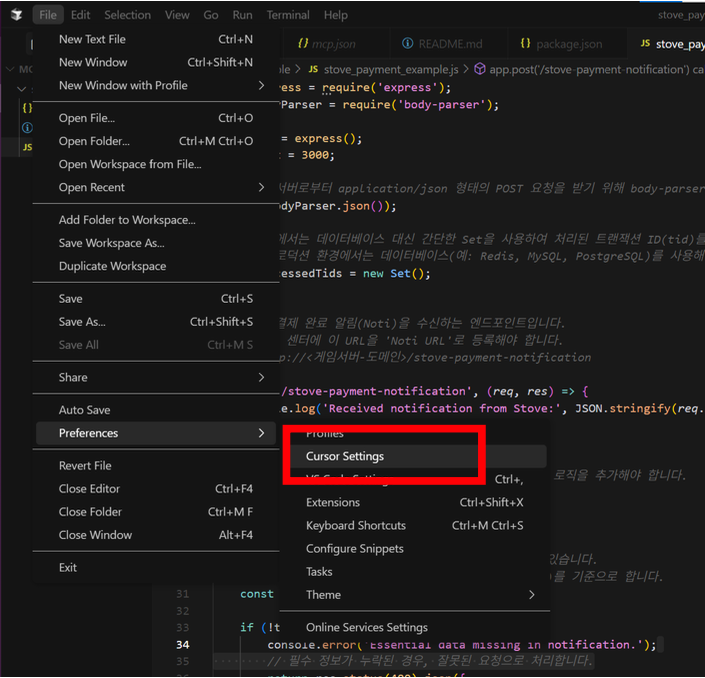
① Enter Cursor Settings
- Go to the
File > Preferences > Cursor Settingsmenu - Select the MCP settings tab
② Add a Global MCP Server
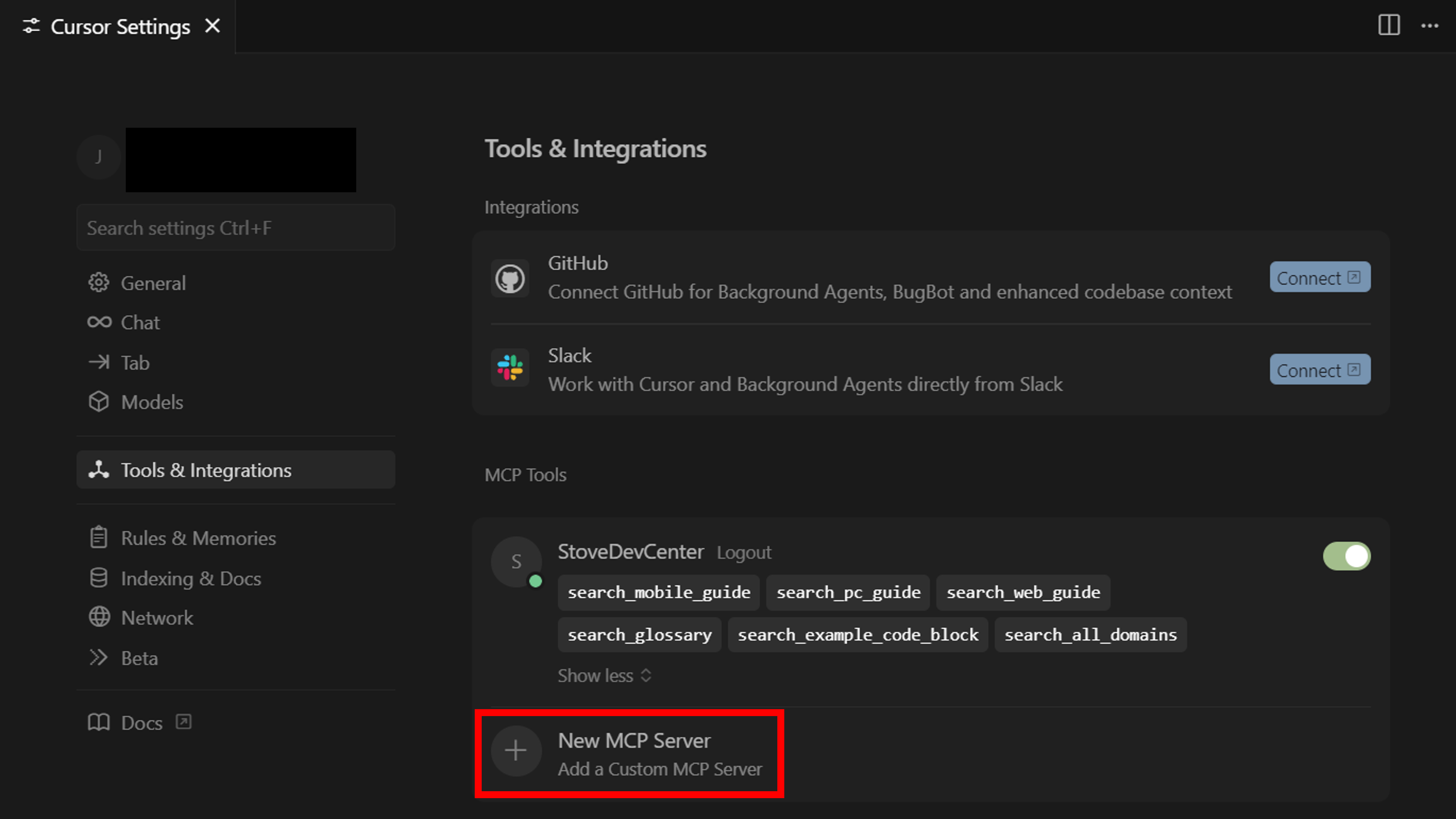
- Click
Tools & Integrations > New MCP server - Enter the info below
- Server address:
https://api.onstove.com/developer-center-mcp
- Server address:
③ Edit mcp.json
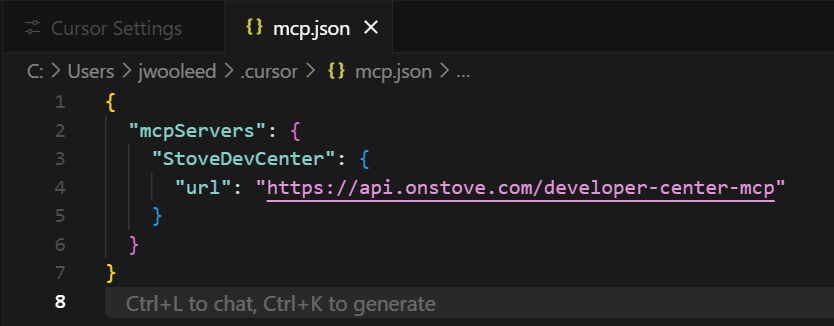
- Example settings-file path:
~/.cursor/config/mcp.json - Example settings:
{
  "mcpServers": {
    "StoveDevCenter": {
      "url": "https://api.onstove.com/developer-center-mcp"
    }
  }
}
If accessing https://api.onstove.com/developer-center-mcp is difficult, contact your technical representative.
④ Check the Connection Status
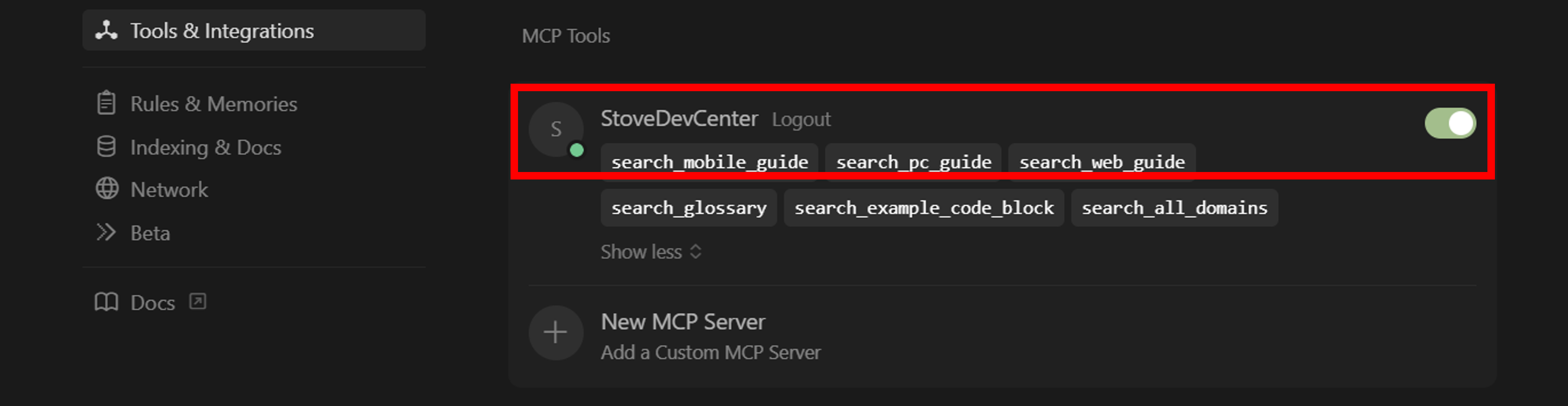
- Check for the green light in the MCP connection-status window
- A green light means a normal connection
If it shows yellow/red, recheck the settings or check the firewall policy
6. Testing and Verification
- Check for a normal response with an MCP API call test
- Integrating the Developer Center sample project (MCP-based) is recommended
After configuring mcp.json, developers can connect to the MCP server and handle the needed integration work.
For details, refer to the official guide.
7. Integration Scenario
Development Flow
- ① The developer opens Cursor and opens the API document or code example they want to integrate.
- ② With the MCP server connected, enter the needed question to the LLM.
- e.g.,
"Tell me the API for looking up products in the STOVE mobile payment integration API" - e.g.,
"Write code to integrate the STOVE web authentication service" - e.g.,
"Tell me the basic way to integrate with Stove PCSDK3. I'm making an Unreal-based game." - e.g.,
"I've integrated Stove PCSDK into Unity up to initialization. I want to set up the overindulgence-prevention feature; explain it with example code. Write it assuming the initialization-related Manager code is already implemented in Unity." - e.g.,
"Tell me how to integrate STOVE push notifications use StoveDevCenter"- To make the use of the StoveDevCenter MCP explicit, add "use StoveDevCenter" to your question.
- e.g.,
- ③ The MCP extracts relevant info from that document or example and answers.
8. FAQ
Q. What if the MCP connection fails?
- Check that the MCP address is correct
- Check the firewall/network settings
- Check
mcp.jsonfor syntax errors
Q. The LLM responses in Cursor are inaccurate.
- Check the MCP connection status
- Ask the LLM more specific questions.
- e.g.,
"Tell me the API for looking up products in the STOVE mobile payment integration API"
- e.g.,
9. Other AI-Tool Guides
- Cursor official guide
- VS Code official guide
- Windsurf official guide
- Claude Desktop official guide
- To connect Claude Desktop with the STOVE Developer Center MCP, install npm mcp-remote and set up claude_desktop_config.json.
- How to install npm mcp-remote
jsonnpm install -g mcp-remote- How to set up the Claude Desktop MCP
Example settings-file path:
C:\Users\User\AppData\Roaming\Claude\claude_desktop_config.json
json{ "mcpServers": { "StoveDevCenter": { "command": "npx", "args": ["mcp-remote", "https://api.onstove.com/developer-center-mcp"] } } } - Visual Studio 2022