
- Last Updated
Security
Understanding
STOVE Security SDK is a security service that detects tampering/hacking attempts on game apps and protects key memory data.
It consists of the STOVE Mobile Security SDK for mobile (Android/iOS) environments and the STOVE PC Security SDK for PC (Windows) environments.
SDK Types
The two SDKs differ in their provided environments and detection methods, so you must choose the SDK that fits your game platform.
| SDK | Supported environment | Main role |
|---|---|---|
| STOVE Mobile Security SDK | Android / iOS | App tampering/hacking-environment detection, key memory-data protection, Native-file encryption |
| STOVE PC Security SDK | Windows | Executable/DLL integrity verification, kernel-driver monitoring, security-Trap and obfuscation techniques |
Key Security Features
The core security features that both SDKs provide in common are as follows.
| Feature | Description |
|---|---|
| File-tampering detection | Detects whether files containing executable code have been tampered with |
| Memory executable-code tampering detection | Detects whether executable code in the Memory area has been tampered with |
| Key memory-data protection | Neutralizes searching and manipulation of memory data by applying security variables. Applicable to any variable that affects the game through memory-value manipulation |
| Hacking-Tool detection | Detects tools that do things like Memory tampering and Rooting/Jailbreak detection-bypass |
| Code obfuscation/encryption | Applies obfuscation/encryption techniques that make reversing (binary analysis) difficult, plus detection-bypass-prevention techniques |
| Security Trap | Detects tampering via multi-layer verification against manipulation |
| Exception-handling support | Supports turning security features Off for specific users only |
| Game-server integration security | Provides high security by integrating the game protocol with the security server |
| Live Update | Updates the security SDK via CDN without an app update. Supports Lazy Update and Configure Update |
| Real-time log Dashboard | Provides a real-time Dashboard for detection logs |
Additional Detection Features
- Mobile SDK
STOVE Mobile Security SDK provides additional detection features specialized for mobile environments.
Feature Description Native-file encryption Supports encrypting Native files (.so, etc.) in the Android environment.
Supports encryption for game engines such as Unreal Engine and UnityMalicious-environment detection Detects malicious execution environments such as Rooting/Jailbreak, Security Folder (Samsung Secure Folder), and Dual App (Parallel Space) Emulator-environment detection Detects whether the App is running in an Emulator environment Macro (Auto Clicker) detection Detects unintended Touch automation in the game (SDK 2.7.0 or higher) VPN-environment detection Detects whether the device is connected to a VPN USB/Wifi Debugging-setting detection Detects whether the USB/Wifi Debugging connection setting in developer options is Enabled Key-data encryption Encrypts Asset Files used by the app and decrypts them in real time when used (SDK 2.6.0 or higher).
Encrypts/decrypts in real time the Files used (created) in real time during app executionPacket-hijacking detection (planned) Detects a packet-hijacking environment via whether a Proxy is set
- PC SDK
STOVE PC Security SDK provides additional detection features specialized for PC environments.
Feature Description DLL-integrity monitoring Monitors in real time whether a DLL is forcibly Detached (Unloaded) or damaged by external programs or aggressive debuggers/manipulation tools.
Continuously checks normal-load status against the configured "target DLL list"Driver-integrity monitoring Detects attempts to run/stop/unload our driver, which operates in kernel mode, by external processes or tools.
Detects when a driver is forcibly unloaded externally or the service state is manipulatedMacro/automation detection Collects the user's input data (including mouse, keyboard, and touch input) and sends it to the server for analysis.
Uses an optimized data format for efficient transmission
Support Scope
| SDK | Platform | Support scope |
|---|---|---|
| Mobile Security SDK | Android | Android 7.0 or higher (API Level 24) / CPU Architecture: x86, x86_64, armeabi-v7a, arm64-v8a / Emulators (Nox, Memu, Bluestack, LD Player, etc.) |
| Mobile Security SDK | iOS | iOS 13 or higher |
| PC Security SDK | Windows | Windows 8.1 or higher / Unreal Engine 4, Unity supported |
Requesting SDK Use
To receive the STOVE Mobile Security SDK and PC Security SDK,
contact the Publishing Tech Team (sgs_gsd_t@smilegate.com), and after the app-specific config file is created, the Sample and Plugin will be delivered to you.
Integration Guide
Service Architecture
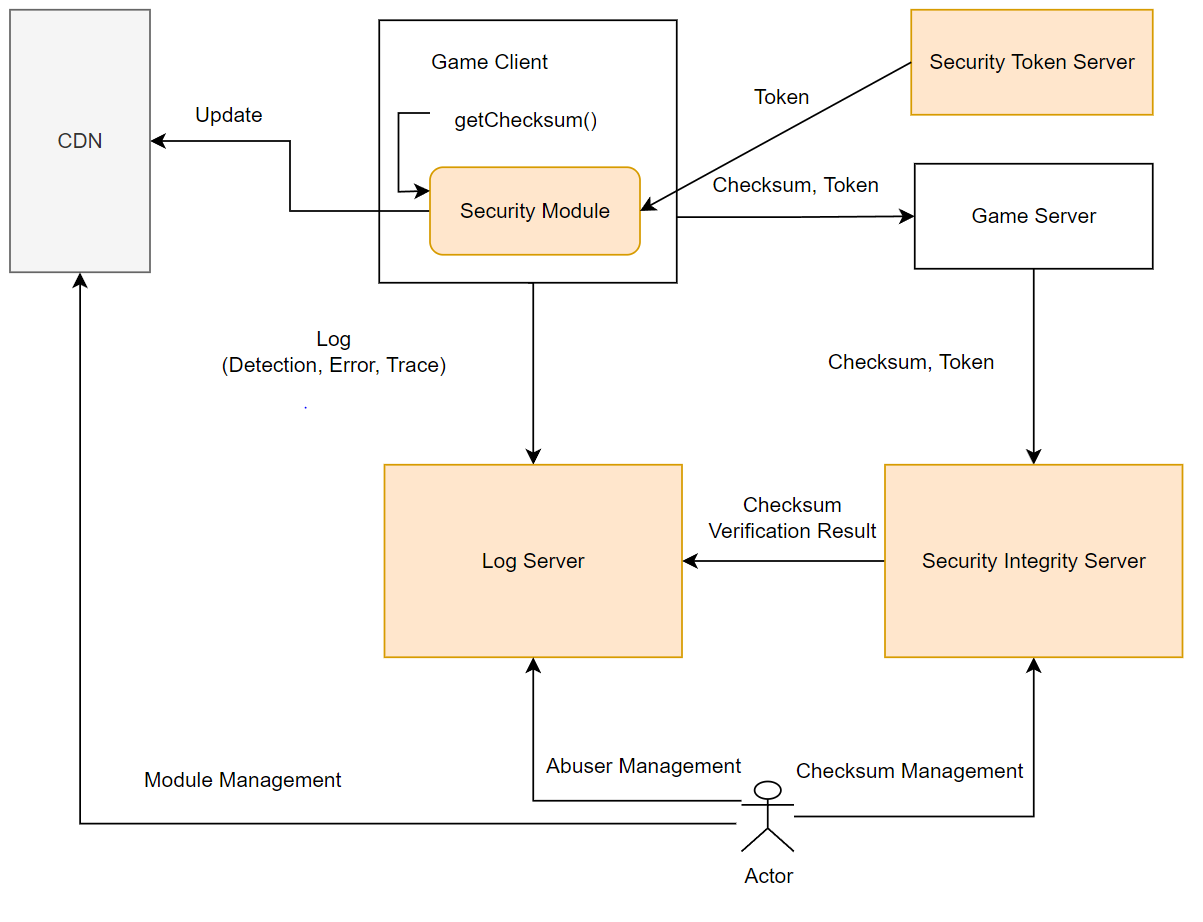
The overall service architecture of the security SDK is as follows.
- Game Client
Through the Security Module, call
getChecksum()to generate integrity data and deliver it to the Game Server along with the Token. - Game Server Deliver the received Checksum and Token to the Security Server to verify integrity.
- Security Server The Token Server verifies the Token and records the verification result (Checksum Verification Result) in the Log Server.
- CDN Update the security SDK through Module Management.
- Actor Manage abusers through Abuser Management and Checksum Management.
App-tampering detection results are verified on the security server and then provided via a real-time dashboard, allowing the game operator to manually sanction users.
App Integrity Verification
This is a REST API server for verifying the Checksum Data generated by the client security module.
Per the Security Server firewall policy, the Live server allows free data communication with no ACL policy,
while the Sandbox Server operates with an ACL policy applied by the Game Server's IP.
- The integrity-verification API doesn't return the verification result in real time; the server only receives the data, and the result is always returned as success. Whether tampering occurred is checked using the logs.
- Even if this API call fails (connect, etc.), it must be handled asynchronously so as not to affect game play.
- We recommend including ChecksumData in the game's important protocols (game entry, lobby movement, etc.) by default so the protocol can't be bypassed.
- If you deliver ChecksumData from the Client via a separate protocol, the game server must, after a certain time, confirm that the ChecksumData was delivered correctly and record a log (to identify users bypassing the security SDK).
| Item | Details |
|---|---|
| Protocol / HTTP Method | HTTP/POST |
| Content-Type | application/json;charset=UTF-8 |
| Sandbox URL | http://mgs-iv.gate8.com/api/checksums/verify |
| Live URL | http://mgs-iv.playstove.com/api/checksums/verify |
- Main Request Body parameter composition
packageName(game package name)gameVersion(game version)userInfo(user info)checksumData(the checksum value received from the client)
Security Variables
The STOVE Security SDK V2 security-variable module provides security variables that protect the game's key data loaded in memory.
By applying security variables, you can neutralize malicious searching and manipulation of the game code's key memory.
The supported variable types have the same meaning as ordinary data types and are defined automatically once you include GvtWrapper.h.
The application order consists of two steps: adding the SDK module, then integrating the API.
| C Type | C# Type | GvtType | size (B) | Android | iOS | Unity | Windows |
|---|---|---|---|---|---|---|---|
| char | sbyte | CGwChar | 1 | O | O | O | O |
| unsigned char | byte | CGwUChar | 1 | O | O | O | O |
| short | short | CGwShort | 2 | O | O | O | O |
| unsigned short | ushort | CGwUShort | 2 | O | O | O | O |
| int | int | CGwInt | 4 | O | O | O | O |
| unsigned int | uint | CGwUInt | 4 | O | O | O | O |
| long | long | CGwLong | 8 | O | O | O | O |
| unsigned long | ulong | CGwULong | 8 | O | O | O | O |
| long long | N/A | CGwLLong | 8 | O | O | N/A | O |
| unsigned long long | N/A | CGwULLong | 8 | O | O | N/A | O |
| float | float | CGwFloat | 4 | O | O | O | O |
| double | double | CGwDouble | 8 | O | O | O | O |
| unsigned double | N/A | CGwUDouble | 8 | O | O | N/A | O |
Note
The security-variable V2 module is provided as a separate module for both Mobile (Android/iOS/Unity) and PC (Windows/Unreal/Unity) environments.
After adding the module, include GvtWrapper.h (or GvtWrapper.cs) to use it.
Unity doesn't support some 64-bit types (long long / unsigned long long / unsigned double), so replace them with other types when using it.
Security-Setting Status Lookup
This is an API for looking up the account-security-setting status of a STOVE service user.
You can check the user's account-security-setting status, such as login blocking, OTP setting, and whether a designated PC is used.
Based on the looked-up security-setting info, you can implement in-game security-status icons, benefits by security level, and feature-control logic.
- Basic info:
GET /v1.0/security/setting - Host:
http://api.onstove.com/auth-secure(LIVE) /http://api.gate8.com/auth-secure(SANDBOX)
| Security-setting item (key) | Description |
|---|---|
| OTP_LOGIN_YN | Whether OTP is used |
| PC_REGISTER_YN | Whether a designated PC is used |
| ABROAD_LOGIN_BLOCK_YN | Whether overseas-login blocking is used |
Management Page
The Security SDK management page (Manager) is a dashboard for monitoring detection logs and integrity data.
The access paths per environment and the account-request method are as follows.
| Item | Details |
|---|---|
| Sandbox | http://mgs-sdk.gate8.com |
| Live | http://mgs-sdk.playstove.com |
| Account request | Contact the Security Platform Development Team (sgs_gsd_t@smilegate.com) |
The management page uses the same URL for both Mobile / PC SDK environments, and charts and logs are shown separately per the environment selected at game registration.
- Dashboard
The dashboard is a screen that visualizes detection results by selecting game, platform, and period.
The default retention period is up to 1 month, and the default period setting is 7Days.
Filter Description ① Select game Select one of the games the user registered ② Select Platform Select Android, iOS, or Both per game (Mobile environment only) ③ Select period Sets the period shown for daily detection counts, daily integrity-verification failures, user detection rankings, and daily visitor counts (excluding the real-time detection count).
Default 7Days
The 5 charts provided by the dashboard are as follows.
| Chart | Description | Default Setting |
|---|---|---|
| Daily detection count | Shows items detected within the period: Rooting, SpeedHack, Security Folder (Samsung Secure Folder), Dual App (Parallel Space), Hacktool, Emulator. Show/Hide via clicking the Legend at the top of the chart |
show: Rooting / SpeedHack / SecurityFolder / Dual App / Hacktool hide: Emulator |
| Daily integrity-verification failures | Shows the count of real-time integrity-verification failures detected within the period and integrity-verification failures performed at app startup | Realtime / Checksum: Show |
| User detection ranking | Shows the 12 users with the most detections within the period (including duplicate counts) | — |
| Real-time detection count | Shows the count detected every 10 seconds. The items are the same as the daily detection count. The Timer is maintained on the client, so the timing may not be precise | show: Rooting / SpeedHack / SecurityFolder / Dual App / Hacktool hide: Emulator |
| Daily visitor count | Shows the count of Security SDK executions within the selected period (including duplicate counts). Provides a duplicate-user-removal feature to check unique users per chart | LoadBase: Show |
- Log Monitor
A menu for detailed lookup of detection logs by selecting game and period and entering search conditions.
Supports running/saving saved search conditions and Activate Column settings (item order/visibility).
Menu Description ① Select game Select one of the games the user registered ② Enter search conditions Enter search conditions for the items to look up (see the search syntax below) ③ Select period Sets the period shown in the chart (excluding the real-time detection count). Default 7Days ④ Search logs Searches logs with the conditions entered in ② ⑤ Run a saved search condition Shows the list of search conditions saved via ⑥, and selecting from the list quickly enters the condition ⑥ Save a search condition Saves the search condition performed in ② ⑦ Activate Column Sets the order and visibility of items shown on screen. Check a checkbox to show that item; set the order by mouse drag & drop
Enter search conditions in key=value form, and you can express various conditions by combining the and / or operators and double quotes.
| Search intent | Input example |
|---|---|
| Look up UserID "ABCD" | user_info=ABCD |
| UserID "ABCD" and (and) device is "SM-S901U" | user_info=ABCD and device_name=SM-S901U |
| UserID AAAA or (or) BBBB | user_info=AAAA or user_info=BBBB |
| Search all logs | empty (look up with no input) |
| Search content that includes spaces | device_name="PIXEL 4" (use the double-quote notation) |
Verifying SDK Execution
You can check whether the SDK module was applied correctly in the Log Monitor menu of the management page.
- Access the management page and enter the Log Monitor menu
- Select the game (e.g.,
stove_mgs2) - Set the period and click the Query button
- Check the columns:
date_occur_time,msg,user_info,game_ver,dcv, etc.
You can check the logs of SDK execution this way, and various other logs can also be looked up on the same screen.
Verification work recommended
After first applying the SDK, in addition to checking logs on the management page, please perform separate testing and verification of the SDK application to suit your operating environment.
Development
Mobile Security SDK
Prerequisites
Before integrating the Mobile Security SDK, check and prepare the items below in advance.
| Item | Details | Notes |
|---|---|---|
| SDK module | Choose the module that fits your game environment among Android (jar / so), iOS (framework / bundle), Unreal (Plugin), Unity (unitypackage) |
Delivered by the Publishing Tech Team |
| Prerequisite integration | STOVE login (authentication) must be complete to pass the user identifier to SUI | Recommended |
| Environment setup | Select the Sandbox / Live environment; confirm the App ID, game package name, and game version in advance | Required |
| Game-server integration | Requires game-server-side implementation that can deliver the generated ChecksumData to the integrity-verification API Server | Required |
| Android Packaging | Prepare the RHAPKTool, keystore, and JDK environment in advance | Android only |
| queries permission | Native / Unity Android apps need the AndroidManifest.xml(to check the installed-App list) |
For Unreal, it's automatically included in the Plugin Setting |
Development Flow
The client ↔ server operation flow of the Mobile Security SDK is as follows. The structure is that the client generates integrity data, which is then delivered to the security server via the game server.
The flow is broadly divided into four steps.
- Initialization (SUI) : Pass the user identifier issued after STOVE login to the SDK to set the security SDK's user info. : This info is included when sending the Detection Log and Error Log.
- Scan start (Start) : Enter the game version (versionName) to run the SDK update and Scan features. : After the call, the SDK starts tampering detection in the background.
- Integrity-data generation (GCS) : Calling GCS about 2 seconds after the Start call returns integrity data (ChecksumData). : This data must be included in the game's important protocols (game entry, lobby entry, etc.) and sent to the game server.
- Server-side verification
: The game server delivers the received ChecksumData to the integrity-verification API Server (
/api/checksums/verify). : The response is always returned as success, and the actual detection result is checked via the security server's Log.
App-lifecycle handling
When the app enters the BackGround, call Pause() to pause memory-tampering detection, and when it returns to the ForeGround, call Resume() to restart it.
ChecksumData must be configured to always be delivered even after entering the background.
Identifying users bypassing the SDK (SDK 2.5.0 or higher)
To block bypass attempts where some users access the game server without calling the SDK, the SDK module records user info in a separate file (e.g., BCJUI) at first game entry.
After a certain time, the game server verifies whether this data was delivered correctly to identify bypassing users.
Passing user touch events (SDK 2.7.2 or higher)
To detect Macros (Auto Click), you must pass user touch events to the SDK.
On iOS, override sendEvent in CustomApplication.h; on Unity, integrate by binding the StoveSecurityTouchManager component to an empty GameObject.
Troubleshooting
Cases frequently encountered during integration and the recommended handling.
| Situation | Cause | Recommended handling |
|---|---|---|
| GCS call returns empty data | GCS was called immediately after the Start call, so SDK initialization isn't complete | Call GCS after about a 2-second delay following the Start call |
| Detection not working after returning from background | Resume wasn't called, so Memory-area detection stays paused | Wire Pause / Resume into the Activity / ViewController lifecycle callbacks |
| APK size increases by 30–35MB after Android Packaging | Default Packaging includes security files for all architectures (arm64-v8a / armeabi-v7a / x86 / x86_64) | Optimize by including only the architecture files that fit your service environment plus the required files |
| iOS Archive failure | The security SDK Framework is used with the Bitcode option enabled | Set Build Settings → Enable Bitcode to No |
| The installed-App list is collected empty | The |
Add the |
| Macro detection doesn't work | User touch events aren't being passed to the SDK (SDK 2.7.2+) | On iOS override sendEvent; on Unity bind StoveSecurityTouchManager |
| Logs not received on the management page | Sandbox / Live environment mismatch, or the user identifier is missing because SUI wasn't called | Check the per-environment management-page URL and verify the SUI → Start order |
Sample Code
The core call parts of the SDK-application flow for each platform.
// 1. Create the SDK instance
private static RHNativeWrapper rhNativeWrapper = new RHNativeWrapper();

// 2. Initialize the SDK (pass the user identifier issued after Stove SDK login)
void startSecuritySDK() {
    rhNativeWrapper.SUI("Stove SDK user identifier");

    // Enter the versionName from AndroidManifest.xml
    PackageInfo pi = getPackageManager().getPackageInfo(getPackageName(), 0);
    rhNativeWrapper.Start(this, getApplicationContext().getAssets(), pi.versionName, null);
}

// 3. Generate integrity data (call about 2 seconds after Start)
String getChecksumData() {
    return rhNativeWrapper.GCS();
}

// 4. App-lifecycle integration
@Override
protected void onPause() {
    super.onPause();
    rhNativeWrapper.Pause();
}

@Override
protected void onResume() {
    super.onResume();
    rhNativeWrapper.Resume();
}

// 5. User touch data (SDK 2.7.0+, Macro detection)
@Override
public boolean dispatchTouchEvent(MotionEvent event) {
    rhNativeWrapper.STE(event);
    return super.dispatchTouchEvent(event);
}
Unity Macro detection (SDK 2.7.0+)
On Android, use StoveUnityPlayerActivity as a Custom Class and call g_rh_native_api.STE(event) in dispatchTouchEvent.
On iOS, bind the StoveSecurityTouchManager component to an empty GameObject to pass touch events to the SDK.
Packaging (Android)
Prerequisites
To apply the security SDK to the Android build output, Packaging via RHAPKTool is required.
| Item | Details |
|---|---|
| Tool | RHAPKTool, smali·baksmali·apktool jar, apksigner, JDK |
| Input file | The original APK/AAB with the security SDK applied, and a keystore for signing |
| Output | The packaged APK/AAB (with assets/sdata added), and a file for Checksum registration |
Development Flow
Packaging works in two steps: configuring packaging.ini and running packaging.bat.
- Configure packaging.ini
: Set paths/options per the
[config],[package],[apksign],[filesize], and[assetencrypt]sections. : Enter the game-engine type (Native / Unity3D / Unreal / Cocos2d), keystore, signing options, file-size check, whether to encrypt assets, etc. - Run packaging.bat
: Perform Repackaging with the
rhapktool -package .\packaging.inicommand. : Signing is handled automatically in the order zipAlign → apksigner. - Confirm Packaging applied
: Confirm that the
assets/sdatafolder is created inside the resulting APK and the security SDK files are added. - Checksum registration (management page) : Upload the packaged file via Drag & Drop in the Security SDK menu of the management page and perform Registration.
Troubleshooting
| Situation | Cause | Recommended handling |
|---|---|---|
| packaging.bat run failure | A relative path was entered, or the java_bin path isn't set | Enter all paths as absolute paths |
| Signing error at app launch | A separate signing step was missed after Packaging | Enable auto-signing by setting Use=1 in the [apksign] section |
| Launch fails on certain devices after optimization | A required file (ASGEL/DSDUC/DSIGT/DYASO/JGCDC/STHSD) or the relevant architecture file is missing | Include the required files plus all arm64/arm/x86/x86_64 support files |
| Integrity verification always fails after Checksum registration | The build output's integrity isn't registered on the management page | Perform Registration on the management page right after build/deploy |
Sample Code
[config]
;0 = apk, 1 = unity, 2 = unreal4, 3 = coco2
type=1

input=C:\Release\app-live-release.apk
manifest_file=AndroidManifest.xml
smali_jar=smali-2.5.2.jar
baksmali_jar=baksmali-2.5.2.jar
java_bin=C:\Program Files\Android\jdk\microsoft_dist_openjdk_1.8.0.25\bin\java.exe
backup=1

[package]
OriAPKPath=C:\Release\app-live-release-rh.apk
NewAPKPath=C:\Release\app-live-release-pack.apk
SecurityPath=C:\Release\securitymodule

;0[APK Mode], 1[AAB Mode]
PackagindMode=0
MinSdkVersion=19

[apksign]
Use=1
KeyStorePath=C:\keystore\keystore.jks
keyStorePass=hohoho
KeyAliasName=Testkey
KeyAliasPass=!a1s2d3f4g5
AdtToolPath=C:\Users\user\AppData\Local\Android\Sdk\build-tools\30.0.2

[filesize]
Use=1
filename001=.so
filename002=.dex
filename003=AndroidManifest.xml

[assetencrypt]
Use=0
filename001=test/text.txt
filename002=test/text.xml
filename003=test/test100.dat
PC Security SDK
The PC Security SDK is applied in 3 steps: add the SDK module → client integration → Server integration.
- Add the SDK module : Download and apply the PC Security SDK per your development environment (Windows Native / Unreal Engine / Unity3D)
- Client integration : Integrate the APIs provided by the STOVE PC Security SDK into the Game Client. : Since the PC Security SDK is standalone, you can selectively apply only the features you need
- Server integration : Server-side REST API integration to deliver the App integrity data generated by the Client to the Security Server
Prerequisites
Before integrating the PC Security SDK, check the items below.
| Item | Details | Notes |
|---|---|---|
| SDK module | Windows Native(RHCoreSDK.dll + RHCoreSDKWrapper.h), Unreal Plugin(StoveSecuritySDKPlugin), Unity(StovePCSecuritySDK.unitypackage) | Delivered by the Publishing Tech Office |
| .SPSS folder | Must be located in the same folder as RHCoreSDK.dll. Do not delete, modify, or move the internal files | Hidden folder |
| Securing the execution path | Place the DLL at a path relative to the game exe. The DLL and .SPSS must be in the same folder (the folder name is free) | e.g., data/RHCoreSDK.dll |
| Prerequisite integration | STOVE login must be complete to enter the user info (SUI) | Recommended |
| Server-side verification | Integrate the App integrity-verification API Server (Sandbox: mgs-iv.gate8.com / Live: mgs-iv.playstove.com) |
Required |
- Folder-structure example
The DLL and
.SPSSfolder can be placed at any relative path from the game exe, but they must be located together in the same folder. A typical folder-structure example is as follows.textGameProject/ ├── build/ │ ├── Game.exe │ └── data/ ← folder name is free │ ├── RHCoreSDK.dll │ └── .SPSS/ ← must be in the same folder as the DLL │ ├── xxxx │ └── xxxx ├── pc_security_sdk/ │ ├── RHCoreSDK.dll │ └── .SPSS/ │ ├── xxxx │ └── xxxx ├── source/ └── header/ └── RHCoreSDKWrapper.h
- SDK-module-addition steps per environment
The steps to add the SDK module per development environment are as follows.
The API-integration call order (Initialize → SUI → Start → GCS → Shutdown) is the same in all environments.
Environment Steps Windows Native 1. Add RHCoreSDKWrapper.hto the project source tree and use it via#include
2. Place theRHCoreSDK.dll+.SPSSfolder at a path relative to the game exe (e.g.,data/)
3. ModifyRHCoreSDKWrapper.h'sRHCORESDKDLLPATHmacro to match the actual path (e.g.,.\\data\\RHCoreSDK.dll)Unreal Engine 1. Copy the StoveSecuritySDKPluginfolder from the delivered security SDK into the project'sPluginsfolder
2. Close and restart Unreal Editor → in the "Missing Modules" dialog, select "Yes" to auto-rebuild
3. Refresh the Visual Studio project (File → Refresh Visual Studio Project)
4. Check in Solution Explorer whetherPlugins/StoveSecuritySDKPluginis includedUnity3D 1. Unity menu: select Assets → Import Package → Custom Package...
2. Select the deliveredStovePCSecuritySDK.unitypackagefile and import all files
3. After import, check the folders:Assets/Editor,Assets/Plugins/Windows/x86_64/RHCoreSDK.dll,Assets/Scripts,Assets/Stove/SDK/Security
Development Flow
The PC Security SDK has the same call flow in the Visual Studio, Unreal, and Unity environments.
The meaning of each call step is as follows.
- Initialize : Initialization for API use. Receives the security SDK DLL path and loads it. : Call Initialize and Shutdown only once each.
- SUI : Pass the user identifier to the SDK to include user info in the Detection Log and Error Log. : Don't enter info that directly identifies the user, such as login ID or email.
- Start : Enter the game version and package name to initialize the SDK and start the Scan. : We recommend calling it early in the game-loading stage.
- GCS (Generate Checksum) : Generates and returns the App's integrity data. : Call it about 2 seconds after the Start call, and only once. : You don't need to call it again when returning to the start screen after the game ends.
- Shutdown : Finalizes API use and performs cleanup.
When using the Unreal anti-cheat module (SDK recommendation)
If you use the anti-cheat module's monitoring feature, call the StoveSecurityStart() function after the anti-cheat call.
Troubleshooting
| Situation | Cause | Recommended handling |
|---|---|---|
| Initialize failure (DLL load error) | The RHCORESDKDLLPATH path doesn't match the path relative to the game exe | Set RHCORESDKDLLPATH in RHCoreSDKWrapper.h precisely, like .\\data\\RHCoreSDK.dll |
| SDK doesn't work after Start | The .SPSS folder is missing or located in a different folder than the DLL | Move .SPSS to the same folder as RHCoreSDK.dll. Do not change the folder structure |
| GCS return value is an empty string | GCS was called right after Start, or Start wasn't called | Call GCS about 2 seconds after Start; follow the Initialize → SUI → Start → GCS order |
| The plugin isn't automatically included in Unreal | The Visual Studio project wasn't refreshed, or the Editor wasn't restarted | Close and restart the Editor → select "Yes" in the "Missing Modules" dialog → refresh the VS project |
| Abnormal behavior when Initialize / Shutdown are called multiple times | Initialize and Shutdown are designed to be called only once each | Call Initialize once at app start and Shutdown once at exit only |
| When the DLL location needs to change | Moving the DLL to another folder or renaming it | Pass the changed path/name directly as the Initialize() argument |
Sample Code
#include "RHCoreSDKWrapper.h"

// At game start
if (!RHCoreSDK::Initialize()) {
    MessageBox(hWnd, L"RHCoreSDK.dll load failed", L"Error", MB_OK | MB_ICONERROR);
    // Handle SDK load failure
}

std::string user_info    = "tester";
std::string game_version = "5.0.0";
std::string game_package_name = "com.stove.mobilegamesecurity";

// Set user info
RHCoreSDK::SUI(user_info.c_str());

// Start the security SDK
RHCoreSDK::Start(game_version.c_str(), game_package_name.c_str());

// Generate integrity data then send to the server (about 2 seconds after Start, at game entry/lobby movement)
const char* checksum = RHCoreSDK::GCS();
// → include the checksum in the game protocol and send it to the game server

// At game exit
RHCoreSDK::Shutdown();
Blueprint Functions provided
In Unreal, they're also provided as Blueprint Functions: StoveSecuritySDK.Detect.SUI, StoveSecuritySDK.Detect.Start, StoveSecuritySDK.Detect.GCS
Security Variables (Ghost Variable) V2
Prerequisites
The security-variable V2 module is a separate module that protects key data in the memory area and can be used together with the security SDK.
| Item | Details |
|---|---|
| Library file | Android (libGvt.so), iOS (Gvt.framework), Windows (Gvt.dll). Copy into a library folder (e.g., lib) in the project |
| Wrapper file | C/C++: GvtConfig.h (object environment), GvtObject.h (object definition), GvtWrapper.h (wrapper-object definition), GvtWrapper.cpp (wrapper-object implementation) C#: GvtWrapper.cs (wrapper-object definition) |
| Supported variable types | CGwChar / CGwUChar / CGwShort / CGwUShort / CGwInt / CGwUInt / CGwLong / CGwULong / CGwLLong / CGwULLong / CGwFloat / CGwDouble / CGwUDouble (for the support matrix, see the security-variable table in 2. Integration Guide) |
- Add the SDK module (per environment)
Include the per-platform library file in the project and add the wrapper file to the applying source.
Environment Steps Android Native Place the per-ABI libGvt.soin the jniLibs (or equivalent) directory, and add the wrapper file to the applying sourceiOS Add Gvt.frameworkto the project and import the wrapper fileWindows Native Place Gvt.dllat a path relative to the game exe, and add the wrapper file to the projectUnity 1. Copy libraryinto theAssets\Pluginsfolder (create it if absent)
2. AddGvtWrapper.csto the source
3. When using the security-variable OFF option: enterNO_USING_GHOST_VAR_TYPEin[File] → [Build Settings] → [Player Settings] → [Other Settings] → [Scripting Define Symbols]
Development Flow
Applying security-variable V2 consists of two steps.
- Add the SDK module Include the per-platform library file and wrapper file in the project.
- API integration (Option Interface) After setting the SDK's operation options via the Option Interface functions, use the security variables in your code like ordinary data types.
- The 4 Option Interfaces
Function Role NO_USING_GHOST_VAR_TYPE A macro that turns OFF the security-variable module's variable-protection feature. Apply it with #define NO_USING_GHOST_VAR_TYPE. On Unity, set it in Scripting Define SymbolsSetSwapLinkNum A function that sets the number of variable stores. A value between 3 and 100 can be set; if not set, the default is used SetMemRolling A function that reallocates variable-store memory. If not set, the default is used SetModEventCallbackObj A function that calls the game code's Callback when variable-value tampering is detected. If not set, no event occurs even when tampering is detected
Possible performance issue
Do not use it on variables whose value changes at millisecond (ms) intervals (e.g., position).
However, it can be used if you directly call the Set / Get functions as in the sample code below.
- When explicit casting is needed
When using security-variable objects, explicit casting is needed in the following three cases.
① When used with a string-output format
cppprintf("gUInt = %d\n", (int)gUInt);② When using an operator after a constant value
cppCGwInt gnInt; gnInt = 100; int nTemp = 5 + (int)gnInt;③ Conversion between security-variable objects of different types
cppCGwInt gnInt; gnInt = 100; CGwShort gnShort; gnShort = (short)gnInt;{.is-info}
Troubleshooting
| Situation | Cause | Recommended handling |
|---|---|---|
| Frame drop on high-frequency variables | Security variables used with operators on position/time variables that change at ms intervals | Keep those variables as ordinary types or use the Set/Get direct-call pattern |
| Compile error (casting-related) | String-output format / constant operation / conversion between security-variable objects of different types | Apply explicit casting (see 'When explicit casting is needed' above) |
| Tampering-detection callback not called | SetModEventCallbackObj isn't set | Implement a handler inheriting CGhostVarModHandler, then register it with SetModEventCallbackObj |
| 64-bit type usage error in a Unity build | CGwLLong / CGwULLong / CGwUDouble aren't supported on Unity | Replace with supported types like CGwLong, CGwULong, CGwDouble |
| The security-variable OFF option isn't applied on Unity | Scripting Define Symbols isn't set | Add NO_USING_GHOST_VAR_TYPE in Player Settings → Other Settings → Scripting Define Symbols |
Sample Code
#include "GvtWrapper.h"

class CGhostVarModHandler : public IGvtModEventHandler
{
public:
    CGhostVarModHandler() {};
    virtual ~CGhostVarModHandler() {};

public:
    void ModEventCallback(G_DOUBLE a_dOrg, G_DOUBLE a_dMod)
    {
        printf("[*modified-callback*] org = %f, mod = %f \n", a_dOrg, a_dMod);
    }
};

void GvtInit()
{
    if (!CGvtWrapper::_LoadLib())
    {
        printf("fail to load lib");
        return;
    }

    static CGhostVarModHandler GhostVarModHandler;
    CGvtWrapper::_SetModEventCallbackObj(&GhostVarModHandler);
    CGvtWrapper::_SetSwapLinkNum(50);
}
Caution when including the header
Add GvtWrapper.h to the header section of the source where you apply the security-variable module. However, for Unity, add only using GVT; to use the wrapper.