
- Last Updated
In-game Menu
Understanding
The in-game menu is an SDK-based settings UI that lets players quickly access the STOVE platform's key features during gameplay.
Without a separate screen transition, it provides operations-essential features in-game such as account management, Customer Center, notification settings, and terms-of-service notices.
The in-game menu supports the Mobile (Android/iOS) platform by default, and each feature should be applied selectively to fit your business/planning intent.
Feature Composition
The features provided by the in-game menu are categorized below by whether implementation is required.
| Feature name | Implementation | Description |
|---|---|---|
| Account-management feature | Required | Provides account settings such as account linking, email verification, password change, and STOVE membership withdrawal |
| Logout feature | Required | Logs out the current account (note that guests lose their account on logout) |
| Game-cancellation feature | Required | Deletes game info and STOVE-account link info (not provided by the SDK; implemented by the game itself) |
| Info display | Required | Displays the account type, STOVE member number, game/SDK version, etc. |
| Customer Center integration | Required | Links to the Customer Center for FAQ and 1:1 inquiries |
| Notification setting | Required | Setting for receiving promotional notifications (Push) (required by domestic and platform-company policy) |
| In-game terms-of-service notice | Required | Terms-of-service notice per platform/country policy |
| Change the SDK (platform) display language | Optional | Unifies the SDK display language to match the game language |
| Device-registration service | Optional | Allows game access by registering device info (Auth-ui v2.7.2 or higher) |
| Community | Optional | Links to the STOVE community in-game (requires pre-setup in Partners) |
Be careful implementing the server-reset, game-cancellation, and logout features
These three features should be implemented selectively per your business/planning intent.
Apply the concrete implementation to fit the menu's planning intent after discussing with the business/planning owner.
Provided Items by Account Type
The account-management screen provides different items depending on the logged-in account type.
| Account type | Provided menu |
|---|---|
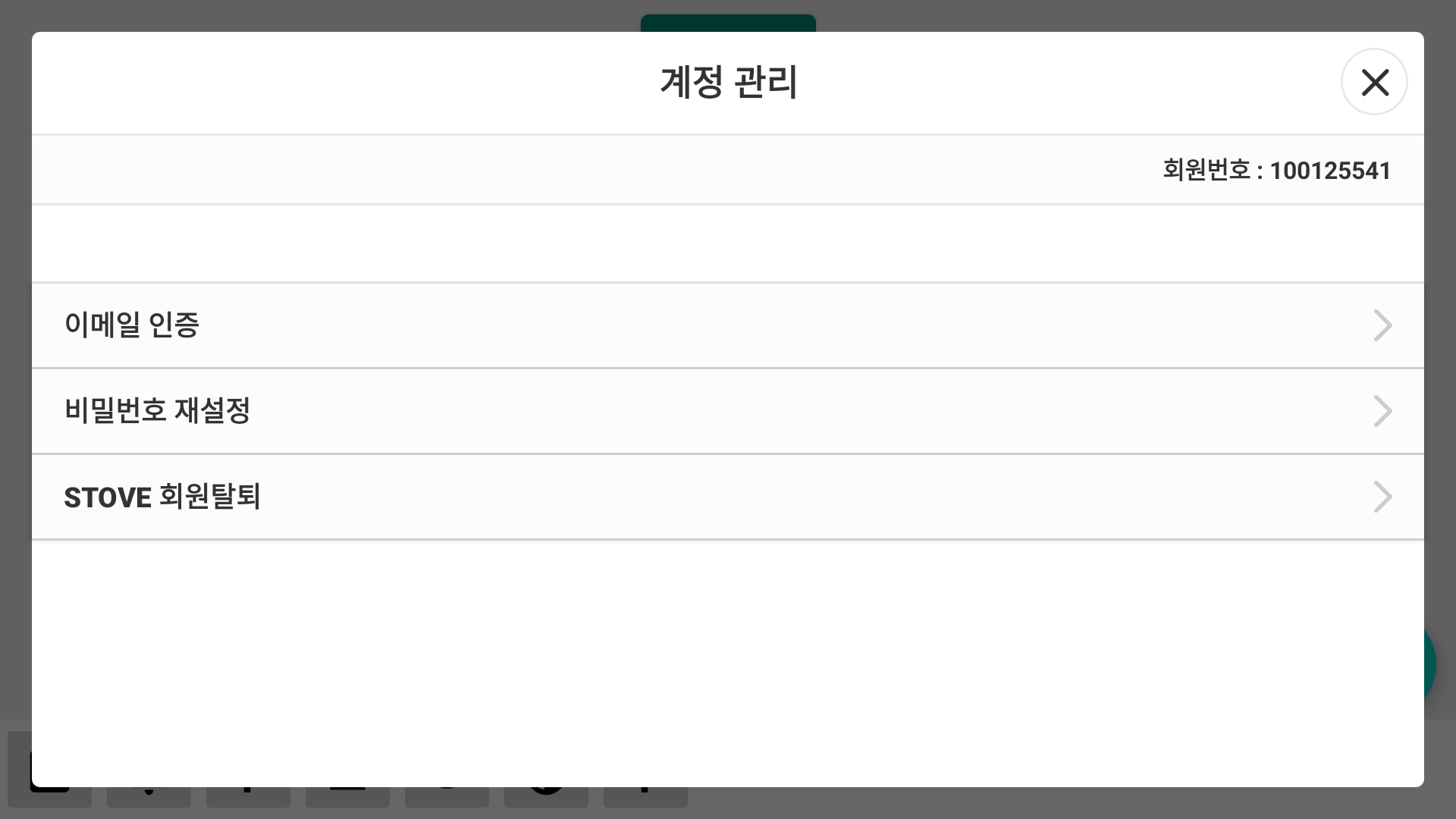
| Registered member (email) | Email verification, password change, STOVE membership withdrawal |
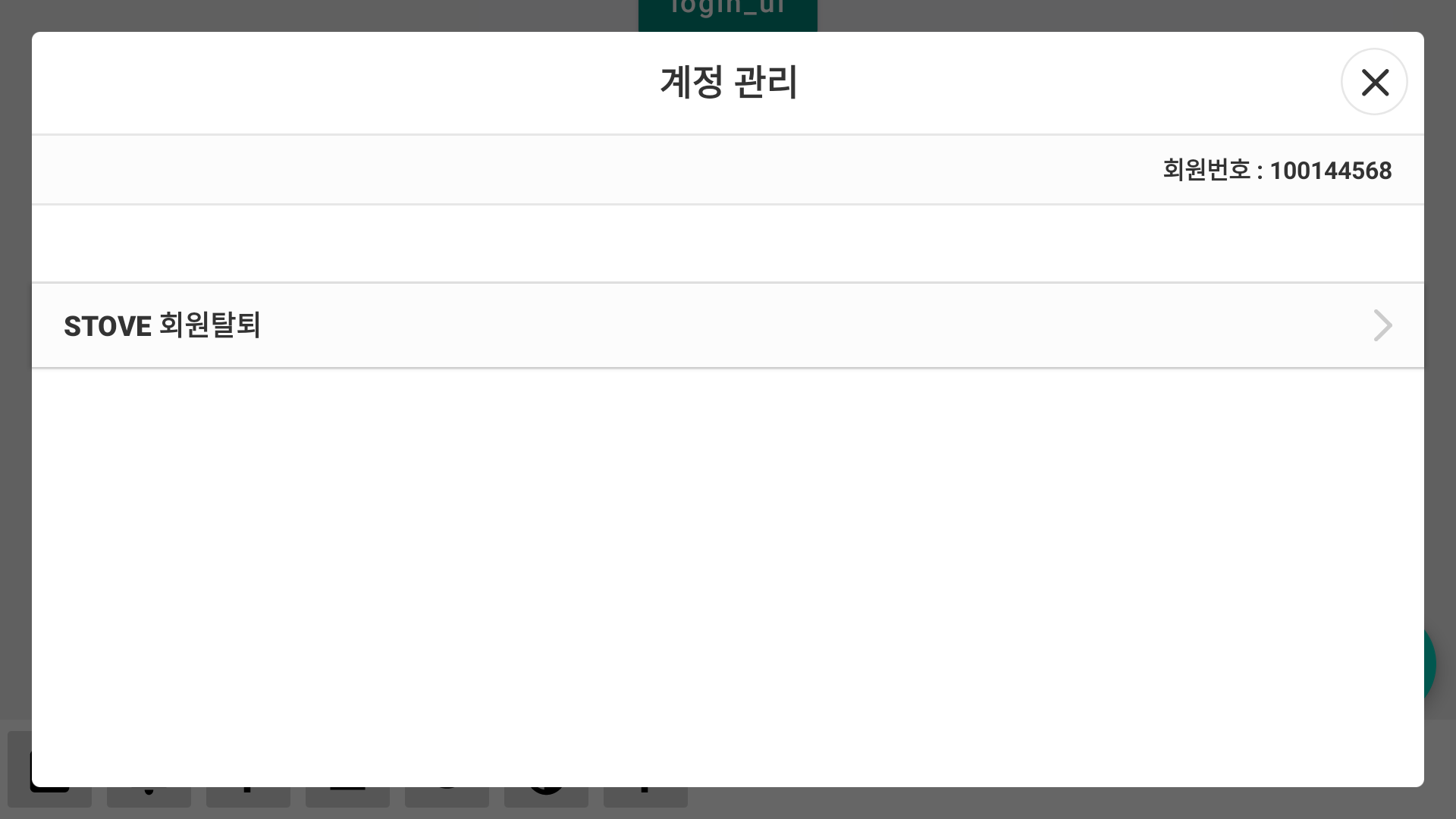
| Registered member (3rd Party) | STOVE membership withdrawal |
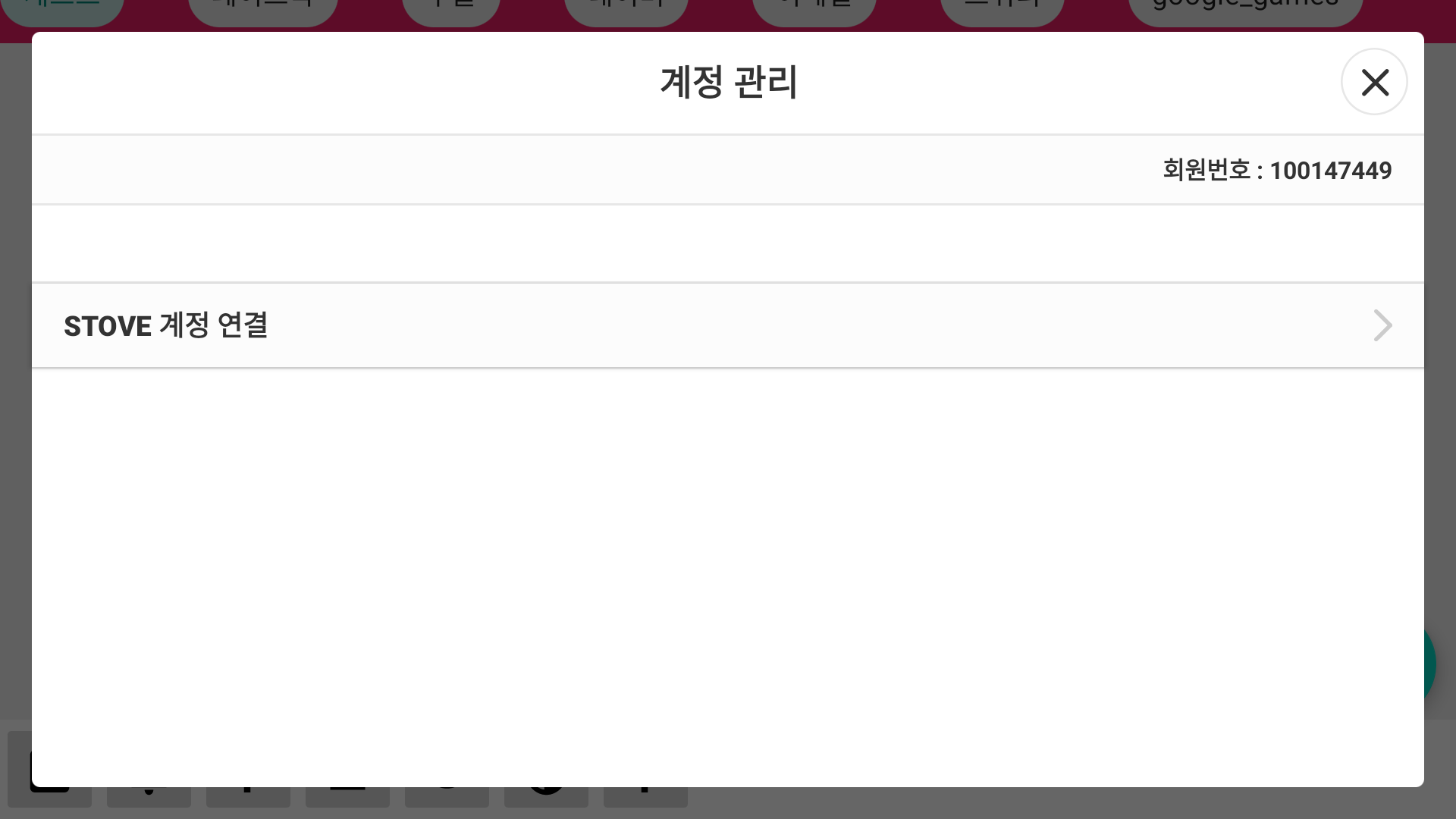
| Guest | Account linking (provided as required to prevent guest loss) |
ㅁ Registered member (email): the email-verification, password-reset, and STOVE-membership-withdrawal items are shown.
ㅁ Registered member (3rd Party): the STOVE-membership-withdrawal item is shown.
ㅁ Guest account: the STOVE-account-linking screen is shown. To prevent guest loss, the account-linking feature must be provided.
Integration Guide
Prerequisites
| Item | Details |
|---|---|
| User login state | In-game menu features can be called after the user's login completes |
| Partners setup | Pre-setup in Partners is needed when using the Customer Center and community |
| Prepare the terms-of-service URL | When using the terms-of-service notice feature, register the terms in Partners and secure a display URL |
| Finalize the implementation scope | Decide in advance whether to implement server reset, game cancellation, logout, etc. |
Development
SDK Integration
Building the Account-Settings Screen
You can build an in-game 'Settings > Account' screen. The SDK automatically shows a different UI depending on the account state (guest/registered member).
Result branching
Handle the following branches yourself using the result received in the callback.
- Success +
userInfo["userAction"] == "withdraw"→ STOVE membership withdrawal is complete. Since the SDK performs an automatic logout, immediately move to the game start screen to prompt re-login. - Guest → registered-member conversion after failure (cancellation, etc.) → compare the
IsGuest()value before the call with theaccessToken.User.IsGuest()value after the callback to determine whether conversion occurred, and use theaccessToken.User.VerifiedDevicevalue to decide whether to send the user to the device-registration step.
public void ManageAccount()
{
    bool isGuest = false;
    if (Auth.AccessToken != null)
    {
        isGuest = Auth.AccessToken.User.IsGuest();
    }

    AuthUI.ManageAccount((Result result) =>
    {
        if (result.IsSuccessful)
        {
            if (result.UserInfo != null && result.UserInfo.TryGetValue("userAction", out string userAction))
            {
                if (!string.IsNullOrEmpty(userAction) && userAction.Equals("withdraw"))
                {
                    //Withdrawal complete - auto-logout occurs, so exit the game or move to the initial screen
                    Login();
                }
            }
        }
        else
        {
            AccessToken accessToken = Auth.AccessToken;
            if (accessToken != null)
            {
                if (!accessToken.User.IsGuest() && isGuest)
                {
                    //Account linking complete - check device registration
                    if (Auth.AccessToken.User.VerifiedDevice) {
                        //Registered device
                    } else {
                        Login();
                    }
                }
            }
        }
    });
}
Logout
Auth.logout deletes both the SDK-internal accessToken and the token file in storage.
- Guest-account caution: once a guest logs out, there's no way to recover the same account.
- After logout, we recommend moving to the game's initial flow (start screen) to prompt re-login.
- With the v1 SDK, guest login after logout uses the same account; with the v2 SDK, it acts as a new account.
public void Logout()
{
    Auth.Logout();
}
STOVE Membership Withdrawal
Calling AuthUI.withdraw sends a withdrawal request to the Marina (Auth) server and automatically logs out on success. After withdrawal completes, move to the game's initial flow (start screen) to prompt re-login.
Handling failure
When result.IsSuccessful == false, don't show an error message yourself—delegate to OperationUI.HandleResult(result, ...). The SDK automatically shows the appropriate screen for the reason (sanction, dormancy, network, etc.). On success, an auto-logout occurs, so don't call Auth.logout separately.
public void Withdraw()
{
    AuthUI.Withdraw(result =>
    {
        if (result.IsSuccessful)
        {
            //Withdrawal complete - auto-logout occurs, so exit the game or move to the initial screen
        }
        else
        {
            OperationUI.HandleResult(result, (Result operationResult) =>
            {
                /** e.g., keep the current screen and prompt a withdrawal retry **/
            });
        }
    });
}
Using Coupons (Android only)
Calling ViewUI.coupon shows the STOVE coupon-entry screen. It's an Android-only feature, so it isn't provided on iOS.
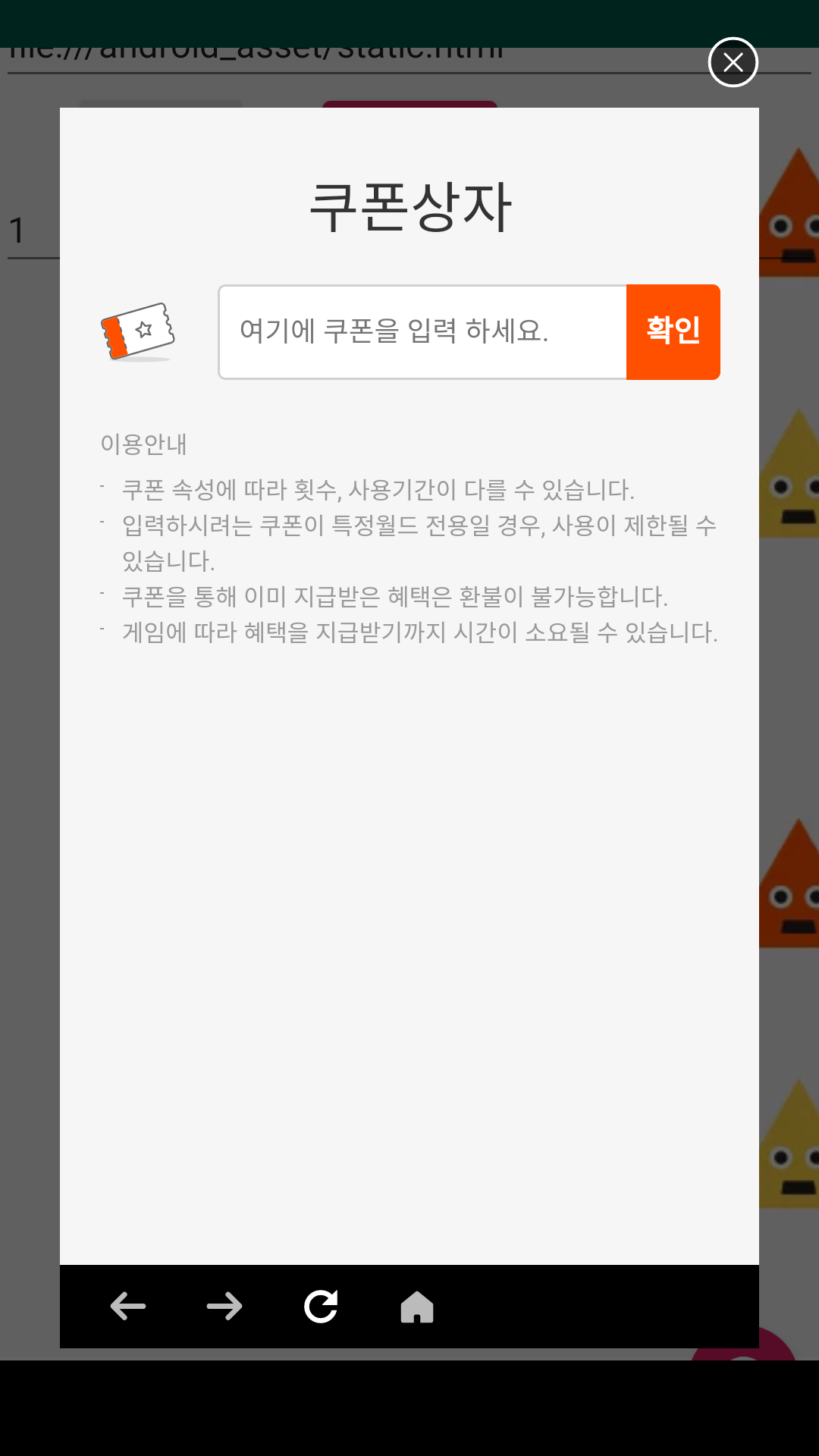
The game app needs nothing beyond invoking the coupon window, but the game server needs to handle the item-grant (coupon) request.
For details, see the Game Server — ItemBox Integration Guide.
public void Coupon()
{
    ViewUI.Coupon((Result result, Dictionary<string, string> dictionary) =>
    {
        if (result.IsSuccessful)
        {
        }
        else
        {
            OperationUI.HandleResult(result, (Result operationResult) =>
            {
                /** e.g., keep the current screen **/
            });
        }
    });
}
Customer Center
Calling ViewUI.customerSupport shows the Customer Center page in a WebView while keeping the login state. The SDK internally issues an onlineAccessToken to handle the SSO integration.
Login state required
Since the SDK issues an onlineAccessToken for the SSO integration, Auth.login must be complete before the call. Calling it while logged out fails authentication and the page won't display correctly. Check Auth.AccessToken != null before calling. Handle the failure callback by delegating to OperationUI.HandleResult(result, ...).
public void CustomerSupport()
{
    ViewUI.CustomerSupport((Result result, Dictionary<string, string> dictionary) =>
    {
        if (result.IsSuccessful)
        {
        }
        else
        {
            OperationUI.HandleResult(result, (Result operationResult) =>
            {
                /** e.g., keep the current screen **/
            });
        }
    });
}
Looking Up the Member Number
You can get the logged-in user's STOVE member number (userId) via AccessToken.user.userId. When logged out, accessToken is null, so a check is needed before the lookup.
private string UserId()
{
    AccessToken accessToken = Auth.AccessToken;
    if(accessToken == null)
    {
        return "";
    }
    return accessToken.User.UserId;
}
Account Conversion
Used to convert a guest or third-party account to a registered member, or to link with a STOVE registered member. It's entered automatically from the AuthUI.manageAccount screen, or you can call the API below directly to show it as a standalone screen.
Convert to STOVE registered member (AuthUI.switchAccount)
A screen for converting a third-party account to a STOVE registered member. It can be called after third-party account login.
public void SwitchAccount()
{
    if (Auth.AccessToken != null) {
        AuthUI.SwitchAccount((Result result) =>
        {
            if (result.IsSuccessful)
            {
                //Account migration succeeded
            }
            else
            {
                //Account migration failed
            }
        });
    }
}
Guest → registered-member linking (AuthUI.link)
A feature for linking a guest account to a registered-member account. It's the same as 'Convert to registered member' on the account-management screen, and calling it is recommended only for guest accounts. (For non-guests, 'Link channel' is shown.)
public void link()
{
    if (Auth.AccessToken != null) {
        AuthUI.Link((Result result) =>
        {
            if (Auth.AccessToken.User.IsGuest())
            {
                // Remains a guest (conversion not completed)
            }
            else
            {
                // Conversion to registered member succeeded
            }
        });
    }
}
Language Setting
Changes the platform display language (19 types). Wire it so that the STOVE platform also changes when the game language changes.
- For detailed code, see the Country/Language — Change the Platform Display Language document.
Notification Setting
A feature for turning push notifications (daytime/nighttime) On/Off and looking up push settings.
- For detailed code, see the Push — Look Up Push Settings, Push Notification On/Off, Nighttime Push On/Off document.
In-game Terms-of-Service Notice
A feature for showing the STOVE terms of service in-game. A detailed implementation guide can be filled in once separate source material is provided.
Community Link
You can show the STOVE community as a pop-up in-game, or call a specific community URL while keeping the login state.
- For detailed code, see the Pop-up (View) — Community, Direct Community URL Call document.
Device-Registration Service
A feature for checking the user's device-registration status and showing the device-management screen. It determines the status using the deviceRegistrationPolicy and verifiedDevice properties.
- For detailed code, see the Device Registration document.