
- Cập nhật lần cuối

Payment
Understanding
Payment Support Overview
STOVE supports two types of payments: PC online payment and mobile market payment.
Supported currencies, payment methods, limits, and cancellation methods vary depending on the payment type.
| Payment Type | Description |
|---|---|
| PC Online Payment | Payment via web shop or in-game shop for PC version games (using the payment window provided by STOVE). |
| Mobile Market Payment | Payment for games released on app markets such as Google or Apple (using the IAP (In-App Purchase) window provided by the market). |
Payment Account Identity Verification
ㆍ Only accounts with minimal identity verification can make payments
ㆍ Korea: Identity verification / Global: Email verification
Payment for Games Distributed via Steam Launcher
Payments for games run via the Steam launcher also fall under PC online payment, but the payment window is replaced by the Steam payment overlay instead of the STOVE payment webview. For detailed flows, please refer to Developing → PC IAP → Steam Payment.
Payment Support Currencies
| Category | Currency | Description | Accounts paying in this currency |
|---|---|---|---|
| PC Online Payment | KRW | South Korean Won | Accounts registered in Korea |
| USD | US Dollar | Accounts registered in the US, and accounts registered in countries without supported currencies | |
| JPY | Japanese Yen | Accounts registered in Japan | |
| EUR | Euro | Accounts registered in designated countries that use the Euro (see list below) | |
| THB | Thai Baht | Accounts registered in Thailand | |
| PHP | Philippine Peso | Philippine registered account | |
| TWD | New Taiwan Dollar | Taiwan registered account | |
| Mobile market payment | - | Supported currencies for market payment | Payment in the supported currency set for each user's market account |
Payment Currency Notice
ㆍ Bulgaria: USD payment and point accumulation provided
ㆍ The payment currency for the same product must be registered identically in both the store and the billing system to process payments (e.g., if registered differently, such as Store EUR and Billing USD, payment will not be possible)
Supported Payment Methods
| Category | Country | Description |
|---|---|---|
| PC Online Payment | South Korea | STOVE Pay(Default): Easy payment via bank transfer/credit card, higher single-transaction limit, and higher point accumulation Others: Easy payment via KakaoPay, Naver Pay, Toss, Payco, etc., mobile phone, and gift certificates |
| Global | Major payment methods: PayPal, Credit/Debit Card, ApplePay, etc. Additional local payment methods provided by country (e.g., PayPay in Japan) | |
| Mobile Market Payment | All Countries | Payment via the method registered to the user's market account (The configuration of methods is determined by the market and cannot be influenced by STOVE or the partner company) |
Payment Gateway (PG) Redundancy
ㆍ Major payment methods are linked to 2 or more PGs → Automatic switch in case of failure
Minor Payments
ㆍ Only gift certificates are available by default; all other methods require guardian consent
ㆍ Guardian consent: Verification of age difference of 20 years or more via identity authentication (The guardian does not need to be a member, valid for 12 months)
Payment Limits
There is a monthly payment limit per game, and the criteria vary depending on the country and platform.
| Category | Country | Description |
|---|---|---|
| PC Online Payment | South Korea | PC online game limits applied in accordance with Ministry of Culture, Sports and Tourism self-regulation ㆍ Adults: Self-set between 100,000 KRW and 30 million KRW (3 times per month, changeable after mobile phone identity verification) ㆍ The set limit is aggregated based on the account holder (resident registration number) and applied per game each month ㆍ Minors: 70,000 KRW monthly limit, cannot be changed |
| Global | No default limit (however, there may be limits on the payment method itself) ㆍ 1-time, 1-day, and 1-month limits per game can be set by currency |
|
| Mobile Market Payment | All Countries | No payment limit (however, there may be limits on the payment method itself) |
| PC Online + Market Payment | Japan | Purchase limits by age group Applied to games serviced in Japan (de facto regulation under the Electronic Financial Transactions Act) ㆍ For multi-platform games, PC and mobile market purchase amounts are aggregated ㆍ 15 years old or younger: 5,000 JPY per month ㆍ 16 to 17 years old: 30,000 JPY per month ㆍ 18 years old or older: No limit ㆍ ※ As of April 2022, the age of adulthood under Japanese Civil Code changed from 20 to 18 |
Japan Payment Limit Calculation Method
ㆍ Aggregation of cumulative "JPY" payment amounts from the 1st to the last day of the current month (excluding coupons/points)
ㆍ Regular Member PC: If the registered country is Japan (Japan registration = JPY payment)
ㆍ Regular Member Mobile: Only when the registered country is Japan and the payment currency is JPY, the actual JPY payment amount is aggregated
ㆍ Guest PC: Not applicable as there are no guest members on PC
ㆍ Guest Mobile: Since the registered country cannot be determined, the actual JPY payment amount is aggregated only when the payment currency is JPY
ㆍ All in-game payment amounts are aggregated (includes all products, not just currency-type items)
ㆍ If the amount of the product to be purchased exceeds the remaining limit, that product cannot be purchased (only products that can be purchased within the remaining limit are possible)
Special Limits by User
ㆍ Special limits can be granted to specific users (based on member number) (marketing, influencers, etc.)
ㆍ If there is a conflict with the game limit, the user's special limit is applied first
Payment Confirmation and Proof
| Category | Description |
|---|---|
| PC Online Payment | Check on STOVE platform ㆍ Email notification upon completion of payment/purchase (not sent if no information is available) ㆍ Real-time: Personal payment history (guardians can also check their child's payment history) ㆍ Monthly: Personal payment history for the previous month (guardians can also check their child's payment history) ㆍ Check payment history and accumulated point history in 'My Info' |
| Mobile Market Payment | Check in each market ㆍ Check payment information via payment notification history, invoice, or receipt |
Cash Receipt Processing
ㆍ PC Online Payment: Processed by the payment gateway (PG), can be checked on the National Tax Service website
ㆍ Mobile Market (Google Wallet): STOVE automatically issues cash receipts
Payment Cancellation
| Category | Description |
|---|---|
| PC Online Payment | Store/Item Payment (Korean payment method) Refunds are determined based on whether the subscription withdrawal period has passed or the product value has been damaged (periods vary by game) ㆍ Within period + Unused: Cancellation of original payment method approval ㆍ Within period + Used: Partial refund ㆍ Period passed + Unused: Partial refund after deducting the larger amount between 1,000 KRW and a 10% fee ㆍ Period passed + Used: Refunds may be restricted according to game policy Store/Item Payment (Global payment method) ㆍ Within approval cancellation period: Cancellation of original payment method approval ㆍ Approval cancellation period expired: Cancellation not possible Store Games ㆍ Purchase cancellation is possible within 14 days of purchase + less than 2 hours of cumulative playtime ㆍ Upon cancellation, STOVE Cash will be refunded, and the refunded cash can be requested for a separate cash refund |
| Mobile Market Payment | Refunds are determined based on whether the subscription withdrawal period has expired or the product value has been damaged |
Integration with Billing System
This guide explains how to integrate payment (IAP) features into your game using the STOVE SDK.
It provides integrated support for in-app payments from major markets such as Google Play and the Apple App Store, as well as PC online payments, and covers the entire payment flow, including subscription products and abnormal refund processing.
Billing System Configuration
The STOVE billing system consists of a client SDK and server middleware.
| System Name | Description |
|---|---|
| MultiPlatform-Middleware (Cross-platform middleware) |
A GATEWAY server responsible for communication between the game and billing (online/mobile). |
| IAP | Mobile billing server. |
| Bill-WEB API | Online billing server. |
| Game Server | Game server. |
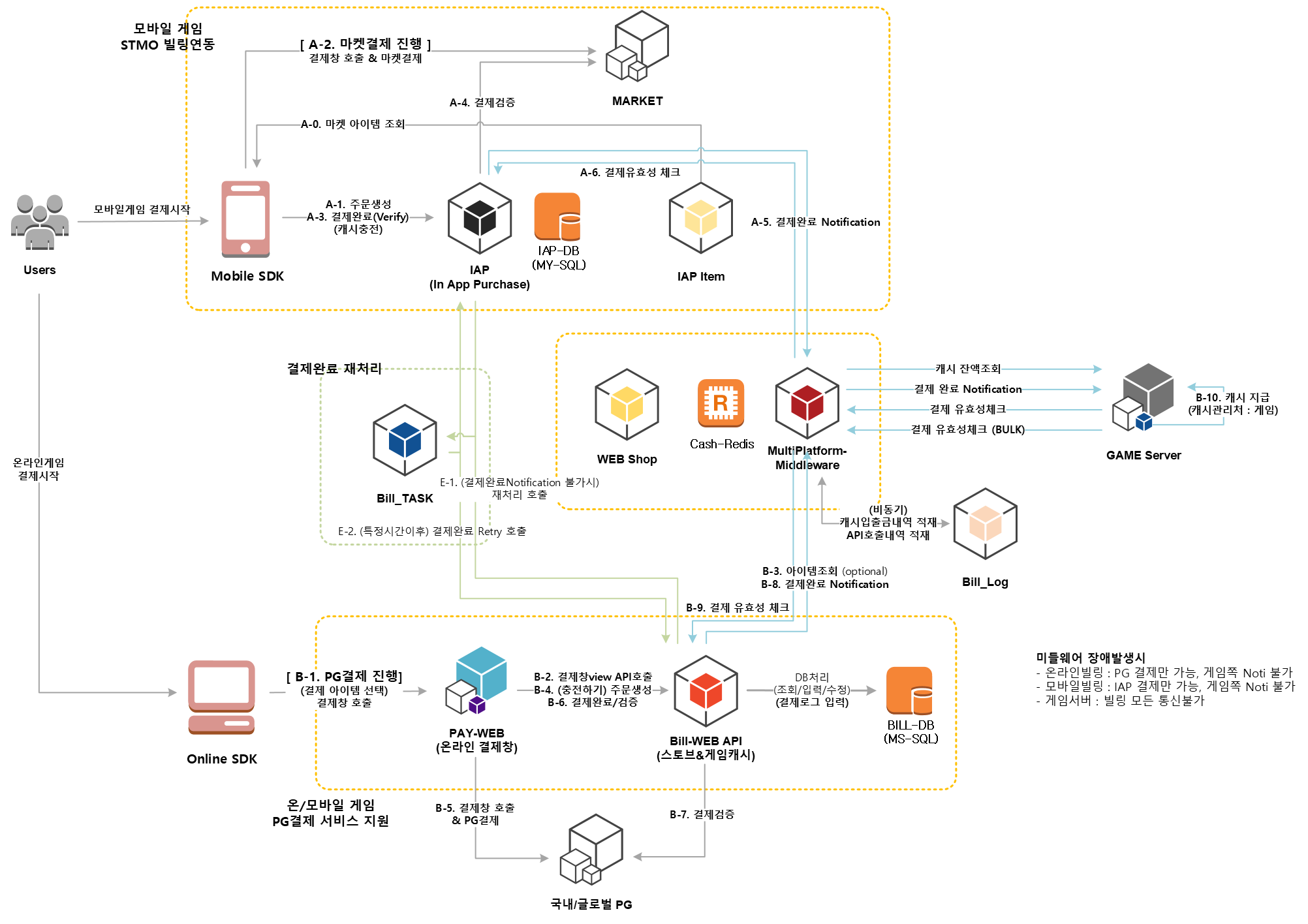
Supported Features
| Feature | Description |
|---|---|
| Payment Completion Notification | Stove Billing sends a notification to the game server upon completion of payment (online/mobile). A completion response is required after verifying validity via middleware. |
| Payment Validity Verification | Stove Billing verifies the source of the received payment notification. Supports BULK (list) processing. |
| Game Cash Balance Check | Inquiry of paid cash balance managed by the game. |
| Abnormal Refund Handling | Collects details of refunds made directly by users through the market and delivers them to the game server. Supports Google and Apple markets. |
| Subscription Products | Supports auto-renewing subscription products for Google Play and Apple App Store. |
Prerequisites
For normal billing operations, all the information below must be registered in Partners.
If even one item is missing, payments will not process correctly.
| Category | Registration Details |
|---|---|
| Billing Integration Info | Billing Version (V4), Service Type, GUID Usage, Payment Completion Notification URL, Cash Inquiry URL |
| IAP Info by Market | Google/Apple Market Authentication Info |
| Market Product Info | Product ID by market |
| World Info | Default world (world_id) for Noti URL |
Caution regarding market integration info
ㆍ Apple IAP Key: Cannot be re-downloaded after initial download (must be reissued if lost)
ㆍ If the Apple shared secret is regenerated, all app information currently in use must be updated
Abnormal Refund Handling
This is a feature that prevents users from continuing to use received items if they request a refund (cancellation) directly through the market without going through an operator after receiving the items.
For this, Stove Billing responds in two stages: a stage to intervene before the refund is finalized to prevent abuse and a stage to recover losses after the refund is finalized.
| Stage | Purpose | Applicable Markets |
|---|---|---|
| Stage 1 Refund Review |
Intervene before the market confirms a refund to prevent refunds for items already consumed or sold (refund abuse). | Google Play, Apple App Store (Steam is not supported as it lacks a pre-feedback process) |
| Stage 2 Refund Repayment |
If the market forces a refund despite a rejection in Stage 1, recover the loss by requiring the user to pay again upon their next login. | Google Play, Apple App Store, Steam |
Cases not blocked in Stage 1 proceed to Stage 2
If the market forces a refund without reflecting the developer's (Stove) opinion, the case is moved to Stage 2 (Refund Repayment). Both functions operate independently but are connected sequentially.
Abnormal Refund Collection Targets
ㆍ Stage 1 (Refund Review): General item refund requests on Google Play/Apple App Store
ㆍ Stage 2 (Refund Repayment): Confirmed refunds on Google Play/Apple App Store/Steam
ㆍ Mobile Subscription Items: Excluded as abnormal refund judgment is not possible
ㆍ Information is also delivered if a refund occurs for a user who has withdrawn from the game
Development
Partners and Console Settings
- Google Console API Settings
- Obtain Google Play Console API access rights
- Create a Google Cloud project (Create project / Add API / Configure OAuth consent screen and create client ID)
- Generate OAuth 2.0 Playground Refresh Token
- Enter Stove Partners billing setting information
- Billing Information Entry Guide
- Register Google Play billing information (Market verification key / OAuth Client ID / OAuth Client Secret / Refresh Token / Bucket Name / Credential json)
- Register Apple App Store billing information (Issuer ID / Key ID / IAP Key / Shared Secret)
- Non-Approved Refund Item History Reception Settings
- iOS App Store notification settings (QA/Production server URL / Version 2 notification change)
- Android notification settings
SDK Integration
Mobile IAP
Android uses PlayBilling, and iOS uses StoreKit to handle the payment flow. While the SDK connects market calls to Stove billing server verification, you must separately implement payment notification (Noti) reception, re-verification, and fulfillment processing on the game server side.
Prerequisites
- Module Dependencies
- Android (
build.gradle): Add the following repository and dependencies. (Check and apply the latest release version.)groovyrepositories { google() jcenter() maven { url "https://externalnexus.iam0.com/repository/mvp" // Android Gradle Plugin 7.0 이상 사용 시 아래 옵션 추가 allowInsecureProtocol = true } mavenCentral() } dependencies { implementation 'com.stove:iap-google:2.9.0' } - iOS (Xcode Capabilities): Search for and add In-App Purchase in Build Settings → Capabilities and ensure it is enabled.
- Android (
- Register Partners Billing Information: Google Play / Apple App Store billing keys and secrets must be registered in Partners. (Refer to
2. 연동 가이드 > Google Play 연동/Apple App Store 연동) - Register Payment Notification (Notification) URL: Register the URL for receiving payment notifications on the game server side in Partners. After the SDK payment is completed, the fulfillment request is sent to this URL. (Mobile supports up to 100 retries)
- User Login Complete: All IAP calls only function after
Auth.loginis complete. If called while not logged in,Auth.UnauthorizedError(30002) is returned. - When using Multi-Character (Multi-Currency): Configure
use_custom_billing_guid(true) in the Partners SDK Config. The client must callsetCustomBillingGUIDimmediately after IAP initialization + when world/character selection is complete. (Refer to the Required Multi-Character (Multi-Currency) Management Settings section in the sample code below)
Development Flow
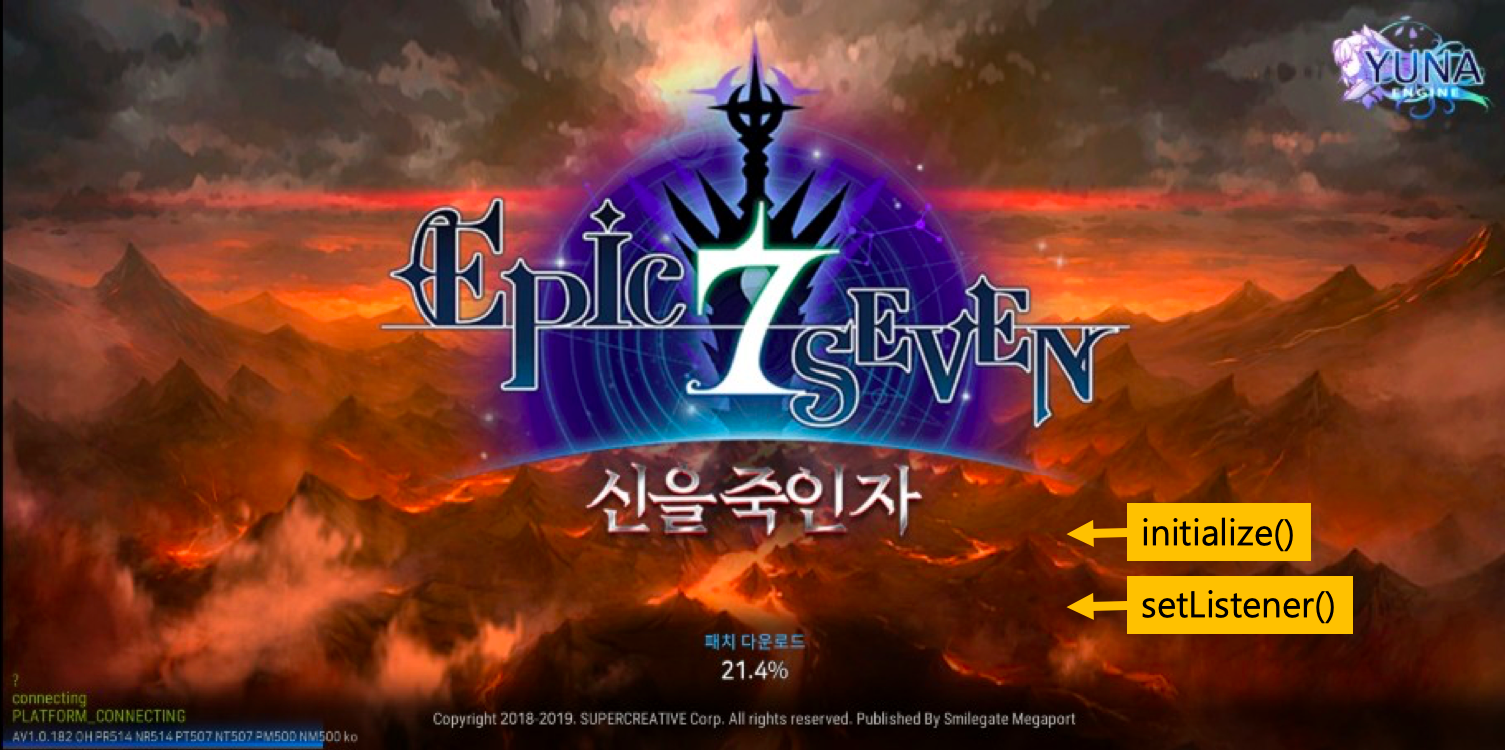
- Initialization: Call
IAP.initializeafter login is complete. If it fails withAuth.UnauthorizedError(30002), guide the user to the login flow; if it fails withIAPError.InitializeError(40003), guide the user to check the market environment usinguserInfo'sresponseCode(BillingClient.BillingResponseCode) anddebugMessage. - Register Payment Listener: Register the payment result callback using
IAP.setListenerwithin the initialization success callback. Normal purchases, cancellations, account mismatches, pending verification, pending fulfillment, and market errors are all delivered to this listener. - Store Configuration: Query the product list with
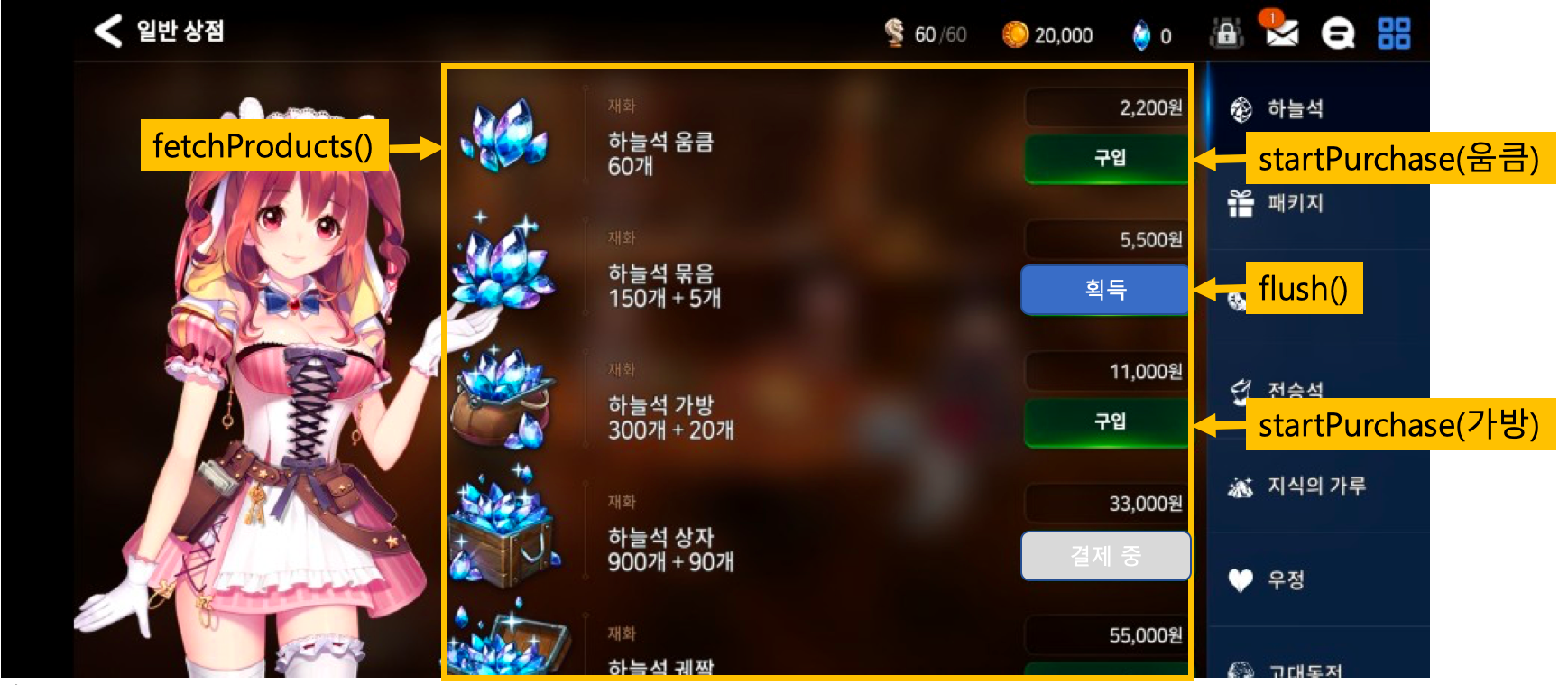
IAP.fetchProducts, and branch the activation/deactivation of the purchase button based on the responseIAPProduct'sProductState(Available/Waiting/Purchased) value. - Proceed with Purchase: For
Availableitems, callIAP.startPurchase. SinceWaitingis in progress, deactivate the button,Purchasedis in an unpaid state, soIAP.flushto process the re-payment. - flush: When a payment has been made but there are undelivered items, or when the app is restarted, call
IAP.flushto request consumption/re-payment. The result will be returned via thesetListenercallback. - (Optional) Additional Features: Use the
serviceOrderIdargument to pass a developer payload,IAP.handleVoidedPurchasesto check refund history, andpurchasePromotionfor iOS App Store promotional product payments.
Perform payment verification on the game server
Do not grant items based solely on the isSuccessful of the SDK callback. Since the client can be tampered with, the game server must perform a secondary verification using the Stove payment validity check API after receiving the payment notification (Noti) before granting currency/items.
Troubleshooting
Payment verification pending/delivery pending are part of the normal flowIAPError.PurchasedError (40006) and IAPError.WaitingError (40001) are normal states where payment/delivery is processed asynchronously on the billing server. Do not inform the user of an error; instead, display a progress screen such as "Payment is being processed, we will notify you via push notification shortly." After a certain period, the billing server will process it automatically, and the result will be delivered via push notification.
Handling Account Mismatch (SuccessButUserMissMatch, 40000)
This occurs when a user changes their account or moves to a different world before payment verification is complete. Induce a re-login flow based on the currently logged-in account and inform the user that previous payment results will be processed later via game server notifications (Noti).
| Situation | Cause | Action |
|---|---|---|
Auth.UnauthorizedError (30002) | Login incomplete or token expired | AuthUI.login or Auth.login to proceed with the re-login flow, then try calling IAP again. |
IAPError.InitializeError (40003) | Android market (PlayBilling) initialization failed | userInfo of responseCode (BillingClient.BillingResponseCode) and debugMessage to guide the user to check store app installation, login status, and supported market availability. |
IAPError.InvalidProduct (40004) | Attempting to pay with a manually created product object or a product other than the fetchProducts result | Always pass the object received from IAP.fetchProducts as-is to startPurchase. Do not use a product that you have instantiated directly. |
IAPError.MarketError (40002) | Market client error during payment attempt | Branch to userInfo.responseCode (BillingResponseCode) for Android and SKError.code for iOS to guide the user. Retry for temporary errors, and guide them to check the store app/account for environmental issues. |
iOS pay country code nil (40010) | Apple account payment country information missing | Guide the user to register their country/region and payment information in App Store settings. |
Server billing verification failed (30000 verify fail / 30015 sandbox transaction) | Payment receipt verification failed or test account not registered in LIVE environment | If in a LIVE environment, check if the test account is registered in Partners. For general cases, check the receipt re-verification logic on the game server. |
Already subscribed product (93106) | User already owns the same subscription product | Inform the user that they are already subscribed and disable the purchase button. |
| Payment delivery missing | Game server notification (Noti) URL response failed or processing missed | Ensure the notification URL registered in Partners always returns a 200 response. Since mobile attempts up to 100 re-deliveries, implement idempotent processing on the game server side as well. |
| Delivered to the wrong character in multi-character | setCustomBillingGUID not called or called at the wrong time | Call setCustomBillingGUID("{STOVE_guid}_{STOVE_character_no}") after IAP initialization + at the point when world/character selection is complete. |
40303 returned in refund history UI | Authentication token expired | Delegate to OperationUI.HandleResult and perform a forced logout via Auth.logout to induce a re-login. |
A detailed ErrorCode table for each function is included in the sample code below.
Sample Code
Initialization
Initialize the Market SDK (PlayBilling/StoreKit). Product lookup and purchase calls are only possible after initialization is complete.
- Recommended timing: After successful login
#if UNITY_ANDROID
using Stove.StoveSDK.IAP.Google;
#endif

public void Initialize()
{
    IAP.Initialize((Result result) =>
    {
        if (result.IsSuccessful)
        {
            SetListener(); // setListener 호출
        }
        else if (result.ErrorCode == Auth.UnauthorizedError)
        {
            //TODO : login
        }
        else
        {
            //InitializeError. Android Only
            // see https://developer.android.com/reference/com/android/billingclient/api/BillingClient.BillingResponseCode
        }
    });
}
ErrorCodes
| Domain | ErrorCode | Description |
|---|---|---|
| com.stove.success | 0 | Success |
| com.stove.auth | 30002 | UnauthorizedErrorResult |
| com.stove.iap | 40003 | InitializeError. For Android PlayBilling, refer to 'responseCode' and 'debugMessage' in userInfo |
| com.stove.iap | 40010 | Only for iOS, when the pay country code is nil |
| com.stove.server | 20001 | initialize fail on precheck |
| com.stove.server | 20002 | initialize fail on afterCheck |
| com.stove.server | 20003 | initialize fail on send tid |
| com.stove.server | 20004 | initialize fail on send tid : error parsing response |
setListener
Sets the listener to receive payment results after successful IAP initialization. flush The processing results of are also delivered to this listener.
- Recommended timing: Immediately after initialization is complete
productIf there is a value, it changes the status of the product for which the purchase was attempted to the received status. In certain situations, statuses other thanAvailablemay be received.
public void SetListener()
{
    IAP.SetListener((Result result, IAPProduct product, IAPPurchaseDetail purchaseDetail) =>
    {
        if (result.IsSuccessful)
        {
            //구매 성공
        }
        else if (result.IsCanceled)
        {
            //구매 취소
        }
        else if (result.ErrorCode == IAPError.SuccessButUserMissMatchError)
        {
            //구매 성공 (계정 불일치)
            //결제 검증이 완료되지 않은 상태에서 계정 변경 또는 월드 이동 시 발생 가능
        }
        else if (result.ErrorCode == IAPError.PurchasedError)
        {
            //결제 검증 대기 중 - 추후 빌링 서버에서 자동 처리, 푸시로 알림
        }
        else if (result.ErrorCode == IAPError.WaitingError)
        {
            //지급 대기 중 - 추후 자동 처리, 푸시로 알림
        }
        else if (result.ErrorCode == IAPError.MarketError)
        {
            //Android: BillingClient.BillingResponseCode
            //iOS: SKError.Code
        }
    });
}
ErrorCodes
| Domain | ErrorCode | Description |
|---|---|---|
| com.stove.success | 0 | Success |
| com.stove.cancel | 10 | Canceled |
| com.stove.iap | 40000 | SuccessButUserMissMatch |
| com.stove.iap | 40001 | Waiting |
| com.stove.iap | 40002 | MarketError (Android: BillingResponseCode / iOS: Payment Failed) |
| com.stove.iap | 40006 | Purchased |
| com.stove.server | 10001 | invalid parameters |
| com.stove.server | 10004 | not exists noti-api |
| com.stove.server | 10007 | is not supported environment |
| com.stove.server | 30000 | verify fail |
| com.stove.server | 30006 | canceled transaction - verify fail |
| com.stove.server | 30007 | revoked transaction - verify fail |
| com.stove.server | 30011 | completed transaction |
| com.stove.server | 30012 | duplicate store receipt |
| com.stove.server | 30014 | failed transaction |
| com.stove.server | 30015 | sandbox transaction (Occurs when a test account is not registered in LIVE) |
| com.stove.server | 40001 | supply server response is 'fail' |
| com.stove.server | 40005 | noti api call fail |
| com.stove.server | 40006 | cash api call fail |
| com.stove.server | 40007 | itembox api call fail |
Configuring the Store
Configure the store by querying products from the market. The main fields of the query response, "IAPProduct", are as follows.
IAPProduct Fields
| Field Name | Description | Example |
|---|---|---|
| ProductType | Product type (inapp/subs) | inapp |
| productIdentifier | Market-registered product ID (passed during purchase request) | google_item01 |
| stoveProductId | Product ID registered in Stove Partners | stove_item01 |
| localizedTitle | Market product name | Battle Shield |
| localizedDescription | Market product description | Product description... |
| price | Price (displayed amount) | ₩1,100 |
| priceCurrencyCode | Currency code | KRW, JPY, USD |
| priceAmountMicros | Price in micros (÷1,000,000 = actual amount) | 1100000000 |
| ProductState | Product state | Available / Waiting / Purchased |
| isLimit | Whether purchase is limited | false |
| purchaseLimit | Purchase limit information (3.1.0 or higher, see table below) | - |
| subscriptionPeriod | Subscription period (ISO 8601) | P1M |
| freeTrialPeriods | Free trial period (ISO 8601) | P7D |
Purchase Limit Information (3.1.0 or higher)
Starting from 3.1.0, the purchase limit quantity based on account, character, and world, along with the quantity purchased so far, are provided for each product. Use this when displaying the available purchase quantity in the store, such as "1/5".
| Field Name | Description | Example |
|---|---|---|
| accountPurchasedCount | Account-based purchase quantity | 1 |
| accountLimit | Account-based purchase limit (0 = no limit) | 5 |
| characterPurchasedCount | Character-based purchase quantity | 0 |
| characterLimit | Character-based purchase limit (0 = no limit) | 0 |
| worldPurchasedCount | Total world purchase quantity (sum of all users) | 120 |
| worldLimit | World-based purchase limit (0 = no limit) | 1000 |
- Field names follow platform conventions. Android · iOS · Unreal use "
purchaseLimit.accountLimit", and Unity uses "PurchaseLimit.AccountLimit". - If the limit quantity is "
0", there is no limit for that criterion. Even if purchase limit information is not received, all values are returned as "0", and the product list query will still succeed. - Purchase quantities are populated only after setting the character and world with "캐릭터 설정(setGameProfile)". If you query before setting them, the limit quantity will be returned, but the purchase quantity will be "
0". - Quantities are based on the time of the query. Actual purchase availability is re-verified by the server during payment.
- Existing "
isLimit" is also still provided.
📌 Purchase limit information is only provided for games where the Stove-side setting is enabled. Please contact your technical PL to use this feature.
📌 3.1.0 purchase limit information is provided in iOS · Android · Unity · Unreal, and for Android, it is limited to Google Play. This feature is not supported on Huawei or One Store.
Recommendations: Display purchase buttons differently based on the product state.
- Available: Purchase available state
- Waiting: Payment pending state (purchase in progress)
- Purchased: Purchase completed but not yet delivered (handle re-delivery via flush)
#if UNITY_ANDROID
using Stove.StoveSDK.IAP.Google;
#endif

public void FetchProducts()
{
    IAP.FetchProducts((Result result, List<IAPProduct> products) =>
    {
        if (result.IsSuccessful)
        {
            foreach (IAPProduct product in products)
            {
                IAPProduct.ProductState state = product.State;
                if (state == IAPProduct.ProductState.Available) { /* 구매 가능 */ }
                else if (state == IAPProduct.ProductState.Waiting) { /* 결제 중 */ }
                else if (state == IAPProduct.ProductState.Purchased) { /* flush 필요 */ }
                string localizedTitle = product.LocalizedTitle;
                string price = product.Price;
            }
        }
        else if (result.IsServerError) { /* 빌링 서버 오류 */ }
        else { /* 네트워크 오류 */ }
    });
}
Displaying Purchase Limits (3.1.0 or higher)
In the shop, purchase limits are displayed in the following order.
- If the limit quantity is
0, the criteria are not displayed. - Calculate the remaining quantity (
제한 수량 - 구매 수량) for each criterion. - If there is no remaining quantity for even one criterion, the purchase button is disabled.
- Once the payment is complete, query the product list again to update the figures.
| Criterion | Meaning | Display Example |
|---|---|---|
| Account | Quantity purchasable with this account | 1/5 per account |
| Character | Quantity purchasable with the current character | 0/1 per character |
| World | Limited quantity shared by all users in the world | 880 remaining |
- The world purchase quantity is the total for all users. It is recommended to show the remaining quantity rather than your own purchase count.
| Status | Condition | Button Example |
|---|---|---|
| No Limit | All limit quantities are 0 | Purchase |
| Available | Remaining quantity exists for all criteria | Purchase + Limit text |
| Limit Reached | No remaining quantity for account or character criteria | Purchase Complete (Disabled) |
| Sold Out | No remaining quantity for world criterion | Sold Out (Disabled) |
- Check the product status (
ProductState) before the purchase limit.Waiting·Purchasedproducts are handled according to the recommendations above. - The product list is queried when entering the shop, changing characters, or completing a payment. Figures are based on the time of the query.
- The screen display is for informational purposes. After the query, the limit may be reached due to purchases on other devices or by other users; in this case, the server will reject the purchase at the payment stage. If a payment failure is received, query the product list again to refresh the screen.
- If purchase limit information is not received and all values are
0, only the purchase button is displayed without any limit text.
using System;
using System.Collections.Generic;
using Stove.StoveSDK;

bool HasLeft(int purchased, int max)
{
    return max == 0 || purchased < max;
}

bool CanPurchase(IAPProduct product)
{
    IAPPurchaseLimit limit = product.PurchaseLimit;
    return product.State == IAPProduct.ProductState.Available
        && HasLeft(limit.AccountPurchasedCount, limit.AccountLimit)
        && HasLeft(limit.CharacterPurchasedCount, limit.CharacterLimit)
        && HasLeft(limit.WorldPurchasedCount, limit.WorldLimit);
}

string LimitText(IAPProduct product)
{
    IAPPurchaseLimit limit = product.PurchaseLimit;
    var texts = new List<string>();
    if (limit.AccountLimit > 0) texts.Add($"계정당 {limit.AccountPurchasedCount}/{limit.AccountLimit}");
    if (limit.CharacterLimit > 0) texts.Add($"캐릭터당 {limit.CharacterPurchasedCount}/{limit.CharacterLimit}");
    if (limit.WorldLimit > 0) texts.Add($"남은 수량 {Math.Max(limit.WorldLimit - limit.WorldPurchasedCount, 0)}");
    return string.Join(" · ", texts);
}
ErrorCodes
| Domain | ErrorCode | Description |
|---|---|---|
| com.stove.success | 0 | Success |
| com.stove.server | 20000 | not exists value |
| com.stove.server | 21000 | No content |
| com.stove.server | 21001 | not exists game |
| com.stove.server | 21002 | Not exists marketCode |
| com.stove.base.network | 10001 | NoConnectionError |
| com.stove.base.network | 10002 | TimeoutError |
Purchase
Depending on the product's ProductState, it is handled differently. AvailableIf it is , only startPurchase is called, and Purchased is flush handled as a re-provisioning.
#if UNITY_ANDROID
using Stove.StoveSDK.IAP.Google;
#endif

public void StartPurchase(IAPProduct product)
{
    IAPProduct.ProductState state = product.State;
    if (state == IAPProduct.ProductState.Waiting) { /* 결제 중 - 버튼 비활성화 */ }
    else if (state == IAPProduct.ProductState.Available)
    {
        IAP.StartPurchase(product, (Result result) =>
        {
            if (result.IsSuccessful) { /* 결제 시작됨 */ }
            else if (result.IsServerError)
            {
                if (result.ErrorCode == 93106) { /* 이미 구독 중인 상품 */ }
            }
            else if (result.ErrorCode == Auth.UnauthorizedError) { /* AuthUI.login */ }
            else if (result.ErrorCode == IAPError.InvalidProductError) { /* fetchProducts 결과 사용 */ }
            else { /* 네트워크 오류 */ }
        });
    }
    else if (state == IAPProduct.ProductState.Purchased)
    {
        IAP.Flush(); //재지급 처리
    }
}
ErrorCodes
| Domain | ErrorCode | Description |
|---|---|---|
| com.stove.success | 0 | Success |
| com.stove.auth | 30002 | UnauthorizedError |
| com.stove.iap | 40003 | InitializeError |
| com.stove.iap | 40004 | InvalidProduct |
| com.stove.iap | 40006 | PurchasedNeedFlush |
| com.stove.iap | 40008 | ListenerError |
| com.stove.iap | 40009 | InvalidUser |
| com.stove.iap | 40010 | iOS pay country code nil |
| com.stove.server | 20005 | initialize fail on already purchased split product |
| com.stove.server | 93102 | invalid product info |
| com.stove.server | 93103 | is not sales product |
| com.stove.server | 93104 | limit purchase |
| com.stove.server | 93106 | exists purchased subscript product |
| com.stove.server | 93107 | not subscript product |
| com.stove.server | 93108 | product is subscript and limit |
| com.stove.server | 93110 | over limit on purchase of payment amount |
| com.stove.base.network | 10001 | NoConnectionError |
| com.stove.base.network | 10002 | TimeoutError |
flush
This is used to process consumption for products that have been paid for but not yet delivered, and to request re-provisioning of products. The processing result is delivered to the listener set in IAP.setListener.
public void Flush()
{
    IAP.Flush();
    // 결과는 setListener의 콜백으로 전달됨
}
Setting developer payload during payment
When calling for payment, if you set serviceOrderId you can verify it in the payment response.
⚠️ Caution
The payload value is not guaranteed to be delivered 100% in some user refund cases (such as app deletion).
Be careful not to use it as primary information that affects payment delivery.
string serviceOrderId = "set your developer payload";
IAP.StartPurchase(product, serviceOrderId, null, (Result result) => { });
Querying refund history (data)
Receive the user's market refund history as data only, without a UI. Use this when you need to guide users with refund history to re-purchase directly in the game or restrict their access. To handle this using the UI provided by the SDK, use the Refund History UI(handleVoidedPurchases) below.
IAP.FetchVoidedPurchases((Result result, List<Dictionary<string, object>> voidedPurchases) =>
{
    if (result.IsSuccessful)
    {
        if (voidedPurchases.Count > 0)
        {
            // 환불 내역이 있으면 재결제 안내 또는 접속 제한 등 게임 정책에 따라 처리
        }
        else
        {
            // 환불 내역 없음 → 게임 진입
        }
    }
    else
    {
        // 조회 실패
        OperationUI.HandleResult(result, (Result operationResult) => { });
    }
});
Refund History UI
Displays the user's market refund history on the screen. If a refund payment is required, it can be processed from this screen.
#if UNITY_ANDROID
using Stove.StoveSDK.IAP.Google;
#endif

public void HandleVoidedPurchases()
{
    IAP.HandleVoidedPurchases((Result result) =>
    {
        if (result.IsSuccessful)
        {
            /** 게임 진입 가능 **/
        }
        else if (result.IsCanceled)
        {
            if (result.UserInfo != null && result.UserInfo.TryGetValue("userAction", out string userAction))
            {
                if (!string.IsNullOrEmpty(userAction) && userAction.Equals("customerSupport"))
                {
                    ViewUI.CustomerSupport((Result result, Dictionary<string, string> dictionary) =>
                    {
                        HandleVoidedPurchases();
                    });
                    return;
                }
            }
            HandleVoidedPurchases();
        }
        else
        {
            OperationUI.HandleResult(result, (Result operationResult) =>
            {
                if (result.ErrorCode == 40303)
                {
                    Auth.Logout();
                }
            });
        }
    });
}
Required Multi-Character (Multi-Currency) Management Settings
Applicability
Multi-character settings are required if any of the following apply:
- Games serviced with multiple worlds (character/item distribution per world)
- Single server but with internal characters requiring character-specific payments/distribution
- Two or more Partners World settings
- Using both the Stove secondary currency system and In-App Purchase (IAP) features
Partners (SDK Config) Settings
You must configure the following items in the Partners SDK Config.
use_custom_billing_guid=true
Client Tasks - Setting User Unique Identifier
- Timing: Immediately after creating (initializing) the SDK IAP object, you must set the user who will receive the items (
setCustomBillingGUID). Note: Ensure this is set after a world or character has been selected. - Method (Standard recommended method when using Stove game character features): Set in the form of a
{STOVE_guid}_{STOVE_character_no}combination. Even with this setting, thecharacter_nofield is correctly transmitted when requesting distribution from the billing server after payment completion.
Notice (2025.05.15)
For new games, the guide has been changed to a {STOVE_guid}_{STOVE_character_no} combination to flexibly support various features such as 'Account Gifting'. This setting applies only to mobile environments.
IAP.SetCustomBillingGUID("{STOVE_guid}_{STOVE_character_no}");
iOS Promoted
Integration for promoted in-app purchases within the App Store.
- Available from iOS 11 and later
- The
purchasePromotioncall timing is after initialization and login are complete
Code Example (iOS)
#import <SGSIAP/SGSIAP.h>
#import <StoreKit/StoreKit.h>

@interface AppDelegate () <SKPaymentTransactionObserver>
@property (nonatomic) NSString *promotionProductID;
@end

@implementation AppDelegate

- (BOOL)application:(UIApplication *)application didFinishLaunchingWithOptions:(NSDictionary *)launchOptions {
    [[SKPaymentQueue defaultQueue] addTransactionObserver:self];
    return YES;
}

- (void)paymentQueue:(SKPaymentQueue *)queue updatedTransactions:(NSArray<SKPaymentTransaction *> *)transactions
{
}

- (BOOL)paymentQueue:(SKPaymentQueue *)queue shouldAddStorePayment:(SKPayment *)payment forProduct:(SKProduct *)product {
    //프로모션 아이템 정보를 저장
    self.promotionProductID = product.productIdentifier;
    return NO;
}

//프로모션 상품 저장 여부 체크
- (BOOL)isExistPromotion {
    return (self.promotionProductID != nil);
}

//프로모션 상품 결제
- (void)purchasePromotion {
    [SGSIAP fetchProductsWithCompletionHandler:^(SGSResult * _Nonnull result, NSArray<SGSIAPProduct *> * _Nullable products) {
        if ([result isSuccessful]) {
            for (SGSIAPProduct *product in products) {
                if ([product.productIdentifier isEqualToString:self.promotionProductID]) {
                    [SGSIAP startPurchaseWithProduct:product completionHandler:^(SGSResult * _Nonnull result) {
                        if (result.isSuccessful) { /* 결제 성공 */ }
                        else { /* 결제 실패 */ }
                    }];
                    break;
                }
            }
        } else if ([result isServerError]) {
            //빌링 서버 오류
        } else {
            //네트워크 오류
        }
    }];
}

@end
PC IAP
Prerequisites
- BaseSDK initialization (
Base_Initialize) and user login must be completed first. Then, initialize the IAPSDK withIAP_Initialize(shopKey). If you need to specify a parent window, useIAP_InitializeWithWndInfo. - The callback runner (
Base_RunCallback()) must be called periodically in the game loop for asynchronous callbacks to function. - A payment notification reception URL and billing information for each market (Google/Apple/Steam) must be registered in Partners.
- When using multi-character (multi-currency), set the user identifier first using the game profile setting API.
- For games distributed via the Steam launcher, Stove authentication must be completed via the external platform integration module (APIModule), PCSDK3 must be running, and the game must directly integrate and initialize the Steamworks SDK. For detailed flow, refer to Steam Payment below.
Development Flow
- Initialization: After
Base_Initializeis complete, initialize the IAP module withIAP_Initialize(shopKey)(useIAP_InitializeWithWndInfoif a parent window is required). - Terms Agreement Check: Use
IAP_FetchTermsAgreementto check if mandatory terms have been agreed to; if not, proceed with the terms agreement flow. - Store Configuration: Retrieve the product list using category inquiry (
IAP_FetchShopCategories) and product list inquiry (IAP_FetchProducts) to build the UI. - Purchase Process: Call
IAP_StartPurchase/IAP_StartPurchaseExwhen selected by the user. Use the operation inStovePCPurchaseOptionto determine the payment UI and confirmation method, and webViewMode to determine how the payment window is displayed. (Refer to Purchase Options and Payment Window Display Method below.) Refer to Transferring Product Inquiry Results to Purchase Parameters below for how to map retrieved product information to purchase parameters. - Purchase Confirmation/Verification: After payment is complete, call
IAP_ConfirmPurchasefor client-side confirmation, and perform secondary verification on the game server using the payment validity check API. - Inventory: Use inventory inquiry (
IAP_FetchInventory) if necessary. - Additional Actions: Use
IAP_WithdrawGamefor the game termination (terms withdrawal) UI, andIAP_CloseAllPopupsto close all open payment windows. - Cleanup: Before terminating the game, clean up the IAP module with
IAP_UnInitialize()and then callBase_UnInitialize().
Games distributed via Steam Launcher have different steps 4–7. Please refer to Steam Payment below.
Purchase Options and Payment Window Display Methods
IAP_StartPurchaseWhen calling /IAP_StartPurchaseEx, you define two things using StovePCPurchaseOption. operation(SetOperation) determines whether the SDK displays the payment window and whether the SDK handles purchase confirmation on your behalf, while webViewMode(SetWebviewMode) determines whether the payment window displayed by the SDK is drawn as an overlay within the game window or as a separate window. The same webViewMode setting applies to the Terms of Service inquiry(IAP_FetchTermsAgreement)'s StovePCTermsOption and game uninstallation(IAP_WithdrawGame)'s StovePCWithdrawGameOption as well, so the explanation below applies to them too.
Purchase Option (operation)
| Value | Payment Window Display | Purchase Confirmation (ConfirmPurchase) | Completion Result Delivery Location |
|---|---|---|---|
StovePCPurchaseOperation::WITH_WEBVIEW_AND_CONFIRM_RESULT (Recommended) | SDK WebView | Automatically called by SDK | IAP_StartPurchase(Ex)'s onFinished callback |
StovePCPurchaseOperation::WITH_WEBVIEW | SDK WebView | Called directly by the game | IAP_ConfirmPurchase callback |
StovePCPurchaseOperation::DEFAULT | Not displayed. The game directly opens the one-time payment URL(oneTimePaymentUrl) received as a result | Called directly by the game | IAP_ConfirmPurchase callback |
ㆍ WITH_WEBVIEW_AND_CONFIRM_RESULT: Since the SDK handles both payment completion detection and purchase confirmation, do not call IAP_ConfirmPurchase separately (doing so will result in duplicate confirmation). The SDK also handles 0-won items internally and delivers them via the same onFinished callback.
ㆍ WITH_WEBVIEW: The SDK displays the payment window but does not notify you of payment completion. onFinished is triggered when the URL is loaded in the payment window, and onDestroy is merely a screen cleanup event, not a payment completion signal. Since the game must call IAP_ConfirmPurchase directly, this is not recommended unless there is a specific reason.
ㆍ DEFAULT: The SDK only creates the order and returns a one-time payment URL. The game is responsible for opening the payment window and calling IAP_ConfirmPurchase. Since the SDK does not display the payment window, SetWebviewMode and SetWebviewRect do not apply, and onDestroy is not called.
DEFAULT Option Usage Sequence
Choose DEFAULT when you need to embed the payment page in a built-in browser (CEF, Unity WebView, etc.) or control the payment window directly according to your game's UI flow. If it is sufficient for the SDK to display the payment window and notify you of the result, WITH_WEBVIEW_AND_CONFIRM_RESULT is simpler.
- Create Order: When you call
IAP_StartPurchase(Ex), the transaction number(transactionMasterNumber) and one-time payment URL(oneTimePaymentUrl) are returned via onFinished. This point is before payment. Save the transaction number locally in case of abnormal termination, and if a saved number exists upon restart, finish it withIAP_ConfirmPurchase. - Verify 0-won Payment: If
purchaseProgressisNOT_NEED_PAYMENT_WINDOW, there is no payment URL and the purchase is already complete. Do not open the window; callIAP_ConfirmPurchaseimmediately to receive the item list. - Display Payment Window: Open the received URL using your preferred browser component. Since the SDK does not communicate separately with the payment page, there is no need to add integration code to the browser. The payment page may open a new window depending on the payment method, so please allow new windows. The URL is one-time use; call
IAP_StartPurchaseagain to retry. - Confirm Purchase: Once the payment window is closed, call
IAP_ConfirmPurchaseonce using the saved transaction number. Since this is an inquiry API, there are no side effects even if the payment was not made or was canceled. If the first inquiry returns 'unconfirmed', retry only once after 5 seconds; if it is still 'unconfirmed', have the user check again via a "Payment Confirmation" button. Since the user might return to the game without closing the window, always display this button during payment. Do not call the same API repeatedly before the previous callback arrives, as the callback will be overwritten. - Item Distribution: Distribute items only when payment completion is confirmed based on the three-way judgment below.
Reading ConfirmPurchase Results
| Callback Result | Meaning | Game Action |
|---|---|---|
IsSuccessful() == true and status == true | Payment Complete | Distribute items based on purchasedProducts. |
IsSuccessful() == true and status == false | Payment Incomplete (Canceled, not yet paid, or not reflected on server) | Do not distribute. If immediately after closing the payment window, retry only once after 5 seconds. |
IsSuccessful() == false | Inquiry Failed (Network, server error, invalid transaction number) | Do not distribute. Retry or inform the user. Unapproved orders may come as external_error 22001, which should also be treated as incomplete. |
Judging Stove Launcher and Steam Launcher with One Condition
The table above is based on the Stove Launcher flow. In the Steam Launcher flow, the SDK always returns status as false, so if you use the condition that checks IsSuccessful and status together, payments confirmed on Steam will be treated as failures. Since you cannot distinguish the two flows by callback values alone and there is no inquiry API, set a flag when Stove authentication is completed via the External Platform Integration Module and judge in a single function as shown below. If the SDK has a SteamUserId passed during initialization, it automatically processes it as a Steam payment flow; otherwise, it processes it as a Stove payment window flow.
Common Mistakes
- Distributing items or calling ConfirmPurchase immediately upon receiving onFinished. This point is before payment.
- Judging payment completion solely by the fact that the payment window closed. Closing is independent of payment status; judge only by the ConfirmPurchase result.
- Treating ```cpp
static bool g_isSteamPayment = false; // 외부플랫폼연동모듈(스팀) 인증 경로로 기동했다면 true
enum class ConfirmOutcome { Failed, Pending, Confirmed };
ConfirmOutcome JudgeConfirmPurchase(const CallbackResult& callbackResult, bool status)
{
if (!callbackResult.GetResult().IsSuccessful())
return ConfirmOutcome::Failed; // 호출 실패. GetExternalError() 로 원인 확인 (스팀 미승인 22001 포함)
if (g_isSteamPayment || status)
return ConfirmOutcome::Confirmed; // 스팀런처 동선은 status 가 항상 false 라 호출 성공 = 확정
return ConfirmOutcome::Pending; // 스토브런처 동선 미확정. 닫힘 직후면 5초 뒤 1회 재조회
}text
    static bool g_isSteamPayment = false;   // 외부플랫폼연동모듈(스팀) 인증 경로로 기동했다면 true

    enum ConfirmOutcome { Failed, Pending, Confirmed }

    static ConfirmOutcome JudgeConfirmPurchase(CallbackResult callbackResult, bool status)
    {
        if (!callbackResult.result.IsSuccessful())
            return ConfirmOutcome.Failed;      // 호출 실패. externalError 로 원인 확인 (스팀 미승인 22001 포함)

        if (g_isSteamPayment || status)
            return ConfirmOutcome.Confirmed;   // 스팀런처 동선은 status 가 항상 false 라 호출 성공 = 확정

        return ConfirmOutcome.Pending;         // 스토브런처 동선 미확정. 닫힘 직후면 5초 뒤 1회 재조회
    }
status == false as an error and displaying a failure message to the user. In most cases, this is a normal flow where the user closed the window without paying.
Opening in an External Browser
If you do not want to use a built-in browser, you can open the payment URL received via DEFAULT in the user's default browser (ShellExecute, for Unity Application.OpenURL). The SDK does not attach cookies, headers, or tokens to the URL, so the same payment page opens in any browser. Base_OpenExternalUrl is wrapped in the Stove SSO login address, so use it only when the payment page requires a Stove login session in the browser. You need to verify if the one-time payment URL is passed correctly after [확인 필요] SSO transit.
- External browsers do not pass close events to the game. Instead of "call when window closes," use game window activation return (for Win32,
WM_ACTIVATEAPP, Unity calls the same verification function in bothOnApplicationFocus) and the "Confirm Payment" button, and use an in-progress flag to prevent overlapping calls. - Do not delete the transaction number immediately even if you receive
status == falsein the first query. The user may still be in the middle of payment in the browser. Only clear it when payment is confirmed as complete, and clean it up if the user chooses to cancel or starts a new payment. The server will clean up incomplete orders on its own. - Exclusive fullscreen games may be minimized the moment they switch to the browser. Windowed or borderless fullscreen mode is recommended during payment.
Steam distribution games always behave like DEFAULT regardless of the operation value, but since the payment window is displayed by the Steam overlay, the "Display Payment Window" step in the description above does not apply. Please refer to the Steam Payment section.
Payment Window Display Method (webViewMode)
| Value | Display Method | Features |
|---|---|---|
WebViewMode::INTERNAL | Draws as a child window of the main game window, overlapping the game screen | You can specify the position and size (SetWebviewRect(x, y, width, height), in pixels). You must pass the game window handle to IAP_InitializeWithWndInfo during initialization, and if a child window cannot be created, it will operate as EXTERNAL |
WebViewMode::EXTERNAL | Draws as a separate window independent of the game window | Since it covers the entire screen, it is not affected by the display state of the game window |
!warning
Exclusive Fullscreen (FSE) games cannot use INTERNAL. Since INTERNAL draws the window overlapping the game screen, the payment window will not be drawn in Exclusive Fullscreen mode. EXTERNAL displays the payment window even in Exclusive Fullscreen mode, but there is an issue where the game screen is minimized as the separate window comes to the front. Therefore, for games using Exclusive Fullscreen, it is recommended to switch the game screen to Borderless Windowed Fullscreen when displaying the payment window.
Moving Product Query Results to Purchase Parameters
Since the IAP_FetchProducts received in the product list query (StovePCProduct) callback and the IAP_StartPurchase included in the purchase request (StovePCOrderProduct) are different structures, you cannot pass the queried product as is and must move the necessary values. The values to move are the following three:
StovePCOrderProduct (Purchase Request) | Value to Retrieve | Description |
|---|---|---|
SetProductId | StovePCProduct::GetProductId() | This is the platform product ID. Move it as is. |
SetSalePrice | StovePCProduct::GetSalePrice() | This is the sale price for payment. Since the server compares this value with the actual sale price, move it as is. If you enter the list price (GetPrice()) or display price (GetDisplaySalePrice(), etc.), the purchase may be rejected due to a price mismatch. |
SetQuantity | Purchase quantity selected by the user | StovePCProduct::GetQuantity() is the quantity of items provided when purchasing this product once, not the purchase quantity. Do not copy it; enter the quantity selected by the user (usually 1). |
Since the time of pressing the purchase button is later than the query callback, do not use the array received as a callback argument outside the callback; copy the product ID and sale price into the game's store model inside the callback, and create the StovePCOrderProduct when purchasing. Since the sale price can change due to discount periods, etc., you must use the value from the query result shown on the screen just before purchase. The IAP_FetchProductsEx received via StovePCProductEx also provides the same getter, so move it using the same method. The Game:: / Game. call and ShopItem in the example are pseudo-code implemented by the developer.
=== "Native (Unreal)"
cpp
// Store model — Values copied in the query callback
struct ShopItem
{
int64_t productId;
double salePrice;
};
// (1) Product list query callback — Copy only the values needed for purchase
IAP_FetchProducts(&fetchParams,
[](CallbackResult callbackResult, StovePCProduct* products, uint32_t productsSize)
{
if (!callbackResult.GetResult().IsSuccessful())
return;
for (uint32_t i = 0; i < productsSize; ++i)
{
ShopItem item;
item.productId = productsi.GetProductId();
item.salePrice = productsi.GetSalePrice(); // Sale price for payment (Not GetPrice() or GetDisplaySalePrice())
Game::Shop::Add(item);
}
});
// (2) Buy button — Create an order item with the stored value and the quantity selected by the user
void OnBuyClicked(const ShopItem& item, int32_t count)
{
StovePCOrderProduct orderProduct;
orderProduct.SetProductId(item.productId);
orderProduct.SetSalePrice(item.salePrice);
orderProduct.SetQuantity(count); // Purchase quantity selected by the user. Do not enter StovePCProduct::GetQuantity()
StovePCStartPurchaseParam params;
params.CreateOrderProduct(1);
params.SetOrderProduct(0, &orderProduct);
// Subsequent option settings and IAP_StartPurchaseEx calls are the same as (1) in the sample code below.
}
=== "Unity"
```csharp
// Shop model — Values copied from the query callback
public struct ShopItem
{
    public long   productId;
    public double salePrice;
}

// (1) Product list query callback — Copy only the values required for purchase
IAP_FetchProducts(fetchParams, (callbackResult, products) =>
{
    if (!callbackResult.result.IsSuccessful())
        return;

    foreach (StovePCProduct product in products)
    {
        Game.Shop.Add(new ShopItem
        {
            productId = product.productId,
            salePrice = product.salePrice,   // Sale price for payment (Not price or displaySalePrice)
        });
    }
});

// (2) Buy button — Create an order item with the stored value and the quantity selected by the user
void OnBuyClicked(ShopItem item, int count)
{
    var orderProduct = new StovePCOrderProduct
    {
        productId = item.productId,
        salePrice = item.salePrice,
        quantity  = count,   // Purchase quantity selected by the user. Do not enter StovePCProduct.quantity
    };

    var param = new StovePCStartPurchaseParam
    {
        products     = new[] { orderProduct },
        productsSize = 1,
    };
    // Subsequent option settings and IAP_StartPurchaseEx calls are the same as (1) in the *sample code* below.
}


<br />

##### Steam Payment

This is the payment flow for games distributed and executed via the Steam launcher. If you are distributing only via the Stove launcher, you can skip this section and follow the flow above.

This flow assumes that the game has **completed Stove authentication via the External Platform Integration Module (APIModule) and that the PCSDK3 is running**. Module integration and Steam game terms of service agreement are covered in the Steam Integration Guide; this section only explains the payment part thereafter.

`IAP_StartPurchase`There are no parameters or options to distinguish between the Steam launcher flow and the Stove launcher flow. There is also no place for the developer to set whether the payment window (Stove launcher feature) or the Steam overlay appears when executed based on Steam. The criteria the SDK uses to select the flow is the Steam user ID (SteamUserId) passed during the initialization of the external platform integration module. If this value exists, it is automatically processed as the Steam payment flow; if not (including Stove launcher execution), it is processed as the Stove payment window flow, and there is no API to query the current flow. If you support both the Stove launcher and the Steam launcher, set a flag at the time of authentication via the external platform integration module, and `IAP_ConfirmPurchase` read the result as the common judgment in *To determine the Stove launcher and Steam launcher with one condition* above.

```mermaid
flowchart TD
classDef shop fill:#EDEDE9,stroke:#8D99AE,color:#2B2D42
classDef pay  fill:#EDE7F6,stroke:#7E57C2,color:#311B92
classDef ok   fill:#D5F5E3,stroke:#27AE60,color:#145A32
classDef no   fill:#FDECEA,stroke:#C0392B,color:#7B241C

C[IAP_FetchShopCategories<br/>샵 카테고리 조회] --> P[IAP_FetchProducts<br/>카테고리별 상품 목록 조회]
P --> SP[IAP_StartPurchase<br/>productId · salePrice · quantity]

SP --> CB[StartPurchase 콜백<br/>거래 마스터 번호 확보]
SP --> OV[스팀 결제 오버레이 노출<br/>스팀런처가 게임에 주입]

CB --> HOLD[거래 마스터 번호 보관]
OV --> Q{사용자 승인?}
Q -->|취소·실패| X([결제 종료<br/>지급 없음])
Q -->|승인| MT[MicroTxnAuthorizationResponse_t<br/>Steamworks 콜백]
HOLD -. 거래 마스터 번호 .-> MT

MT --> CF[IAP_ConfirmPurchase<br/>보관한 번호로 구매 확정]
CF --> INV[IAP_FetchInventory<br/>지급 아이템 확인]

class C,P shop
class SP,CB,OV,MT pay
class CF,INV ok
class X no
Flow
- Shop Configuration:
IAP_FetchShopCategoriesfor categories,IAP_FetchProductsto query the product list and configure the shop UI. Up to this point, it is the same as the basic flow. - Start Purchase: When the user selects a product, call
IAP_StartPurchase. Fill in only the product information (productId·salePrice·quantity) and leaveStovePCPurchaseOptionas the default value. - Two things happen simultaneously: ① The Transaction Master Number (
IAP_StartPurchase) arrives via thetransactionMasterNumbercallback, and ② the Steam launcher displays the Steam Payment Overlay over the game. The order of these two actions is not guaranteed, so keep the transaction master number received in the callback stored in a variable. - User Payment: The user approves or cancels the purchase in the overlay. Since this screen is drawn by Steam, there is no UI for the developer to create.
- Receive Result: The approval/cancellation result arrives not via the SDK, but via the
MicroTxnAuthorizationResponse_tcallback of Steamworks. Callback registration and processing are in the Steamworks SDK area that the game has integrated. - Confirm Purchase: If approved, call
IAP_ConfirmPurchasewith the stored transaction master number. There is no automatic confirmation in the Steam flow, so if you skip this call, the item will not be delivered. Orders that end in cancellation or non-approval are settled by the backend as payment cancellations even if you do not call this, but if you do not receive a result callback, check the final status with this call. - Check Delivery: Check the delivered items with
IAP_FetchInventory.
For the actual implementation code, refer to Sample Code → Steam Payment (Steam Launcher Distributed Game) below. The (1)~(3) operation examples in the same Sample Code are for the Stove payment window flow and do not apply to the Steam flow.
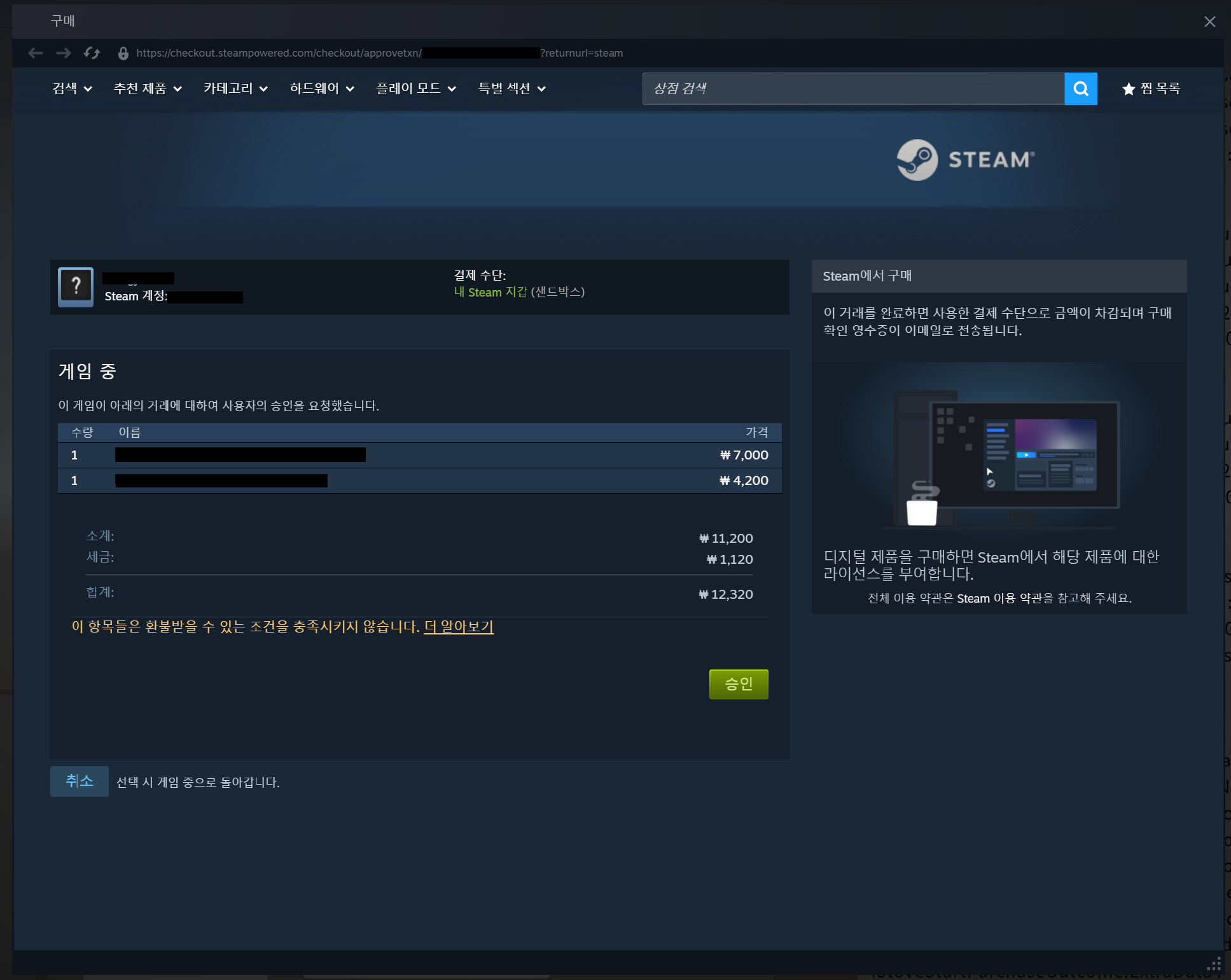
Payment Overlay Screen
When the user starts a purchase, the Steam launcher displays a purchase approval screen like the one below over the game. The product name, quantity, and amount are composed by the backend delivering the product information registered in Stove to Steam.
Differences from Basic PC Payment
StovePCPurchaseOptionis not applied. No matter what value is entered, it behaves like DEFAULT, and the Steam overlay handles the payment window.- The payment completion signal comes not via the
IAP_StartPurchasecallback, but via theMicroTxnAuthorizationResponse_tcallback of Steamworks. You must run both the SDK callback runner (Base_RunCallback()) and the Steamworks callback pump (SteamAPI_RunCallbacks()). - There is no SDK automatic confirmation. Even if approved in the Steam overlay, if you do not call
IAP_ConfirmPurchase, the item will not be delivered. - Among the payment API callback values, only the Transaction Master Number (
transactionMasterNumber) is valid. The payment URL·purchaseProgress·purchased product array·billing information·statusare returned as default values, so do not refer to them; judge only byCallbackResult. If successful, the payment is confirmed and the item has been delivered. If it is a failure andexternalErroris22001, it means the Steam transaction was not approved (cancellation, pending approval, expired), so process it as a cancellation. If it is a failure and the result code is249(NETWORK_TRANSPORT_ERROR), call again only after receiving the callback of the previous call after network guidance. Other failures are server or SDK errors. - If
IAP_StartPurchasefails withexternalError21107, there is an incomplete previous Steam transaction remaining. Do not retry; guide the user with "A previous payment is in progress. Please complete or cancel it in the Steam overlay," and if there is a previous transaction master number, callIAP_ConfirmPurchaseonce to settle the status. - Terms of service agreement (
IAP_FetchTermsAgreement) is not used. Steam game terms of service agreement is handled in the external platform integration module flow. Game withdrawal (IAP_WithdrawGame) is not supported.
!warning
Steam callback may not arrive
Although this is an issue that occurs in the Steamworks SDK implementation rather than the STOVE PCSDK, we provide this guidance together because payment waiting can continue indefinitely. If the user closes the payment window while the network is disconnected during payment,GameOverlayActivated_tarrives, butMicroTxnAuthorizationResponse_tdoes not.
ㆍ IfGameOverlayActivated_tofm_bActivearrives as0while waiting for payment, andMicroTxnAuthorizationResponse_tdoes not arrive within 3 to 5 seconds from the last closing time, callIAP_ConfirmPurchasewith the stored transaction master number to confirm the final status. In the case of a normal cancellation, the cancellation confirmation dialog reopens after the payment window is closed (m_bActive=1) and the callback arrives about 2 seconds after it is closed, so if the overlay reopens, stop the grace period and measure the grace period again every time it closes.
ㆍ While waiting for paymentSteamServersDisconnected_tIf you receive , call immediately without any grace period when the overlay closes.IAP_ConfirmPurchaseUsers who have turned off the overlay (ISteamUtils::IsOverlayEnabled()is false) will not receive , so please provide a button on the payment waiting screen that allows them to check or cancel directly.GameOverlayActivated_t> ㆍ Do not ignore that arrives late after the wait is over, and call .MicroTxnAuthorizationResponse_tThis call goes to the Stove server, so it can be made regardless of the Steam connection status, and the final decision should always be based on the result of this call.IAP_ConfirmPurchase
##### Troubleshooting| Situation | Cause | Solution |
|---|---|---|
| The IAP function does not work immediately after entering the game | BaseSDK initialization (Base_Initialize) or user login has not been completed when the IAP API was called. |Base_InitializeAfter completion, you must initialize the IAPSDK withIAP_Initializeand call the IAP API after finishing the login. |
| Payment started, but a "Terms of Service not agreed" response is received | The user has not agreed to the Stove payment terms, so payment is blocked. This often happens with new users or immediately after terms are updated. | You must first check if the terms have been agreed to using the Terms Agreement Inquiry API (IAP_FetchTermsAgreement), and if mandatory terms have not been agreed to, you must display the terms agreement popup. There is no issue if you make the user return to the payment flow after completing the agreement. |
| Product inquiry returns an empty product list | Products have not been registered in Partners yet, or they are registered but the Market Key (Product ID) does not match the value being used in the game. This often happens when managing different product IDs for each build. | You must check the product registration status and Market Key in the Partners Billing Console, and verify that the game client is sending the same product ID. If product IDs are separated by environment (Dev/Stage/Live), there is no issue if you check that they match the build environment. |
| The payment window suddenly closes during payment | If a new IAP API is called, the existing payment/terms window will be closed collectively. This is an intentional behavior to prevent two payment flows from being displayed at the same time. | You must prevent additional calls from the game side when starting a payment so that only one IAP flow proceeds at a time. There is no issue if you disable the payment button until the payment completion callback is received. |
| The payment result callback is not called | If the callback runner (Base_RunCallback()) is not called in the game main loop, the payment result event will not be delivered to the game. | You must call the callback runner every frame or at regular intervals in the main loop. There is no issue if you check that it is being called in the same way as the general game loop during payment. |
| Payment was successful, but the item was not delivered in-game and an50052(item delivery failure) error is recorded in Stove | Payment is completed through: Stove → Game Server Payment Notification (Webhook) transmission → Game Server response received → Delivery processing. If the game server notification URL is not registered, the path is incorrect, or the game server response is missing, Stove determines the notification transmission failed, records it as an50052error, and delivery is omitted. | You must check that the payment notification URL is correctly registered in the Partners Billing settings, and implement the game server to return a normal response synchronously immediately after receiving the notification. If you check the notification URL and server response first, you can prevent the50052error from occurring. |
| In a multi-character game, the item is delivered to a different character | If the current character's identifier (character_no) is not set with the Game Profile Settings API before entering payment, the Stove server cannot know which character to deliver to. | You must call the Game Profile Settings API immediately after character selection to update the current character in the SDK. If it is a game with a character change flow, there is no issue if you call it again at each change point. |
| The Steam payment overlay does not appear | The Steamworks SDK is not initialized, the in-game overlay is disabled in the Steam client, or the Steam market information registered in Partners is different from the actual app. | You must first check the Steamworks SDK initialization and the Steam client's overlay settings, and compare the Steam market information registered in Partners Billing with the actual app to ensure there is no issue. |
| Payment was approved in the Steam overlay, but the game does not respond | The Steamworks callback pump (SteamAPI_RunCallbacks()) is not running, so theMicroTxnAuthorizationResponse_twas not delivered to the game. | You must callSteamAPI_RunCallbacks()in the game loop. It is separate from the SDK callback runner (Base_RunCallback()), so there is no issue if you check that both are running. |
| Steam payment was successful, but the item was not delivered | There is no automatic SDK purchase confirmation in the Steam flow, but you did not callIAP_ConfirmPurchase. |MicroTxnAuthorizationResponse_tAfter receiving the approval result from , you must callIAP_ConfirmPurchase. |
| Trying to confirm the purchase, but there is no transaction master number |IAP_StartPurchaseThe order of the callback and Steam overlay exposure is not guaranteed, but you did not store the transaction master number received in the callback. |IAP_StartPurchaseStore the transaction master number in a variable in the callback, and there is no issue if you retrieve it at the time of the Steamworks callback. |
| The game freezes if you cancel after the network is disconnected and restored while the Steam payment overlay is open | Steamworks did not deliverMicroTxnAuthorizationResponse_t, but the game is waiting only for this callback. |GameOverlayActivated_tDetect overlay closing with , callIAP_ConfirmPurchase, and ifexternalErroris22001, there is no issue if you process it as a cancellation. |
|IAP_StartPurchasefails withexternalError21107| There is an incomplete previous Steam transaction remaining. | Guide the user to complete or cancel the previous transaction in the Steam overlay, and callIAP_ConfirmPurchasewith the previous transaction master number to clear the state, and there is no issue.
!info
Use the Ex version if you need a payment termination eventIAP_StartPurchase,IAP_StartPayment, etc., only deliver the payment start result. If you need to resume the game flow when the popup closes, call the Ex version (IAP_StartPurchaseEx,IAP_StartPaymentEx,IAP_FetchTermsAgreementEx,IAP_FetchProductsEx) to receive the termination event.
!warning
Payment validation is performed on the game server
Client-side purchase confirmation (IAP_ConfirmPurchase) alone does not guarantee protection against forgery or tampering. The game server must perform secondary verification with the Stove Payment Validation API after receiving the payment notification before granting currency/items.
Sample Code
We provide examples by dividing each function into units. The entire payment flow proceeds in the order of Initialization/Terms → Store Configuration → Purchase → Validation → Inventory. The Game:: / Game. calls in the examples are pseudo-functions implemented by the developer.
Initialization and Termination
Base_Initialize After completion, initialize the IAPSDK with IAP_Initialize(shopKey) (if a parent window is needed, IAP_InitializeWithWndInfo). Upon termination, call IAP_UnInitialize and then clean up with Base_UnInitialize.
=== "Native (Unreal)"
#include "IAPSDK.h"
using namespace Stove::PCSDK;
using namespace Stove::PCSDK::Base;
using namespace Stove::PCSDK::IAP;

// 초기화 — Base_Initialize 완료 이후 호출합니다. 부모 창 지정이 필요하면 IAP_InitializeWithWndInfo(shopKey, hwnd)
auto initResult = IAP_Initialize(L"YOUR_SHOP_KEY");
if (!initResult.IsSuccessful())
{
    // 초기화 실패 시 로직을 구현해 주세요.
    return;
}

// 종료 — IAP_UnInitialize 후 Base_UnInitialize 순서로 정리합니다.
IAP_UnInitialize();
=== "Unity"
using static Stove.PCSDK.Base;
using static Stove.PCSDK.IAP;

// 초기화 — Base_Initialize 완료 이후 호출합니다. 부모 창 지정이 필요하면 IAP_InitializeWithWndInfo(shopKey, hwnd)
Result initResult = IAP_Initialize("YOUR_SHOP_KEY");
if (!initResult.IsSuccessful())
{
    // 초기화 실패 시 로직을 구현해 주세요.
    return;
}

// 종료 — IAP_UnInitialize 후 Base_UnInitialize 순서로 정리합니다.
IAP_UnInitialize();
Terms Agreement
After initialization, first check if mandatory terms have been agreed to with IAP_FetchTermsAgreement. If not agreed, display the terms agreement flow (provided URL or SDK webview).
=== "Native (Unreal)"
StovePCTermsOption termsOption;
termsOption.SetOperation(StovePCTermsOperation::WITH_WEBVIEW);
termsOption.SetWebviewMode(Base::WebViewMode::INTERNAL);
termsOption.SetWebviewRect(0, 0, 800, 600);
IAP_FetchTermsAgreement(&termsOption,
    [](CallbackResult callbackResult, bool agreed, const wchar_t* url)
    {
        if (callbackResult.GetResult().IsSuccessful() && !agreed)
        {
            // 약관 동의 흐름을 노출해 주세요.
        }
    });
=== "Unity"
var termsOption = new StovePCTermsOption
{
    operation = StovePCTermsOperation.WITH_WEBVIEW,
    webviewMode = WebViewMode.INTERNAL,
    webviewPosX = 0, webviewPosY = 0, webviewWidth = 800, webviewHeight = 600,
};
IAP_FetchTermsAgreement(termsOption,
    (callbackResult, agreed, url) =>
    {
        if (callbackResult.result.IsSuccessful() && !agreed)
        {
            // 약관 동의 흐름을 노출해 주세요.
        }
    });
Store Configuration
Configure the UI by retrieving store tabs with Category Inquiry (IAP_FetchShopCategories) and item lists for each category with Product List Inquiry (IAP_FetchProducts). If you pass an empty value for the category ID, it will be queried across the entire range.
=== "Native (Unreal)"
// 1) 카테고리 조회
IAP_FetchShopCategories(
    [](CallbackResult callbackResult, StovePCShopCategory* categories, uint32_t categoriesSize)
    {
        if (callbackResult.GetResult().IsSuccessful())
        {
            // categories[0..categoriesSize) 로 상점 탭 UI 구성
        }
    });

// 2) 상품 목록 조회
StovePCFetchProductParam fetchParams;
fetchParams.SetCategoryId(L"");   // 빈 값이면 전체 카테고리
fetchParams.SetPageNumber(1);
fetchParams.SetPageSize(20);
IAP_FetchProducts(&fetchParams,
    [](CallbackResult callbackResult, StovePCProduct* products, uint32_t productsSize)
    {
        if (callbackResult.GetResult().IsSuccessful())
        {
            // products[0..productsSize) 로 상점 UI 구성
        }
    });
=== "Unity"
// 1) 카테고리 조회
IAP_FetchShopCategories((callbackResult, shopCategories) =>
{
if (callbackResult.result.IsSuccessful())
{
// shopCategories 로 상점 탭 UI 구성
}
});
// 2) 상품 목록 조회
var fetchParams = new StovePCFetchProductParam
{
categoryId = "", // 빈 값이면 전체 카테고리
pageNumber = 1,
pageSize = 20,
};
IAP_FetchProducts(fetchParams, (callbackResult, products) =>
{
if (callbackResult.result.IsSuccessful())
{
// products 로 상점 UI 구성
}
});
```**In-game Item Purchase** Purchase starts with `IAP_StartPurchase`.`IAP_StartPurchaseEx` (1) below is the recommended example, while (2) and (3) show only the parts that differ from (1). For the operating principles and judgment criteria, please refer to *Purchase Options and Payment Window Display Method* above. **(1) WITH_WEBVIEW_AND_CONFIRM_RESULT — Display Payment Window + Automatic Purchase Verification (Recommended)** The SDK handles the payment window display, payment completion detection, and purchase confirmation, then delivers the result via onFinished. Do not call `IAP_ConfirmPurchase` directly, as it will cause duplicate confirmation. === "Native (Unreal)" cpp #include "IAPSDK.h" using namespace Stove::PCSDK; using namespace Stove::PCSDK::Base; using namespace Stove::PCSDK::IAP; void IAP_StartPurchase_WITH_WEBVIEW_AND_CONFIRM_RESULT_Example()
{
// (1) Product configuration — In-game item information selected by the user
StovePCOrderProduct product1; product1.SetProductId(123); product1.SetSalePrice(1000); product1.SetQuantity(3);
StovePCOrderProduct product2; product2.SetProductId(456); product2.SetSalePrice(5000); product2.SetQuantity(2);
StovePCStartPurchaseParam params;
params.CreateOrderProduct(2); // Create internal array for the number of ordered products
params.SetOrderProduct(0, &product1);
params.SetOrderProduct(1, &product2);
// (2) Options — SDK payment window + automatic confirmation. SetWebviewRect(x, y, width, height), center is (-1, -1)
StovePCPurchaseOption option;
option.SetOperation(StovePCPurchaseOperation::WITH_WEBVIEW_AND_CONFIRM_RESULT);
option.SetWebviewMode(Base::WebViewMode::INTERNAL);
option.SetWebviewRect(0, 0, 420, 700);
params.SetPurchaseOption(option);
Game::ShopUI::SetPurchaseButtonEnabled(false); // Prevent duplicate clicks while payment is in progress
// (3) Start payment — Use Ex version to receive payment window closure (onDestroy)
IAP_StartPurchaseEx(¶ms,
// onFinished: Purchase completion processing point called once after the SDK finishes ConfirmPurchase
[](CallbackResult callbackResult, StovePCPurchaseResult purchaseResult)
{
if (!callbackResult.GetResult().IsSuccessful())
{
// Payment failed/cancelled. If WEBVIEW_CLOSED_BEFORE_PURCHASE, it is a cancellation where the user closed the window before payment (not an error),
// otherwise, it is a payment window entry failure, parameter error, or network/server error. In any case, no items are granted.
return;
}
if (!purchaseResult.IsPurchased())
{
// The call was successful but the server did not confirm payment completion (rare). Do not grant items and proceed with re-inquiry or customer support.
return;
}
// Purchase complete — Grant items only here. Since transactionMasterNumber is unique for every transaction, use it as a key to prevent duplicate granting.
for (uint32_t i = 0; i < purchaseResult.GetPurchasedProductCount(); ++i)
{
const StovePCPurchasedProduct* product = purchaseResult.GetPurchasedProduct(i);
int64_t productId = product->GetProductId(); // Platform product ID
int64_t detailNo = product->GetTransactionDetailNumber(); // Purchase detail number
// Process granting for each purchased item
}
for (uint32_t i = 0; i < purchaseResult.GetChargeInfoCount(); ++i)
{
const StovePCChargeInfo* charge = purchaseResult.GetChargeInfo(i);
int32_t type = charge->GetChargeType(); // 98: STOVE Cash, 99: Points, others: PG payment method
double deductVal = charge->GetChargeDeductVal(); // Payment price
// Receipt display, settlement logging, etc.
}
},
// onDestroy: When the payment window is closed. For UI cleanup only (completion judgment and granting are in onFinished)
[](CallbackResult callbackResult)
{
Game::ShopUI::SetPurchaseButtonEnabled(true);
});
}
=== "Unity"
using static Stove.PCSDK.IAP;
using static Stove.PCSDK.Base;

public static class IAPWithWebviewAndConfirmResultExample
{
    public static void Run()
    {
        // (1) Product configuration — In-game item information selected by the user
        var products = new StovePCOrderProduct[]
        {
            new StovePCOrderProduct { productId = 123, salePrice = 1000, quantity = 3 },
            new StovePCOrderProduct { productId = 456, salePrice = 5000, quantity = 2 },
        };

        // (2) Options — SDK payment window + automatic confirmation. Webview position/size, center is (-1, -1)
        var option = new StovePCPurchaseOption
        {
            operation = StovePCPurchaseOperation.WITH_WEBVIEW_AND_CONFIRM_RESULT,
            webviewMode = WebViewMode.INTERNAL,
            webviewPosX = 0, webviewPosY = 0, webviewWidth = 420, webviewHeight = 700,
        };

        var param = new StovePCStartPurchaseParam
        {
            products = products,
            productsSize = (uint)products.Length,
            option = option,
        };

        Game.ShopUI.SetPurchaseButtonEnabled(false);   // Prevent duplicate clicks while payment is in progress

        // (3) Start payment — Use Ex version to receive payment window closure (onDestroy)
        IAP_StartPurchaseEx(param,
            // onFinished: Purchase completion processing point called once after the SDK finishes ConfirmPurchase
            (callbackResult, purchaseResult) =>
            {
                if (!callbackResult.result.IsSuccessful())
                {
                    // Payment failed/cancelled. If WEBVIEW_CLOSED_BEFORE_PURCHASE, it is a cancellation where the user closed the window before payment (not an error),
                    // otherwise, it is a payment window entry failure, parameter error, or network/server error. In any case, no items are granted.
                    return;
                }

                if (!purchaseResult.purchased)
                {
                    // The call was successful but the server did not confirm payment completion (rare). Do not grant items and proceed with re-inquiry or customer support.
                    return;
                }

                // Purchase complete — granted only here. Since transactionMasterNumber is unique for every transaction, it is used as a key to prevent duplicate granting.
                foreach (var product in purchaseResult.purchasedProducts)
                {
                    long productId = product.productId;                 // Platform product ID
                    long detailNo  = product.transactionDetailNumber;   // Purchase detail number
                    // Process granting for each purchased item
                }
                foreach (var charge in purchaseResult.chargeInfos)
                {
                    int    type      = charge.chargeType;        // 98: STOVE Cash, 99: Points, Others: PG payment method
                    double deductVal = charge.chargeDeductVal;   // Payment price
                    // Receipt display, settlement logging, etc.
                }
            },
            // onDestroy: When the payment window is closed. For UI cleanup only (completion judgment and granting are in onFinished)
            (callbackResult) =>
            {
                Game.ShopUI.SetPurchaseButtonEnabled(true);
            });
    }
}
(2) DEFAULT — 게임이 결제창을 직접 띄우는 방식
(1)과 달라지는 부분만 보여 줘요. 옵션은 DEFAULT만 지정하고(webview 설정 무의미), onFinished는 결제 URL 발급 시점이라 구매 완료가 아니며, 게임이 띄운 결제창이 닫힐 때 IAP_ConfirmPurchase를 호출해요. onDestroy는 호출되지 않으니 빈 핸들러를 넘겨요. 외부 브라우저로 열 때의 차이는 위 외부 브라우저로 열 때 를 참고하세요.
=== "Native (Unreal)"
StovePCPurchaseOption option;
option.SetOperation(StovePCPurchaseOperation::DEFAULT);
params.SetPurchaseOption(option);
IAP_StartPurchaseEx(¶ms,
// onFinished: Point when payment URL is issued (not purchase completion)
[](CallbackResult callbackResult, StovePCPurchaseResult purchaseResult)
{
if (!callbackResult.GetResult().IsSuccessful())
return; // Order creation failed. Terminate after notification
int64_t txnNo = purchaseResult.GetTransactionMasterNumber();
Game::SavePendingTransaction(txnNo); // Store transaction number (local storage recommended to prepare for abnormal termination)
if (purchaseResult.GetPurchaseProgress() == PurchaseProgress::NOT_NEED_PAYMENT_WINDOW)
{
IAP_ConfirmPurchase(txnNo, OnConfirmPurchase); // 0-won payment: Confirm immediately without a window
return;
}
Game::OpenOwnPaymentPage(purchaseResult.GetOneTimePaymentUrl(), txnNo); // Game displays payment window
},
[](CallbackResult callbackResult) {}); // onDestroy: DEFAULT is not called as there is no SDK payment window
// Called when the payment window displayed by the game is closed. If unconfirmed, re-query once after 5 seconds
void Game_ConfirmOwnPurchase()
{
int64_t txnNo = Game::PeekPendingTransaction();
if (txnNo != 0)
IAP_ConfirmPurchase(txnNo, OnConfirmPurchase);
}
// Purchase confirmation result — The judgment is the same as JudgeConfirmPurchase above
void OnConfirmPurchase(CallbackResult callbackResult, bool status,
StovePCPurchasedProduct* purchasedProducts, uint32_t purchasedProductSize,
StovePCChargeInfo* chargeInfos, uint32_t chargeInfoSize)
{
switch (JudgeConfirmPurchase(callbackResult, status))
{
case ConfirmOutcome::Confirmed: Game::ClearPendingTransaction(); /* Provide items using purchasedProducts */ break;
case ConfirmOutcome::Pending: /* Do not provide. Keep transaction number, re-query or show payment confirmation button */ break;
case ConfirmOutcome::Failed: /* Do not provide. Show failure notice */ break;
}
}
=== "Unity"
var param = new StovePCStartPurchaseParam
{
    products = products,
    productsSize = (uint)products.Length,
    option = new StovePCPurchaseOption { operation = StovePCPurchaseOperation.DEFAULT },
};

IAP_StartPurchaseEx(param,
    // onFinished: Point when payment URL is issued (not purchase completion)
    (callbackResult, purchaseResult) =>
    {
        if (!callbackResult.result.IsSuccessful())
            return;   // Order creation failed. Show notice and terminate

        long txnNo = purchaseResult.transactionMasterNumber;
        Game.SavePendingTransaction(txnNo);   // Keep transaction number (local storage recommended for unexpected termination)

        if (purchaseResult.purchaseProgress == PurchaseProgress.NOT_NEED_PAYMENT_WINDOW)
        {
            IAP_ConfirmPurchase(txnNo, OnConfirmPurchase);   // 0-won payment: Confirm immediately without window
            return;
        }

        Game.OpenOwnPaymentPage(purchaseResult.oneTimePaymentUrl, txnNo);   // Game displays payment window
    },
    (callbackResult) => { });   // onDestroy: DEFAULT is not called as there is no SDK payment window

// Called when the payment window displayed by the game is closed. If unconfirmed, re-query once after 5 seconds
void ConfirmOwnPurchase()
{
    long txnNo = Game.PeekPendingTransaction();
    if (txnNo != 0)
        IAP_ConfirmPurchase(txnNo, OnConfirmPurchase);
}

// Purchase confirmation result — The judgment is the same as JudgeConfirmPurchase above
void OnConfirmPurchase(CallbackResult callbackResult, bool status, StovePCPurchasedProduct[] purchasedProducts, StovePCChargeInfo[] chargeInfos)
{
    switch (JudgeConfirmPurchase(callbackResult, status))
    {
        case ConfirmOutcome.Confirmed: Game.ClearPendingTransaction(); /* Provide items using purchasedProducts */ break;
        case ConfirmOutcome.Pending:   /* Do not provide. Keep transaction number, re-query or show payment confirmation button */  break;
        case ConfirmOutcome.Failed:    /* Do not provide. Show failure notice */                                  break;
    }
}
(3) WITH_WEBVIEW — 결제창 표시 + 구매 검증 수동
(2)와 같은 흐름에서 결제창만 SDK가 띄워요. onFinished는 결제창에 URL이 로드된 시점이고, onDestroy는 창 닫힘 화면 이벤트라 여기서 IAP_ConfirmPurchase를 호출하면 안 돼요. 게임이 결제 완료를 확신할 수 있는 시점(결제 후 게임 복귀, 구매내역 확인 등)에 (2)의 OnConfirmPurchase로 확정해요.
=== "Native (Unreal)"
StovePCPurchaseOption option;
option.SetOperation(StovePCPurchaseOperation::WITH_WEBVIEW);
option.SetWebviewMode(Base::WebViewMode::INTERNAL);
option.SetWebviewRect(0, 0, 420, 700);
params.SetPurchaseOption(option);
IAP_StartPurchaseEx(¶ms,
// onFinished: Point when payment window is displayed (not purchase completion). 0-won payment branching and transaction number storage are the same as (2)
[](CallbackResult callbackResult, StovePCPurchaseResult purchaseResult) { /* Same as (2) */ },
// onDestroy: Payment window closed. Only clean up UI and do not call ConfirmPurchase
[](CallbackResult callbackResult)
{
Game::ShopUI::SetPurchaseButtonEnabled(true);
});
=== "Unity"
var option = new StovePCPurchaseOption
{
    operation = StovePCPurchaseOperation.WITH_WEBVIEW,
    webviewMode = WebViewMode.INTERNAL,
    webviewPosX = 0, webviewPosY = 0, webviewWidth = 420, webviewHeight = 700,
};

IAP_StartPurchaseEx(param,
    // onFinished: Point when payment window is displayed (not purchase completion). 0-won payment branching and transaction number storage are the same as (2)
    (callbackResult, purchaseResult) => { /* Same as (2) */ },
    // onDestroy: Payment window closed. Only clean up UI and do not call ConfirmPurchase
    (callbackResult) =>
    {
        Game.ShopUI.SetPurchaseButtonEnabled(true);
    });
스팀 결제 (스팀런처 배포 게임)
StovePCPurchaseOption은 기본값 그대로 두고, 결제 완료 신호는 Steamworks의 MicroTxnAuthorizationResponse_t 콜백에서 받아 IAP_ConfirmPurchase로 확정해요. 이 콜백이 오지 않는 경우를 대비해 GameOverlayActivated_t로 오버레이 닫힘을 감지하는 경로도 담았어요. Steamworks 콜백 등록과 SteamAPI_RunCallbacks() 호출은 게임이 연동한 Steamworks SDK 영역이라 연결 지점만 표시했어요.
=== "Native (Unreal)"
#include "IAPSDK.h"
using namespace Stove::PCSDK;
using namespace Stove::PCSDK::Base;
using namespace Stove::PCSDK::IAP;
static int64_t g_PendingTxnNo = 0; // Order waiting for Steam payment result
static int64_t g_LastTxnNo = 0; // Transaction master number of this purchase (for late Steam callbacks/retries)
static int64_t g_ConfirmingTxnNo = 0; // Order currently undergoing IAP_ConfirmPurchase (prevents overlapping calls)
static uint64_t g_GraceDeadlineMs = 0; // Grace period expiration time to wait for Steam callback after overlay closes (0 if none)
// (1) Start Purchase — Since the order of StartPurchase callback and overlay exposure is not guaranteed, store the transaction master number
void StartSteamPurchase()
{
StovePCOrderProduct product; product.SetProductId(123); product.SetSalePrice(1000); product.SetQuantity(1);
StovePCStartPurchaseParam params;
params.CreateOrderProduct(1);
params.SetOrderProduct(0, &product); // StovePCPurchaseOption remains at default values
Game::ShopUI::SetPurchaseButtonEnabled(false);
IAP_StartPurchase(¶ms,
[](CallbackResult callbackResult, StovePCPurchaseResult purchaseResult)
{
if (!callbackResult.GetResult().IsSuccessful())
{
Game::ShopUI::SetPurchaseButtonEnabled(true);
if (callbackResult.GetExternalError() == 21107)
{
// An incomplete previous Steam transaction remains — do not retry, inform the user, and clear the previous order status
Game::ShopUI::ShowMessage(L"A previous payment is in progress. Please complete or cancel it in the Steam overlay.");
ConfirmPendingPurchase(g_LastTxnNo);
}
return;
}
g_PendingTxnNo = g_LastTxnNo = purchaseResult.GetTransactionMasterNumber(); // Only this number is valid
});
}
// (2) Steam payment result — Called from Steamworks MicroTxnAuthorizationResponse_t callback
void OnSteamMicroTxnAuthorized(bool authorized)
{
int64_t txnNo = g_PendingTxnNo;
g_PendingTxnNo = 0;
g_GraceDeadlineMs = 0;
if (txnNo == 0 && authorized) txnNo = g_LastTxnNo; // Re-check if authorization arrives late after starting confirmation in the grace path
if (!authorized || txnNo == 0)
{
Game::ShopUI::SetPurchaseButtonEnabled(true); // Cancelled/Unauthorized — no payment. Unconfirmed orders are cleared by the backend
return;
}
ConfirmPendingPurchase(txnNo);
}
// (3) When Steam callback is not received — Called from GameOverlayActivated_t callback. Restarts 3-second grace period whenever closed, stops when reopened
void OnSteamOverlayActivated(bool active)
{
if (g_PendingTxnNo == 0) return;
g_GraceDeadlineMs = active ? 0 : (Game::Clock::NowMs() + 3000);
// If SteamServersDisconnected_t is received while waiting for payment, call ConfirmPendingPurchase(g_PendingTxnNo) immediately without grace period
}
void TickPurchaseWait() // Called every frame in the game loop
{
if (g_GraceDeadlineMs == 0 || Game::Clock::NowMs() < g_GraceDeadlineMs) return;
g_GraceDeadlineMs = 0;
int64_t txnNo = g_PendingTxnNo;
g_PendingTxnNo = 0;
ConfirmPendingPurchase(txnNo); // If the grace period ends without a Steam callback, finalize the status with ConfirmPurchase
}
// (4) Confirm purchase — There is no automatic confirmation in the Steam flow. Call only after receiving the callback from the previous call
void ConfirmPendingPurchase(int64_t txnNo)
{
if (txnNo == 0 || g_ConfirmingTxnNo != 0) return;
g_ConfirmingTxnNo = txnNo;
IAP_ConfirmPurchase(txnNo, OnConfirmPurchase);
}
// status·purchasedProducts·chargeInfos are provided as default values, so determine only via CallbackResult
void OnConfirmPurchase(CallbackResult callbackResult, bool status,
StovePCPurchasedProduct* purchasedProducts, uint32_t purchasedProductsSize,
StovePCChargeInfo* chargeInfos, uint32_t chargeInfosSize)
{
int64_t txnNo = g_ConfirmingTxnNo;
g_ConfirmingTxnNo = 0;
Game::ShopUI::SetPurchaseButtonEnabled(true);
if (!callbackResult.GetResult().IsSuccessful())
{
if (callbackResult.GetExternalError() == 22001)
return; // Steam transaction unapproved (canceled/pending/expired) — process as cancellation
if (callbackResult.GetResult().GetResultCode() == (uint32_t)Base::SDKResultCode::NETWORK_TRANSPORT_ERROR)
Game::ShopUI::ShowNetworkRetry([txnNo]() { ConfirmPendingPurchase(txnNo); }); // Retry after network notification
return; // Other failures — do not grant items
}
// Confirmation complete — check payment results via inventory inquiry
IAP_FetchInventory([](CallbackResult cb, StovePCInventoryItem* items, uint32_t itemsSize) { /* Refresh inventory UI */ });
}
=== "Unity"
using static Stove.PCSDK.Base;
using static Stove.PCSDK.IAP;
using Steamworks;   // Steamworks.NET integrated by the game

public class SteamPurchaseExample : MonoBehaviour
{
    long  _pendingTxnNo;      // Order awaiting Steam payment result
    long  _lastTxnNo;         // Transaction master number for this purchase (for late Steam callbacks/retries)
    long  _confirmingTxnNo;   // Order currently undergoing IAP_ConfirmPurchase (prevents overlapping calls)
    float _graceDeadline;     // Grace period expiration time to wait for Steam callback after overlay closes (0 if none)
    Callback<MicroTxnAuthorizationResponse_t> _microTxnCallback;
    Callback<GameOverlayActivated_t> _overlayCallback;

    void Start()
    {
        // Register Steamworks callbacks — SteamAPI.RunCallbacks() must also run in the game loop
        _microTxnCallback = Callback<MicroTxnAuthorizationResponse_t>.Create(OnSteamMicroTxnAuthorized);
        _overlayCallback = Callback<GameOverlayActivated_t>.Create(OnGameOverlayActivated);
    }

    // (1) Start purchase — Since the order of StartPurchase callback and overlay exposure is not guaranteed, store the transaction master number
    public void StartSteamPurchase()
    {
        var param = new StovePCStartPurchaseParam
        {
            products = new[] { new StovePCOrderProduct { productId = 123, salePrice = 1000, quantity = 1 } },
            productsSize = 1,   // option remains as default
        };

        Game.ShopUI.SetPurchaseButtonEnabled(false);
        IAP_StartPurchase(param, (callbackResult, purchaseResult) =>
        {
            if (!callbackResult.result.IsSuccessful())
            {
                Game.ShopUI.SetPurchaseButtonEnabled(true);
                if (callbackResult.externalError == 21107)
                {
                    // Previous incomplete Steam transaction exists — do not retry, notify user, and clear the previous order status
                    Game.ShopUI.ShowMessage("A previous payment is in progress. Please complete or cancel it in the Steam overlay.");
                    ConfirmPendingPurchase(_lastTxnNo);
                }
                return;
            }
            _pendingTxnNo = _lastTxnNo = purchaseResult.transactionMasterNumber;   // Only this number is valid
        });
    }

    // (2) Steam payment result — Steamworks callback
    void OnSteamMicroTxnAuthorized(MicroTxnAuthorizationResponse_t response)
    {
        long txnNo = _pendingTxnNo;
        _pendingTxnNo = 0;
        _graceDeadline = 0f;
        bool authorized = response.m_bAuthorized != 0;
        if (txnNo == 0 && authorized) txnNo = _lastTxnNo;   // If approval arrives late after starting confirmation from grace path, check again

        if (!authorized || txnNo == 0)
        {
            Game.ShopUI.SetPurchaseButtonEnabled(true);   // Canceled/Unapproved — no items granted. Backend will clear unconfirmed orders
            return;
        }
        ConfirmPendingPurchase(txnNo);
    }

    // (3) When Steam callback does not arrive — reset 3-second grace period every time it closes, stop when reopened
    void OnGameOverlayActivated(GameOverlayActivated_t response)
    {
        if (_pendingTxnNo == 0) return;
        _graceDeadline = response.m_bActive != 0 ? 0f : Time.time + 3f;
        // If SteamServersDisconnected_t was received while waiting for payment, call ConfirmPendingPurchase(_pendingTxnNo) immediately without grace period
    }

    void Update()
    {
        if (_graceDeadline == 0f || Time.time < _graceDeadline) return;
        _graceDeadline = 0f;
        long txnNo = _pendingTxnNo;
        _pendingTxnNo = 0;
        ConfirmPendingPurchase(txnNo);   // If the grace period ends and there is no Steam callback, finalize the status with ConfirmPurchase
    }

    // (4) Confirm Purchase — There is no automatic confirmation in the Steam flow. Call only after receiving the callback from the previous call
    void ConfirmPendingPurchase(long txnNo)
    {
        if (txnNo == 0 || _confirmingTxnNo != 0) return;
        _confirmingTxnNo = txnNo;
        IAP_ConfirmPurchase(txnNo, OnConfirmPurchase);
    }

    // status·purchasedProducts·chargeInfos come with default values, so determine based on CallbackResult only
    void OnConfirmPurchase(CallbackResult callbackResult, bool status, StovePCPurchasedProduct[] purchasedProducts, StovePCChargeInfo[] chargeInfos)
    {
        long txnNo = _confirmingTxnNo;
        _confirmingTxnNo = 0;
        Game.ShopUI.SetPurchaseButtonEnabled(true);

        if (!callbackResult.result.IsSuccessful())
        {
            if (callbackResult.externalError == 22001)
                return;   // Steam transaction unapproved (canceled/pending/expired) — treat as canceled
            if (callbackResult.result.resultCode == (uint)BaseSDKResultCode.NETWORK_TRANSPORT_ERROR)
                Game.ShopUI.ShowNetworkRetry(() => ConfirmPendingPurchase(txnNo));   // Retry after network notification
            return;   // Other failures — do not grant items
        }

        // Confirmation complete — check grant results by querying the inventory
        IAP_FetchInventory((cb, inventoryItems) => { /* Refresh inventory UI */ });
    }
}
구매 검증
WITH_WEBVIEW나 DEFAULT 모드, 그리고 스팀 결제 동선에서는 결제 완료 후 IAP_ConfirmPurchase로 클라이언트 측 구매를 확정해요. 결과 판정은 위 스토브런처와 스팀런처를 한 가지 조건으로 판정하려면 의 JudgeConfirmPurchase를 쓰고, 게임 서버에서는 결제 유효성 체크 API로 2차 검증을 수행해야 해요.
=== "Native (Unreal)"
IAP_ConfirmPurchase(transactionMasterNumber,
    [](CallbackResult callbackResult, bool status,
       StovePCPurchasedProduct* purchasedProducts, uint32_t purchasedProductsSize,
       StovePCChargeInfo* chargeInfos, uint32_t chargeInfosSize)
    {
        if (JudgeConfirmPurchase(callbackResult, status) == ConfirmOutcome::Confirmed)
        {
            // Process item granting after secondary verification by the game server
        }
    });
=== "Unity"
IAP_ConfirmPurchase(transactionMasterNumber,
    (callbackResult, status, purchasedProducts, chargeInfos) =>
    {
        if (JudgeConfirmPurchase(callbackResult, status) == ConfirmOutcome.Confirmed)
        {
            // Process item granting after secondary verification by the game server
        }
    });
보관함 조회
IAP_FetchInventory로 로그인한 이용자의 구매 이력을 조회해요. 별도 매개변수 없이 호출하며, 결과 배열로 보관함 UI를 구성해요.
=== "Native (Unreal)"
IAP_FetchInventory(
    [](CallbackResult callbackResult, StovePCInventoryItem* inventoryItems, uint32_t inventoryItemSize)
    {
        if (callbackResult.GetResult().IsSuccessful())
        {
            // Configure inventory UI with inventoryItems[0..inventoryItemSize)
        }
    });
=== "Unity"
IAP_FetchInventory((callbackResult, inventoryItems) =>
{
    if (callbackResult.result.IsSuccessful())
    {
        // Configure inventory UI with inventoryItems
    }
});


**Game Withdrawal and Popup Cleanup**

The game withdrawal (withdrawal of terms of service) UI is displayed as `IAP_WithdrawGame`. When you need to immediately close all open IAP payment windows, call `IAP_CloseAllPopups`.
=== "Native (Unreal)"
```cpp
// 1) 게임 탈퇴(약관 철회) UI 표시
StovePCWithdrawGameOption withdrawOption;
withdrawOption.SetWebviewMode(Base::WebViewMode::INTERNAL);
withdrawOption.SetWebviewRect(0, 0, 800, 600);
IAP_WithdrawGame(&withdrawOption,
    [](CallbackResult callbackResult, bool gameWithdraw)
    {
        if (callbackResult.GetResult().IsSuccessful() && gameWithdraw)
        {
            // 게임해지(약관철회) 성공 시 로직을 구현해 주세요.
        }
    },
    [](CallbackResult callbackResult)
    {
        // 게임해지(약관철회) 팝업이 닫힌 후 로직을 구현해 주세요.
    });

// 2) 열린 결제 창 일괄 닫기
IAP_CloseAllPopups();
=== "Unity"
// 1) 게임 탈퇴(약관 철회) UI 표시
var withdrawOption = new StovePCWithdrawGameOption
{
    webviewMode = WebViewMode.INTERNAL,
    webviewPosX = 0, webviewPosY = 0, webviewWidth = 800, webviewHeight = 600,
};
IAP_WithdrawGame(withdrawOption,
    (callbackResult, gameWithdraw) =>
    {
        if (callbackResult.result.IsSuccessful() && gameWithdraw)
        {
            // 게임 탈퇴 성공 시 처리
        }
    },
    (callbackResult) =>
    {
        // 게임 탈퇴 팝업이 닫힌 후 처리
    });

// 2) 열린 결제 창 일괄 닫기
IAP_CloseAllPopups();
Server Integration
Prerequisites
- To ensure proper billing operations, you must register all the following information in Partners.
| Category | Partners Menu Location | Item | Description |
|---|---|---|---|
| Billing Integration Info | [Partners] > [Publishing Center] > [Manage Basic Billing Settings] > [Manage Billing Integration Info] | Payment Completion Notification URL | Game server URL to receive payment information after payment is completed |
| Refund History Notification URL | Game server URL to receive refund information after receiving it from the market | ||
| Item Retrieval Notification URL | Game server URL to process item retrieval when a refund request from the market is approved |
- Verify communication between the platform server and the game server
- Communication verification between the platform server and the game server is required.
- When receiving a payment completion notification, you must verify the payment validity by integrating with the Payment Validity Check API.
Development Flow
- Proceed with the payment request using the item list received through SDK integration.
- Once the payment request is made, payment information is delivered to the billing server via the SDK.
- The billing server verifies the validity of the payment information and then delivers the payment completion information to the game server registered in the Payment Completion Notification URL.
- The game server verifies the payment information via the validity API, provides the items, and then responds to the billing server.
Handling Abnormal Refunds
When a user requests a refund from the market, Stove Billing notifies the market of the consumption/retrieval status of the payment before the market confirms the refund, preventing refund abuse (refunding items that have already been consumed or sold). Stove Billing handles the market response for this step (Apple Send Consumption Information / Google orders.reviewrefund) internally, and the game server only needs to implement the Item Retrieval Request API, which is called when a refund request is delivered.
| Category | Apple (App Store) | Google (Google Play) |
|---|---|---|
| Refund Info Reception Method | App Store Server Notifications V2 (SSN) | Real-time Developer Notifications (RTDN, Cloud Pub/Sub) |
| Received Notification Type | CONSUMPTION_REQUEST | pendingRefundReviewNotification |
| Stove Billing Response API | Send Consumption Information | orders.reviewrefund |
| Stove Billing Response Timeout | 12 hours | 48 hours |
!info
The response timeout is based on Stove Billing.
The 12-hour (Apple) and 48-hour (Google) limits are the deadlines for Stove Billing to report consumption information back to the market; the game server does not need to handle this separately. The game server only needs to respond normally to the Item Retrieval Request API below.
Item Retrieval Request API Response Specification
The game server must implement the API below. (This corresponds to the "Item Retrieval Notification URL" registered in Partners > Billing Settings.)
| Field | Value | Description |
|---|---|---|
item_status | int | Item retrieval result: 0 Retrieval complete / 1 Retrieval failed |
Step 2: Refund Repayment
This applies if the market proceeds with a refund despite a rejection response in Step 1 (Refund Review), or if a refund occurs in a market where Step 1 response is not possible (Steam). Such transactions are considered abnormal refunds, and the user must repay the amount upon their next login to continue normal gameplay.
Repayment Operation by Market
| Market where refund occurred | Google Release Version (Mobile) | Apple Release Version (Mobile) | Steam Client | Stove PC Client |
|---|---|---|---|---|
| Refund from Google | Repayment screen shown | Usage restriction notice | Usage restriction notice | Usage restriction notice |
| Refund from Apple | Usage restriction notice | Repayment screen shown | Usage restriction notice | Usage restriction notice |
| Refund from Steam | Usage restriction notice | Usage restriction notice | Repayment screen shown | Usage restriction notice |
| No refund history | Normal entry | Normal entry | Normal entry | Normal entry |
!info
The timing for displaying the repayment screen or usage restriction notice may vary by game.
You can display it at a timing that suits your operational intent, such as after successful login, after entering the world, when selecting a character, when entering the shop, or when attempting a purchase.
Processing Flow — Checking Eligibility Upon Login
Processing Flow — Repayment Process (Mobile)
Processing Flow — Repayment Process (Steam)
Usage Restriction Notice Example
| Game Usage Restriction Notice Your game access has been temporarily restricted due to a refund for an item made through the market (Google, Apple, Steam, etc.). You can continue playing after accessing the game in the market where you requested the refund and repaying for the item. Customer Support Close |
Repayment UI Configuration Guide
The basic repayment screen is provided to developers as a guide, and the actual design and content configuration are handled by each developer.
- Guidance Text: Configured according to each game
- Repayment Button: Shows the product payment screen by calling the SDK's
startPurchasefunction - Customer Support Button: Navigates to inquiries by calling the SDK's
customerSupportfunction - Refresh Button: Refreshes the list of items subject to repayment
Troubleshooting
| Situation | Cause | Solution |
|---|---|---|
| Item delivery fails after payment is complete | The billing server does not call the payment completion notification URL. | You need to check the network between the game server and the billing server. |
| Market verification fails after payment is complete. | This occurs if the configuration information for each market is entered incorrectly. | After correcting the market verification information via Partners, you need to check again after up to 1 hour. |
Sample Code
Payment Completion Notification Processing
--header 'caller-id: {{caller-id}}'

온라인 일반상품
{
    "bill_platform_type": "SHOP",
    "noti_type": "ONLINE_PURCHASE",
    "guid": "265265",
    "txn_time" : 1644807685000,
    "data": {
        "tid": "1909091033503333452",
        "product_id": "test_1",
        "product_price": 5000.0,
        "product_currency": "KRW",
        "inservice_item_id": "test_1",
        "service_order_id": "testtest_1234"
}
온라인 장바구니상품
{
    "bill_platform_type": "SHOP",
    "noti_type": "ONLINE_CART_PURCHASE",
    "member_no": 11111
    "guid": "265265",
    "txn_time" : 1644807685000,
    "data": {
        "tid": "1909091033503333452",
        "products":[
        ]
        "product_id": "test_1",
        "product_price": 5000.0,
        "product_currency": "KRW",
        "inservice_item_id": "test_1",
        "service_order_id": "testtest_1234"
}
온라인 스팀 상품
{
    "bill_platform_type": "SHOP",
    "noti_type": "STEAM",
    "guid": "265265",
    "txn_time" : 1644807685000,
    "data": {
        "tid": "1909091033503333452",
        "product_id": "test_1",
        "product_price": 5000.0,
        "product_currency": "KRW",
        "inservice_item_id": "test_1",
        "service_order_id": "testtest_1234"
}
모바일 일반상품 / OOAP 상품
{
    "bill_platform_type": "MOBILE",
    "noti_type": "IAP_PURCHASE",
    "character_no": "67891",
    "guid": "67891",
    "world_id": "world_1",
    "txn_time" : 1644807685000,
    "data": {
        "tid": "1909091033503333452",
        "pay_type": "INAPP",
        "market_code": "GOOGLE_PLAY",
        "market_product_id": "google_test_1",
        "product_id": "test_1",
        "product_price": 5000.0,
        "product_currency": "KRW",
        "product_tier": 1,
        "inservice_item_id": "test_1",
        "service_order_id": "testtest_1234",
        "supply_items": [
                {
                        "service_item_code": "potion_h",
                        "total_amount": 2,
                        "item_desc": ""
               }]
        }
}
Payment Validity Check
- Payment validity check
  {
    "code": 0,
    "message": "OK",
    "data": {
        "tid": "T202202103125",
        "products": [
            {
                "tid": 5128216388247371675,
                "product_id": "123456",
                "quantity": 1,
                "product_price": 5000.00,
                "product_currency": "KRW",
                "txn_time": 1644489139000,
                "inservice_item_id": "cp7892"
            },
            {
                "tid": 5128216388247323435,
                "product_id": "123457",
                "quantity": 1,
                "product_price": 55000.00,
                "product_currency": "KRW",
                "txn_time": 1644489139000,
                "inservice_item_id": "cp7893"
            }
        ]
      }
        }
  ...
Payment Validity Check (BULK)
- Payment validity check (BULK)
curl --location --request POST 'https://api.onstove.com/bill-cpm/v1.0/payment/{service_id}/details' \
--header 'Authorization: Bearer {{access_token}}'
--header 'caller-id: {{caller-id}}'
{
    "details" : [
        {
            "tid": "T20220304125",
            "noti_type": "IAP_PURCHASE ",
            "bill_platform_type": "MOBILE",
            "guid": "120552311123",
            "member_no": 123456
        },
        {
            "tid": "T20220304127",
            "noti_type": "ONLINE_PURCHASE",
            "bill_platform_type": "SHOP",
            "guid": "120552311150",
            "member_no": 123456
        }
    ]
}
Abnormal Refund
- Receive abnormal refund list
{
    "data": {
        "total_count": 2,
        "list": [
            {
                "tid": 5675140483049940678,
                "market_code": "STEAM",
                "member_no": 100056315,
                "guid": "100056315",
                "character_no": 624462,
                "inservice_item_id": "Super_Gem13000",
                "market_item_id": "12345",
                "market_tid": "123456778",
                "market_user_id": "123455",
                "purchase_dt": 1699845522000,
                "voided_dt": 1623031862137
            },
            {
                "tid": 3675140483049940678,
                "market_code": "GOOGLE_PLAY",
                "member_no": 100056315,
                "guid": "100056315",
                "character_no": 624462,
                "inservice_item_id": "Super_Gem14000",
                "market_item_id": "a_market_product_id_01",
                "market_tid": null,
                "market_user_id": null,
                "purchase_dt": 1699845522000,
                "voided_dt": 1623031862137
            }
        ]
    },
    "code": 0,
    "message": "OK"
}
Item Retrieval Notification
- Mobile (App Store / Google Play)
- Request
| Name | Type | Required | Default Value | Example | Description |
|---|---|---|---|---|---|
| tid | Long | Y | - | 1609997628158350014 | Order number provided when payment is completed in STOVE |
| guid | String | Y | - | 200000006062 | Unique game user key |
| market_code | String | Y | - | GOOGLE_PLAY, APPLE_APP_STORE | Market code requested for refund eligibility (GOOGLE_PLAY: Google, APPLE_APP_STORE: Apple) |
| product_id | String | Y | - | l_0001 | STOVE item ID |
{
  "tid" : 1609997628158350014,
  "guid": "200000006062",
  "market_code": "GOOGLE_PLAY",
  "product_id": "l_0001"
}
| Name | Type | Required | Default Value | Example | Description |
|---|---|---|---|---|---|
| code | Integer | Y | - | 0 | Response code |
| message | String | Y | - | Success | Response message |
| data | JObject | Y | - | - | Object containing retrieval decision results |
data
| Name | Type | Required | Default Value | Example | Description |
|---|---|---|---|---|---|
| decision | Integer | Y | - | 0 | Refund approval status (0: APPROVE, 1: REJECT) |
| item_status | Integer | Y | - | 0 | 0: Retrievable (item retrieval), 1: Not retrievable |
{
  "code" : 0,
  "message":"성공",
  "data": {
    "decision":0,
    "item_status":0
  }
}
| Name | Type | Required | Default Value | Example | Description |
|---|---|---|---|---|---|
| tid | Long | Y | - | 1609997628158350014 | Order number provided when payment is completed in STOVE |
| guid | String | Y | - | 200000006062 | Unique game user key |
| market_code | String | Y | - | ONLINE | Market code requested for refund eligibility (ONLINE: PC Online/Steam) |
| inservice_item_id | String | Y | - | l_0001 | Game company item ID |
{
  "tid": 1609997628158350014,
  "guid": "200000006062",
  "market_code": "ONLINE",
  "inservice_item_id": "l_0001"
}
| Name | Type | Required | Default Value | Example | Description |
|---|---|---|---|---|---|
| code | Integer | Y | - | 0 | Response code |
| message | String | Y | - | Success | Response message |
| data | JObject | Y | - | - | Object containing the result of the retrieval decision |
data
| Name | Type | Required | Default Value | Example | Description |
|---|---|---|---|---|---|
| decision | Integer | Y | - | 0 | Refund approval status (0: APPROVE, 1: REJECT) |
| item_status | Integer | Y | - | 0 | 0: Recoverable (retrieve item), 1: Not recoverable |
{
  "code" : 0,
  "message":"성공",
  "data": {
    "decision":0,
    "item_status":0
  }
}
| Name | Type | Required | Default Value | Example | Description |
|---|---|---|---|---|---|
| tid | Long | Y | - | 1609997628158350014 | Order number provided upon payment completion in STOVE |
| guid | String | Y | - | 200000006062 | Unique key for the game user |
| market_code | String | Y | - | ONLINE_CART | Market code requested for refund eligibility (ONLINE_CART: Web store cart/bundle payment) |
| items | Array | Y | - | - | List of purchased items subject to retrieval (BULK processing) |
items
| Name | Type | Required | Default Value | Example | Description |
|---|---|---|---|---|---|
| tid | Long | Y | - | 1234567 | Order number for individual purchased item (Purchase detail TID) |
| inservice_item_id | String | Y | - | l_0001 | Game company item ID |
{
  "tid": 1609997628158350014,
  "guid": "200000006062",
  "market_code": "ONLINE_CART",
  "items": [
    { "tid": 1234567, "inservice_item_id": "l_0001" },
    { "tid": 1234568, "inservice_item_id": "l_0002" }
  ]
}
| Name | Type | Required | Default Value | Example | Description |
|---|---|---|---|---|---|
| code | Integer | Y | - | 0 | Response code |
| message | String | Y | - | Success | Response message |
| data | JObject | Y | - | - | Object containing the result of the retrieval decision |
data
| Name | Type | Required | Default Value | Example | Description |
|---|---|---|---|---|---|
| decision | Integer | Y | - | 0 | Refund approval status (0: APPROVE, 1: REJECT) |
| items | Array | Y | - | - | List of retrieval decision results per item (BULK processing) |
items
| Name | Type | Required | Default Value | Example | Description |
|---|---|---|---|---|---|
| tid | Long | Y | - | 1234567 | Order number for individual purchased item |
| item_status | Integer | Y | - | 0 | 0: Recoverable (retrieve item), 1: Not recoverable |
{
  "code": 0,
  "message": "성공",
  "data": {
    "decision": 0,
    "items": [
      { "tid": 1234567, "item_status": 0 },
      { "tid": 1234568, "item_status": 0 }
    ]
  }
}
Frequently Asked Questions
- Developers Center Usage / Smilegate Publishing Games: stove.developers@smilegate.com
- STOVE Store Onboarding / STOVE Studio: store.support@smilegate.com