
- Cập nhật lần cuối

Coupon
Understanding
By integrating the Stove platform's coupon service, you can issue coupons via Stove Partners to provide rewards such as items to users in-game or on the web.
Coupons are used to increase user retention through pre-registration, collaborations, event rewards, marketing acquisition/conversion tracking, and manual CS rewards.
Coupon Popup Support Scope and Exposure Location
ㆍ SDK Popup Support: Mobile games, multi-platform (PC+mobile) games (including PC builds)
ㆍ iOS/PC-only games: Register via the Stove website coupon box or game homepage instead of the SDK popup
ㆍ Exposure Location: Designated by the CP (developer) according to the game UX (e.g., Main Lobby > Settings > Register Coupon)
Coupon Types and Rewards
You can choose the right coupon for your situation by reviewing the types of coupons and reward configurations.
First, try selecting the coupon type that fits your situation.
Coupon Type Selection Guide
Do users enter the code themselves?
├─ Yes · 1 unique code per person (Pre-registration, CS, personal events) → General Coupon
├─ Yes · 1 public code for multiple people to use (SNS, collaborations) → Representative (Public) Coupon
├─ Yes · Only pre-registered targets can enter/use the code (Beta, tier-specific) → Target-Specific Coupon
├─ No · Issued directly to a specific user account (VIP, CS, attendance) → Account-Issued Coupon
└─ No · Issued directly to the account of the user who downloaded it (currently mainly used in the store) → Download Coupon
The issuance method and the user's experience of receiving the coupon vary depending on the coupon type.
| Coupon Type | Category | Features | Main Usage |
|---|---|---|---|
| General Coupon | 1 : 1 | One code used by one person, manual code entry | Pre-registration, personal events, CS rewards |
| Representative (Public) Coupon | 1 : N | One code used by multiple people, public code entry | Collaborations, SNS, seasonal events |
| Account-Issued Coupon | Automatic issuance | Automatically added to the coupon box without entry | VIP, errors, manual CS rewards |
| Target-Specific Coupon | Designated targets only | Only registered targets can use it (target verification) | Beta testers, tier-specific events |
| Download Coupon | Store Integration | Loaded into the coupon box after downloading from the store (additional integration required) ※ If the CP directly builds and integrates the download coupon box, it can also be used in-game, but currently, it is mainly used in the "Store". |
Encourage Store Visits |
Coupon Typeis about "who to give it to and how to distribute it," while coupon Attributeis about "what to give."
When issuing, first determine the type, then set the attribute (reward)in that order.
| Reward Types | What do you give? | Features / Constraints |
|---|---|---|
| Item Coupon | In-game items/currency | Distributed based on member number or character number |
| Discount Coupon | Discount upon payment (fixed amount/rate) | Used for both in-game and store ※ In-game discount coupons are used at the payment window ※ Shopping cart/bundle discount options are store-exclusive |
| Game Pass Coupon | A pass that allows free use of store games | Can only be used in the store |
"When to use what" — These are combinations actually used frequently.
Recommended Combinations
· Distributing items via SNS/collaboration → Representative (Public) Coupon + Item
· Individual item distribution / Pre-registration / CS compensation → General Coupon + Item
· Direct item distribution to specific users (VIP/error compensation) → Account-issued Coupon + Item
· In-game payment discount event → General or Representative (Public) Coupon + Discount (Users use it at the payment window)
· Providing game passes to creators/promoters (trial offer) → Account-issued Coupon + Game Pass
Screen Examples by Setting
Depending on the coupon type and detailed settings, the screen and experience the user sees in-game will vary.
| Setting Combination | User Screen |
|---|---|
| General Coupon + Use Prefix | First 4 digits fixed (e.g., FREEXXXXXX) → Suitable for events/collaborations with a brand coupon feel |
| Representative Coupon + Automatic Random Number Generation | Public code (e.g., 2350DWG06Z0009S5) entered in-game, first-come-first-served/period limits can be set |
| Account-issued Coupon (No entry required) | Automatically loaded into the coupon box without entry, checked via notifications/coupon box |
Coupon Issuance Flow
This is the overall flow from issuing a coupon to it being delivered to the user.
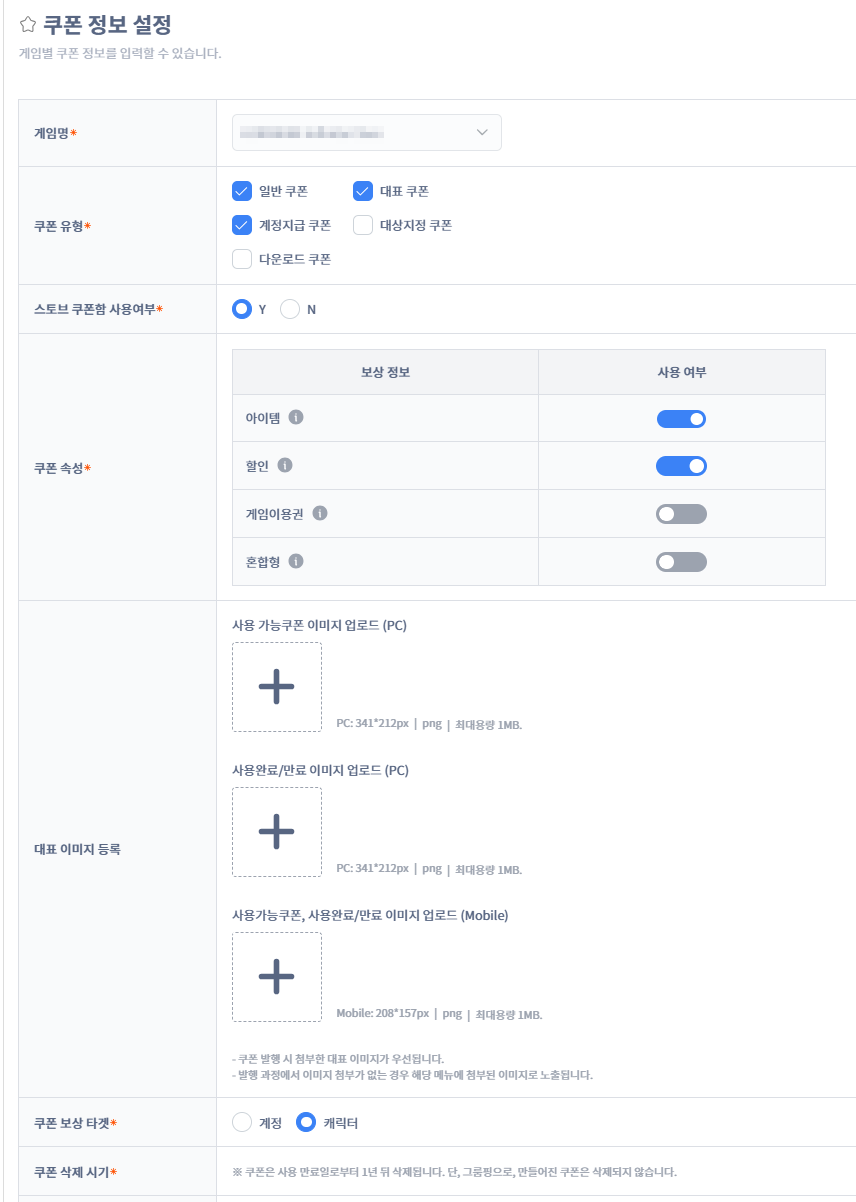
Step 1. Set Coupon Information
In Partners [Publishing Center > Manage Basic Billing Settings > Set Coupon Information], enter the coupon type, reward, representative image, etc.
ℹ️ This step only needs to be set once initially.
Once set, you don't need to do it again for each subsequent issuance, and you only need to modify it when you want to change settings like type or reward. Actual coupon issuance is repeated from Step 2.
Coupon Information Setting Guide
ㆍ Set the coupon type/attribute to use (Required before issuance)
ㆍ Use Stove Coupon Box Y → Game name displayed in My Info Coupon Box (ascending order by group)
ㆍ Game pass attribute is store-exclusive
ㆍ Representative image in information settings takes priority over issuance image
ㆍ Coupon maintenance settings available when selecting Stove as the game name
Step 2. Issue Coupon
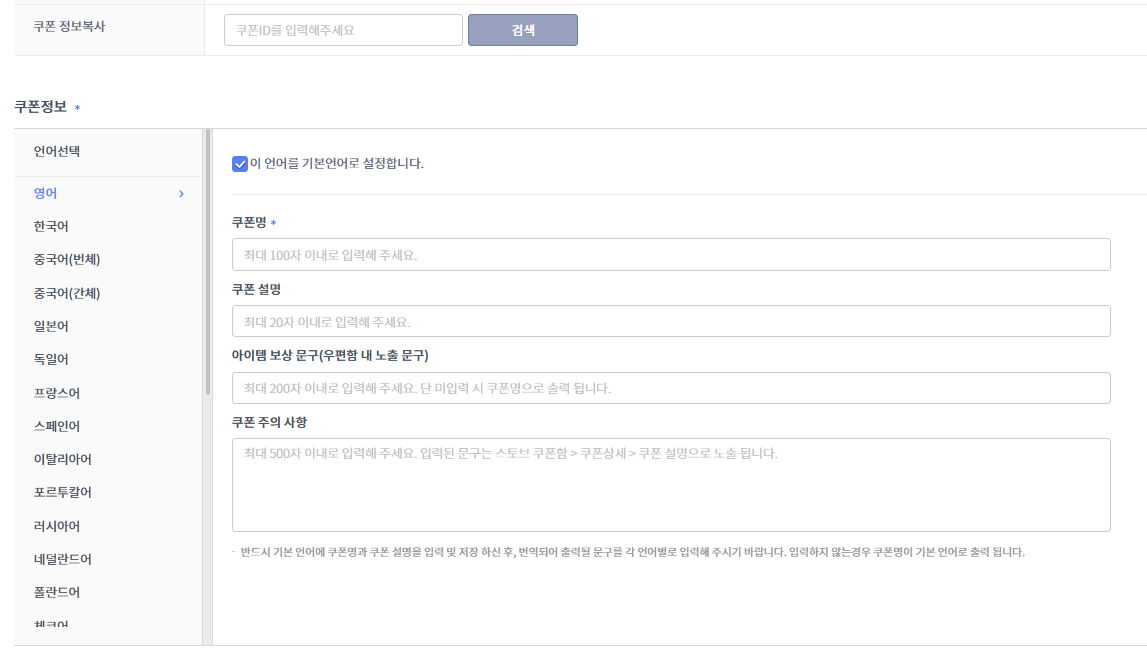
In Partners [Publishing Center > Manage Basic Billing Settings > Issue Coupon], set basic information such as coupon name, type, and attributes.
Coupon Information (Coupon Name, Description, Reward Text, Precautions)
ㆍ Multilingual support, enter in-game display text (item reward text)
ㆍ Copy Coupon Information: Entering an existing coupon ID automatically loads most issuance information
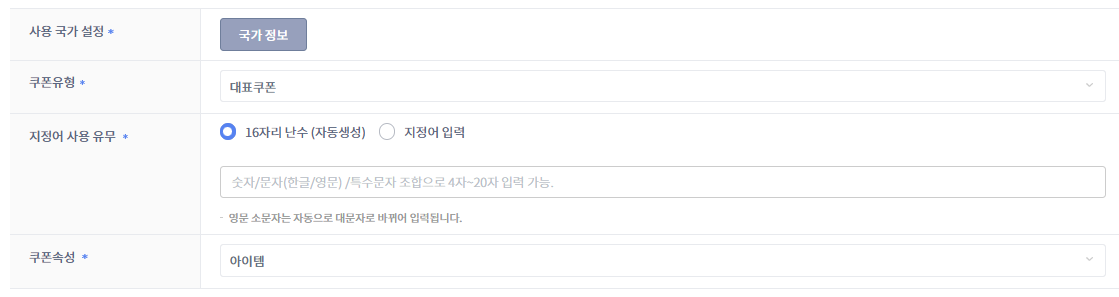
Coupon Types and Properties
ㆍ The default usage country is set to 'All' (configure separately if restricted to specific countries)
ㆍ Types and properties are loaded from the information settings menu (Download coupons are store-exclusive; properties are used when linking reward information)
ㆍ Choose between using a custom code (specified term) or a fixed prefix depending on the type
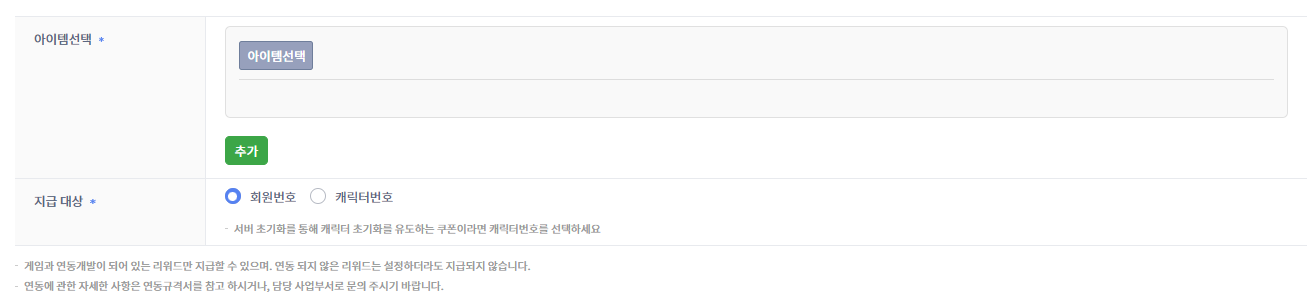
Item Coupon Issuance
ㆍ Issue up to 50 items by selecting them (for bulk issuance such as attendance rewards)
ㆍ Default is issuance by member number; issuance based on character number is possible (only for representative coupons + item properties)
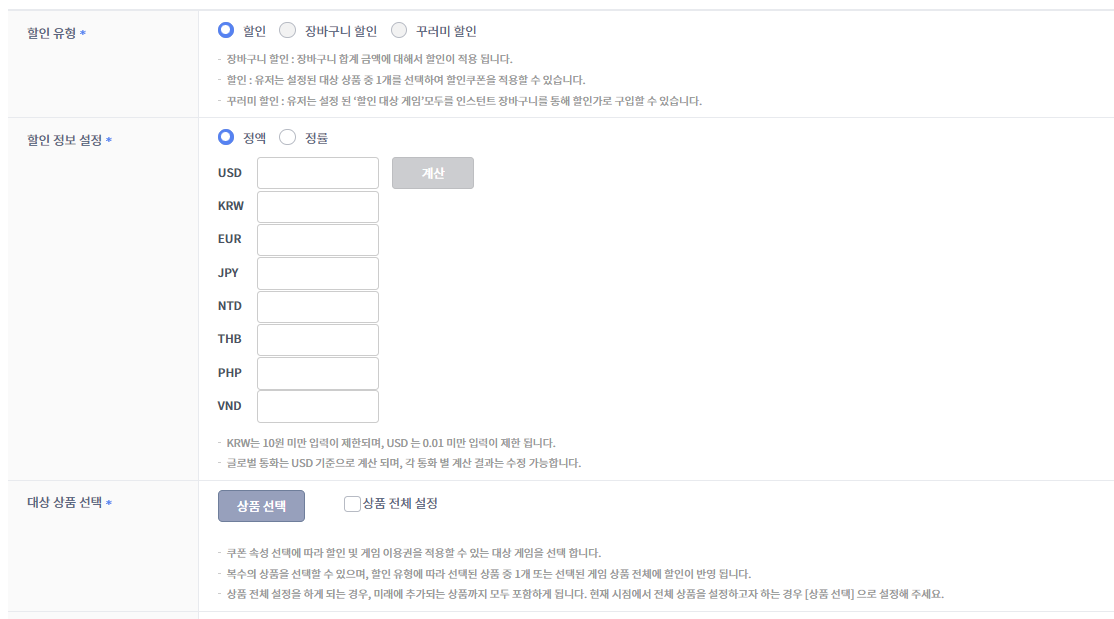
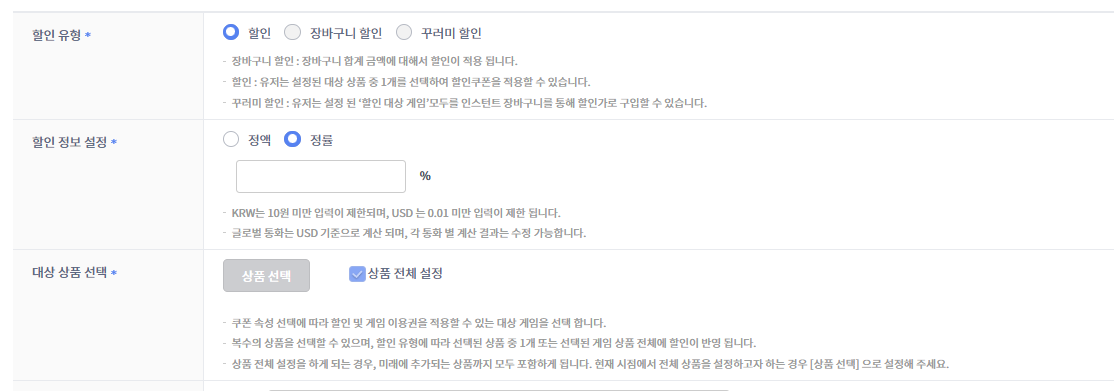
Discount Coupon Issuance
ㆍ Set fixed amount or fixed rate (Fixed amount = specific items only, Fixed rate = all items only)
ㆍ Fixed amounts are automatically calculated based on the dollar (reflecting the exchange rate on the last day of the previous month)
ㆍ Cart and bundle discounts are store-exclusive
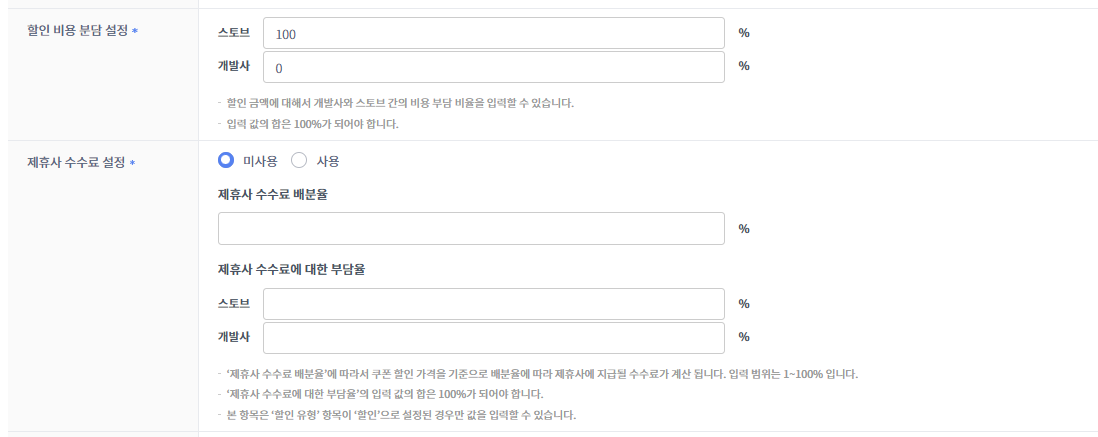
Discount Cost Sharing
ㆍ Discount costs and affiliate fees can be set to be shared between the platform and the CP company
ㆍ Consultation with the person in charge is mandatory as it affects settlement
Step 3. User Delivery
Deliver codes via events, SNS, or CS; account-based or download coupons are loaded automatically.
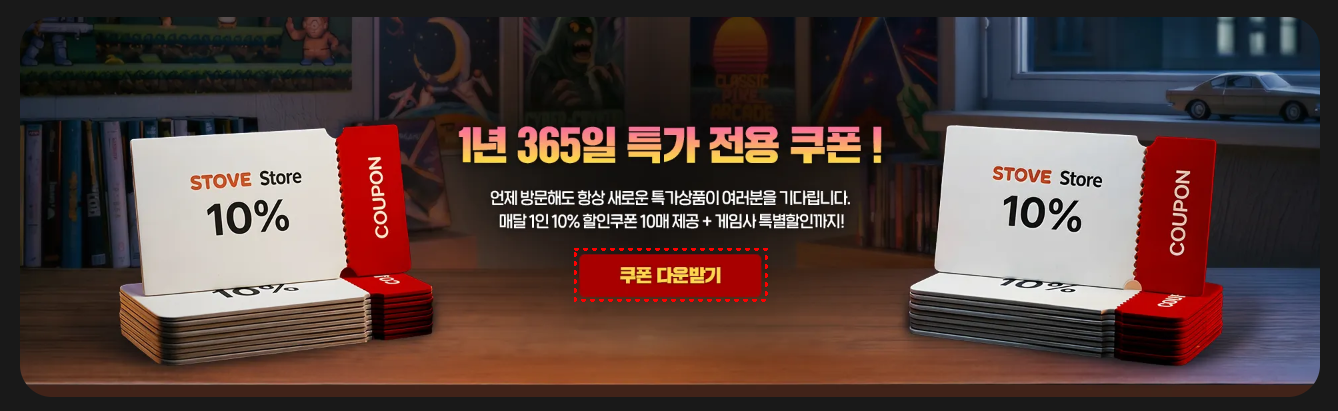
Receiving Event Participation Rewards
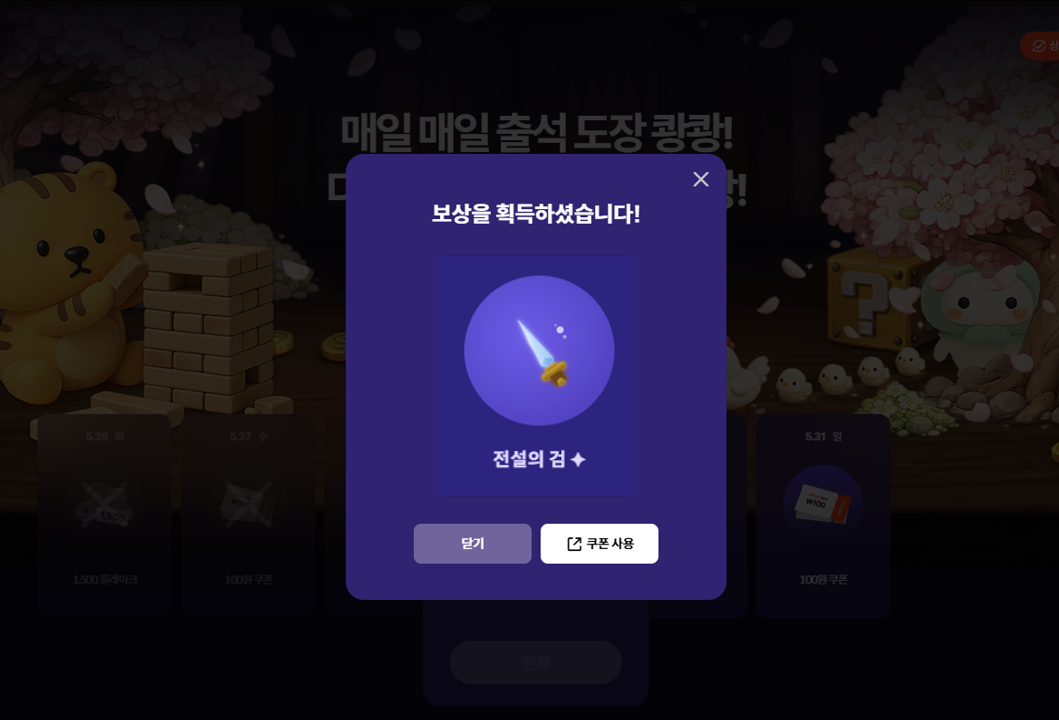
Step 4. User Receipt
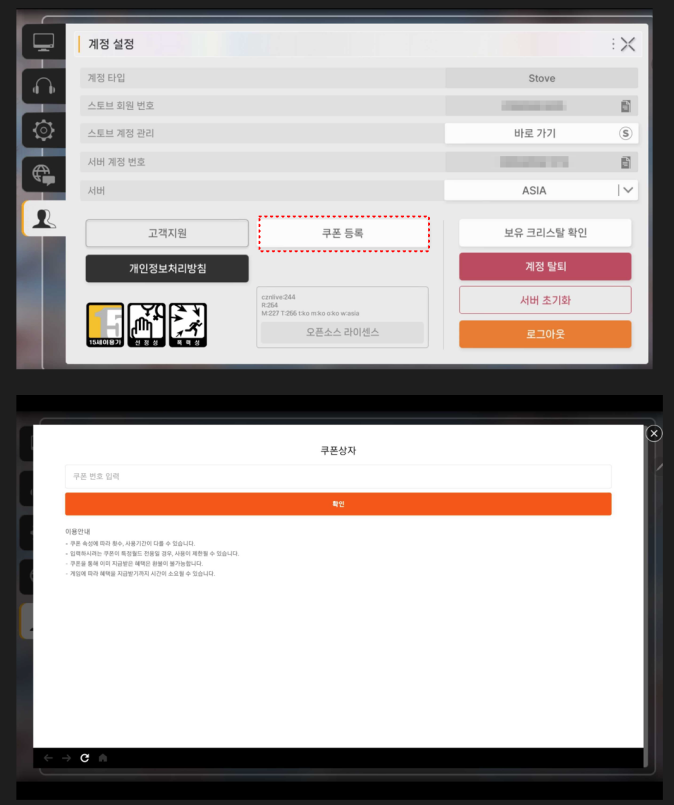
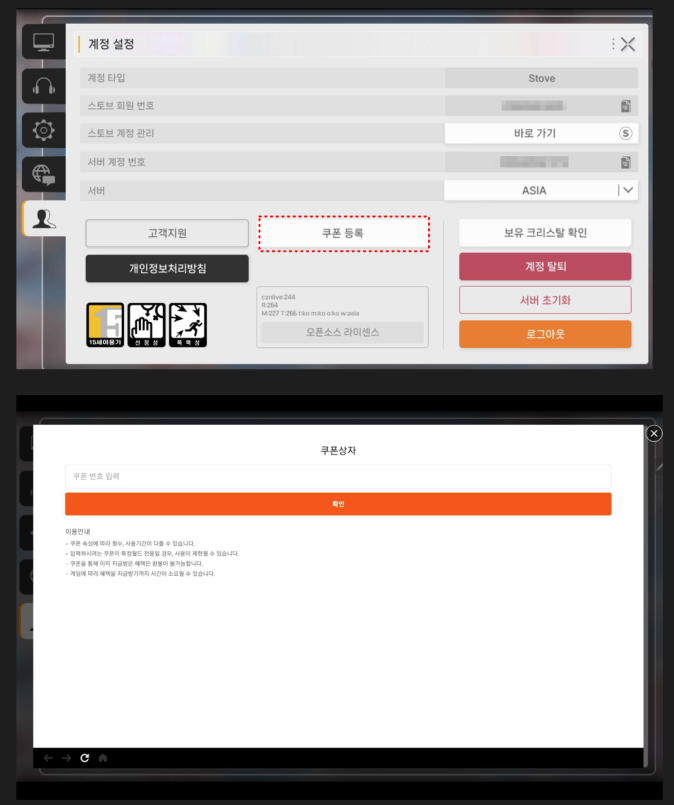
Register in the in-game coupon input window or check automatically in the coupon box to receive rewards (items/discounts).
In-game Coupon Registration Example
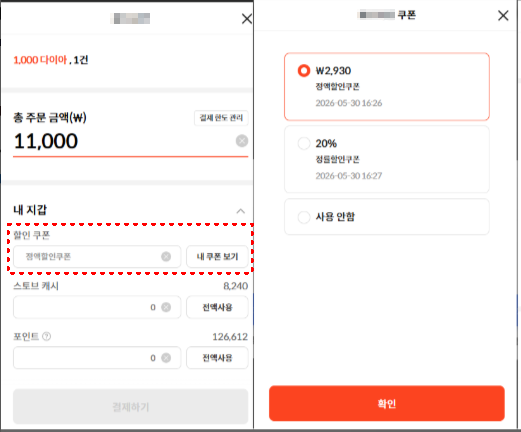
In-game Discount Coupon Usage Example
ㆍ Unlike store discount coupons, in-game discount coupons are used at the checkout screen.
Exposure Locations by Platform/Channel
| Platform/Channel | Exposure Location | Notes |
|---|---|---|
| Mobile (Android) | In-game [Register Coupon] button → SDK coupon popup | Recommended for Android |
| Mobile (iOS) | In-app exposure not recommended | In-app input UI or connection to external web may cause rejection (Apple Guidelines) |
| PC (Windows) | In-game [Register Coupon] button → SDK popup or STOVE/Game official website | SDK popup only for multi-platform games |
| STOVE Official Website | My Info > Coupon Box | Integrated coupon input, login required |
| Game Official Website | STOVE Coupon API integration in custom UI | API call required, design customization possible |
Development
Mobile (SDK) - Coupon Usage
Coupon usage is completed with a single call of View.useCoupon.
The SDK requests usage processing from the STOVE ItemBox server and handles the flow leading to the game server callback (item delivery).
Coupon box list search, detail inquiry, and coupon box coupon usage are server REST API areas, not SDK, so please refer to the 서버 연동 - 아이템박스(Itembox) section.
Caution for iOS Implementation
Under Apple Guidelines, exposing an in-app coupon input UI may be a cause for rejection.
Do not expose the in-game coupon input screen in iOS builds.
Prerequisites
- User login must be completed.
- Popup information must be registered in Partners for it to function properly. (Excluding direct call page method)
Notice
Partner settings are handled through the publishing technical representative.
Development Flow
- Coupon Number Collection
: Receive the coupon number entered by the user in the in-game coupon input screen. - Coupon Usage Call
: CallingView.useCoupon(context, code, callback)triggers the SDK to process usage on the ItemBox server. - Result Handling
: Branch success/failure based on theResultdelivered via callback.
: If it fails, delegate toOperationUI.HandleResult(result, ...)to display the SDK common guide screen.
Troubleshooting
- ErrorCodes
Domain ErrorCode Description Action com.stove.server 100 Coupon only available at PC cafes Display a message about the usage environment and keep the input screen open. com.stove.server 997 Not Verify AccessToken Auth.accessTokenPlease re-query and call again. If the same error persists, guide the user to the login flow to have them re-issue the token.com.stove.server 998 Expired AccessToken Guide the user to the login flow to have them re-issue the token. com.stove.server 999 System Error — com.stove.server 2605 This membership account cannot be used. — com.stove.server 5031 Daily authentication limit exceeded. Display an information message and guide the user to retry after a certain period. com.stove.server 5105 Invalid coupon number. Display a message to double-check the coupon number and reset the input screen. com.stove.server 5125 Coupon already used. Reset the input screen and display a usage completion message. com.stove.server 5130 Coupon usage suspended. — com.stove.server 5135 Coupon expired. Reset the input screen and display an expiration message. com.stove.server 5155 Usage limit for this coupon exceeded. Reset the input screen and display an information message. com.stove.server 5161 Coupon registration period expired. — com.stove.server 5162 Coupon not available in this country. — com.stove.server 5164 Coupon not available in this world. — com.stove.server 5165 Coupon only available in the coupon box. — com.stove.server 5169 Coupon usage period not active. — com.stove.server 5200 Not eligible for this coupon. — com.stove.server 5202 Coupon already registered in the coupon box. — com.stove.server 6002 This coupon number can no longer be used. — com.stove.server 6026 Usage limit exceeded. Reset the input screen and display an information message.
Cases with clear user guidance
For invalid coupon numbers (5105), already used coupons (5125), expired coupons (5135), and usage limit exceeded (5155 / 6026), display them as in-game information messages.
Since retrying is meaningless for already expired/used coupons, reset the input screen.
Sample Code
public void UseCoupon()
{
    /**
     * code : 쿠폰 입력 (string)
     **/
    View.UseCoupon("code", (Result result) =>
    {
        if (result.IsSuccessful)
        {
        }
        else
        {
            OperationUI.HandleResult(result, (Result operationResult) =>
            {
                /** ex) 현재 화면 유지 **/
            });
        }
    });
}
Android also supports the SDK-provided input UIViewUI.couponWhen you call this, the standard Stove coupon input screen will appear, and once the user enters the code, the SDK will continue to handle the usage processing and item distribution.
(Android only, not supported on iOS) For detailed usage and sample code, refer to 인게임 기능 — 쿠폰 사용 (Android만 가능).
PC (PCSDK) - Coupon Popup
You can use the coupon popup API provided by PCSDK ViewSDK to display the Stove coupon input screen within the game client.
When a user enters a coupon number directly in the popup, Stove handles the usage processing and item distribution flow.
The PC SDK coupon popup can only be used in multi-platform (PC + Mobile) games.
It only works for games registered as mobile games and designated for multi-platform use in Partners > Publishing Center > Game Entry Management > Game Basic Information Management.
If it is a single-platform (PC only) game, you must create your own coupon input UI in the game and replace it with a flow that calls the coupon registration API directly.
Prerequisites
- After BaseSDK initialization (
Base_InitializeorBase_InitializeEx) is complete, you can initialize ViewSDK (View_Initialize) to use the coupon popup API. Base_RunCallback()must be called periodically in the game loop for asynchronous callbacks to work.- If you are using the built-in WebView (
WebViewMode::INTERNAL) popup, initialize it by passing the game's mainView_Initializeinstead ofView_InitializeWithWndInfo(mainWndHandle)toHWND.
Development Flow
- Initialization
: After completing BaseSDK initialization withBase_Initialize(orBase_InitializeEx), callView_Initialize(). If using the built-in WebView popup, initialize it by passing the game's mainView_Initializeinstead ofView_InitializeWithWndInfo(mainWndHandle)toHWND. - Call Coupon Popup
: CallView_CouponPopuporView_CouponPopupExat the moment the user requests the coupon input UI.- C/C++ : Call
View_CouponPopup(mode, onFinished). To receive the popup close event, useView_CouponPopupEx(mode, onFinished, onDestroy).modeis theWebViewModevalue. - C# : Call
View_CouponPopup(mode, onFinished)orView_CouponPopupEx(mode, onFinished, onDestroy). onFinishedis called when the popup display is complete, andonDestroyis called when the popup's native resources are completely cleared.
- C/C++ : Call
- Select WebViewMode
: Set the mode that fits your game environment inmodebetweenWebViewMode::EXTERNAL(external browser) orWebViewMode::INTERNAL(SDK built-in WebView).
: Exclusive fullscreen mode games must useWebViewMode::EXTERNAL. - Termination Processing
: Receive theonDestroycallback to resume the game flow. If inventory refresh is needed after using the coupon, perform it after this callback. - Cleanup
: When finished using the coupon popup, clean up ViewSDK withView_UnInitialize(), and callBase_UnInitialize()just before the game terminates.
Troubleshooting
| Situation | Cause | Solution |
|---|---|---|
| No response when calling the coupon popup | The coupon popup is a feature exclusively for multi-platform (PC + Mobile) games. It will not work if called in a game registered as single-platform in Partners. | You must check if the game is registered as multi-platform in Partners. If it is a single-platform game, you can replace it with a flow that displays the game's own coupon input screen. |
| The coupon popup is hidden behind the game window | If you initialize with View_Initialize without a parent window handle, the popup may appear as a separate window and go behind the game window. In Exclusive fullscreen mode, the built-in WebView (WebViewMode::INTERNAL) mode popup cannot appear above the game window due to Windows API limitations. | View_InitializeWithWndInfo(mainWndHandle) You must initialize by passing the game's main HWND. If it is an Exclusive fullscreen mode game, the popup must be an external browser (WebViewMode::EXTERNAL) mode, there is no problem. |
| #include "ViewSDK.h" |
using namespace Stove::PCSDK;
using namespace Stove::PCSDK::Base;
using namespace Stove::PCSDK::View;
// 1) ViewSDK 초기화 (Base_Initialize 완료 이후)
auto initResult = View_Initialize();
if (!initResult.IsSuccessful())
{
return;
}
// 2) 쿠폰 팝업 (Ex 버전: 종료 이벤트 수신)
View_CouponPopupEx(
WebViewMode::EXTERNAL,
[](CallbackResult openResult)
{
if (openResult.GetResult().IsSuccessful())
{
// 팝업 열림 처리
}
},
[](CallbackResult destroyResult)
{
// 팝업 종료 시 게임 흐름 재개
}
);
// 3) 종료 시 정리
View_UnInitialize();| === "Unity" |cs
using static Stove.PCSDK.Base;
using static Stove.PCSDK.View;
Result initResult = View_Initialize();
if (!initResult.IsSuccessful())
{
return;
}
OnPopupFinished onOpen = (callbackResult) =>
{
if (callbackResult.result.IsSuccessful())
{
// 팝업 열림 처리
}
};
OnViewPopupDestroyFinished onDestroy = (callbackResult) =>
{
// 팝업 종료 시 게임 흐름 재개
};
View_CouponPopupEx(WebViewMode.EXTERNAL, onOpen, onDestroy);
<div style="margin-top:10px;"></div> | | ### Server Integration - Itembox | | If a user participates in an event, the game server must be integrated to receive and process reward payment requests. | The reward payment request is delivered as a real-time Callback Notification from the Stove ItemBox server, and the game server should receive the request and process the appropriate reward payment. | |<div style="margin-top:24px;"></div> | | #### Prerequisites | The following items must be registered in advance through Partners | |1. **Select ItemBox Integration Type**:
Select "Call from Stove server to game server (including Transaction Id)".
Location: `파트너스 > 퍼블리싱 센터 > 게임 입점 관리 > 모바일 환경 설정`
<img src="https://static-resource.onstove.com/live/application_no/STATIC/developer-center/MOBILE2/itembox_img_13_1705281679968.png" style="width:600px;">

<br />
    2. **Register Basic World**:
Even if your game does not require worlds, you must specify a basic world. (e.g., world_kr, etc.).
Location: `파트너스 > Launching > SDK 실행 환경(MO) > 월드/채널 정보 탭`
<img src="https://static-resource.onstove.com/live/application_no/STATIC/developer-center/MOBILE2/itembox_img_10_1705281679687.png" style="width:900px;">

<br />
    3. **Register Callback Server URL**:
Register the callback server URL that will receive item delivery requests.
Location: `파트너스 > GM > 서비스 연동 > 아이템박스 연동 환경(mo)`
<img src="https://static-resource.onstove.com/live/application_no/STATIC/developer-center/MOBILE2/itembox_img_11_1705281679854.png" style="width:900px;">


::dc-callout{type="info"}
::
How to set up Loop back URL
The callback server (URL) should be prepared by the CP, but if it is not ready and you need to perform partner testing, you can use the Loop back URL setting below.
Sandbox:http://i-api.gate8.com/itembox/v2/item/inboundReward
ACL work is required for communication with ItemBox. The Stove platform does not require a separate service open policy, but please ensure that you perform Inbound open work for the game server only.
Item Delivery API
This explains the API integration specifications that must be provided by the CP.
API Integration Information
POST {파트너스 등록 URL 정보}
Content-Type: application/json
Request
- Body
| Name | Type | Required | Example | Description |
|---|---|---|---|---|
| msg_id | String | Y | baf84a85-abcc-49fc-ba85-54b7c38331e9 | msg ID is generated every time it is sent from ItemBox to the game server (unique per transmission) |
| msg | String | Y | "aWLoj83ZxAICnRfjA+ayhd7nn1V/Fh/3I....3Of7N0s45uDN6DJjAjwqc=" | Encrypted delivery, decryption required |
| timestamp | Long | Y | 1480512039 | Msg Timestamp (seconds from January 1, 1970 to current time) |
- msg payload before encryption
| Name | Type | Required | Example | Description |
|---|---|---|---|---|
| game_id | String | Y | Stove_GAME | Game ID |
| world_id | String | Y | world_global | World ID |
| member_no | Long | Y | 503510 | Platform user's guid (member_no for legacy games) |
| nickname_no | Long | Y | 1603829809 | Platform user's nickname_no |
| item_id | String | Y | ITEM_K001 | Game item ID |
| transaction_id | String | Y | 6b384ab9d65f422db0abf186a7f79311 | transaction id (transaction key value, used by game server to determine duplicate delivery) |
| service_type | String | Y | COUPON | Service type "COUPON" : Sent via coupon usage "EVENT" : Sent via event |
| item_amt | Integer | Y | 3 | Item quantity |
| reward_msg | String | N | This is a reward for participating in the pre-registration event | Message to show to the user when the item is delivered (Content registered when creating a Coupon) |
| end_dt | String | N | 20150116 | Item delivery expiration date (DateFormat: "yyyyMMdd", Default: 1 month after request time) |
| payload | Object | N | { "item_period" : 0 } | ItemBox delivers data required by the CP in this json object (For example: If there are permanent, 7-day, 30-day, and 60-day options for a time-limited item |
Response
The game server must respond (in application/json format) to the ItemBox Call API using the return codes specified below.Content-Type : application/json
- Body
| Name | Type | Required | Example | Description |
|---|---|---|---|---|
| return_code | Integer | Y | 0 | 처리 결과 코드 |
| return_message | String | Y | OK | 처리 결과 메시지 - 50자 이내 결과 식별 가능한 메세지 전달 |
- Return Code
| Return code | HTTP Status Code | Description | 아이템박스 동작 및 재처리 여부 |
|---|---|---|---|
| 0 | 200 ok | 지급 성공 (이미 지급한 transaction_id일 경우도 동일) | 지급 성공 |
| 40001 | 200 ok | 서버 내부 오류 (API 재호출 시 아이템지급 가능한 케이스의 경우 사용) | 지급 실패 - 재처리 진행 |
| 40002 | 200 ok | 요청한 아이템 없음 | 지급 실패 - 재처리 미진행 |
| 40003 | 200 ok | 이용자 정보 불일치 | 지급 실패 - 재처리 미진행 |
| 40004 | 200 ok | 메세지 복호화 실패 | 지급 실패 - 재처리 미진행 |
Sample
- Request
- 암호화하지 않은 상태의 Request Body입니다. 실제 게임 서버로 전달 시 "msg" json value 부분이 암호화되어 전송됩니다.
- 복호화 순서는 전달받은 msg data를 BASE64 Decoding 처리를 하고 AES256 Decryption처리를 하셔야 합니다.
json{ "msg_id": "baf84a85-abcc-49fc-ba85-54b7c38331e9", "msg" : { "game_id":"STOVE_GAME", "world_id":"world_global", "member_no": 503510, "nickname_no": 1603829809, "item_id": "ITEM_K001", "transaction_id":"6b384ab9d65f422db0abf186a7f79311", "service_type":"COUPON", "item_amt":3, "reward_msg":"사전등록 이벤트 참여 보상입니다", "end_dt":"20150116", "payload": { "item_period":0 } }, "timestamp": 1480512039 } - 암호화하지 않은 상태의 Request Body입니다. 실제 게임 서버로 전달 시 "msg" json value 부분이 암호화되어 전송됩니다.
- Responsejson
- Content-Type : application/json
{
    "return_code": 0,
    "return_message": "성공했습니다."
}
Decryption Process
- To ensure the stability and validity of requests between the ItemBox system and the game server, some data (Json Data - msg values) is encrypted during transmission. Decryption is required to verify the message body.
- Encryption method: AES256
- Decryption key: Client Secret Key
- Transformation: AES/CBC/PKCS5Padding
- IV Spec: First 16 characters of the 'Client Secret Key' value
- Decryption sequence: You must perform BASE64 Decoding on the received msg data and then perform AES256 Decryption.
- Secret Key location:
파트너스 > 퍼블리싱 센터 > 게임 입점 관리 > 플랫폼 연동 키 > 모바일 서비스 연동 키 > 클라이언트 Secret Key
Duplicate Delivery Prevention
transaction_idis a unique value automatically generated when a delivery request occurs, and it is used to prevent missing item deliveries between the game server and ItemBox and to
prevent duplicate deliveries.- If the reward delivery is successful, the game server must store the
transaction_idin the game to manage it so that duplicate deliveries do not occur. - If a
transaction_idthat has already been delivered by the ItemBox server is requested, the game server should send "0" as the response Data "return_code".
Automatic Retry for Failed Requests
- The STOVE ItemBox service performs a retry for failed transmissions if the transfer to the game server fails due to network issues/server errors, etc.,
once every 10 minutes, up to 5 times. In this case, the "transaction_id" in the "msg" json is used as a classification key for failed cases, so the game server must
store cases that have been successfully delivered and processed using the "transaction_id". - If the delivery was processed by the game server but was marked as failed by the ItemBox platform due to a missing response or network error,
a re-delivery request may occur.
Troubleshooting
| Situation | Cause | Solution |
|---|---|---|
| Item delivery API is not called | Occurs if all preparatory steps are not performed correctly | Check through Partners to see if the preparatory settings were performed correctly. Also, check if API calls from the outside are blocked at the CP server infrastructure level. |
| Message decryption fails | Occurs if the decryption process is not performed correctly. | Check the guide and the decryption process chapter, and integrate using the correct decryption key |
Frequently Asked Questions
- Developers Center Usage / Smilegate Publishing Games: stove.developers@smilegate.com
- STOVE Store Onboarding / STOVE Studio: store.support@smilegate.com