
- Last Updated
STOVE STORE MCP(Model Context Protocol) User Guide
This guide provides instructions on how to connect to the global server in a Cursor IDE by configuring MCP when integrating with STOVE STORE.
MCP serves as a standard interface for sharing global model contexts, and developers must use the STOVE SDK and APIs to integrate with the STOVE platform.
1. Overview of MCP Integration
The STOVE Developer Center provides an AI development tool for integrating large language models (LLMs) based on MCP (Model Context Protocol) to support fast and accurate integration for content providers (CPs).
Through this tool, integration tasks such as code implementation, guide navigation, and configuration can be carried out more efficiently.
This guide explains how to utilize these MCP-based LLM tools in actual integration processes.\
2. Integration Process
This document is a guide based on the Cursor IDE. For integration methods with other LLM tools, please refer to the official documentation of each tool.
① Start the Cursor IDE
② Register the MCP global server
③ Configure the mcp.json file
④ Check the connection status
⑤ Check the integration completion
3. Prerequisites
| Title | Content |
|---|---|
| Development Environment | PC with Cursor installed |
| Required Information | MCP server address (STOVE MCP has no ACL restrictions, only the ACL policy of the accessing environment needs to be verified) - https://api.onstove.com/store-developer-center-mcp |
4. Cursor Installation
- Download and install Cursor from the official website
- In your web browser, enter the deep link MCP auto-configuration URL below to automatically connect STOVE STORE MCP in Cursor.
cursor://anysphere.cursor-deeplink/mcp/install?name=StoveStoreDevCenter&config=eyJ1cmwiOiJodHRwczovL2FwaS5vbnN0b3ZlLmNvbS9zdG9yZS1kZXZlbG9wZXItY2VudGVyLW1jcCJ9\
5. MCP Settings Process
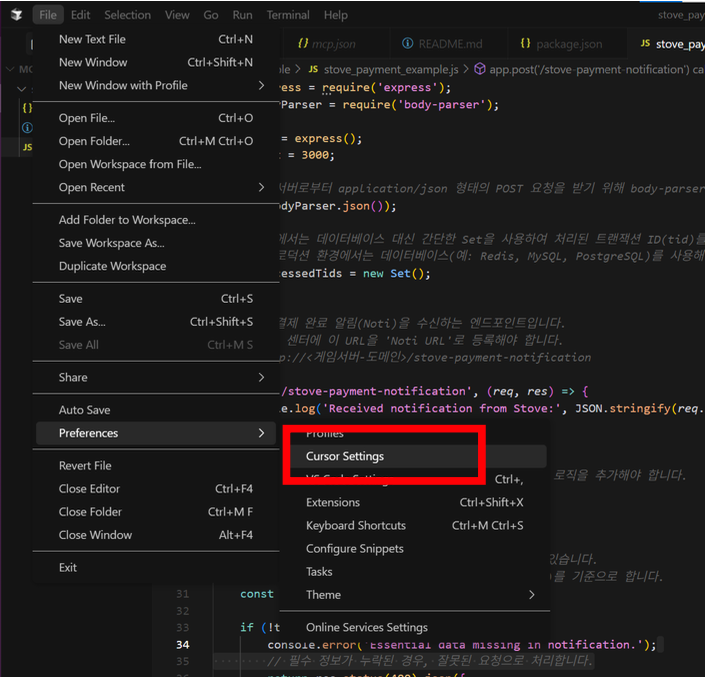
① Cursor Settings
- Click
File > Preferences > Cursor Settingsmenu - Select the MCP settings tab
② Add Global MCP Server
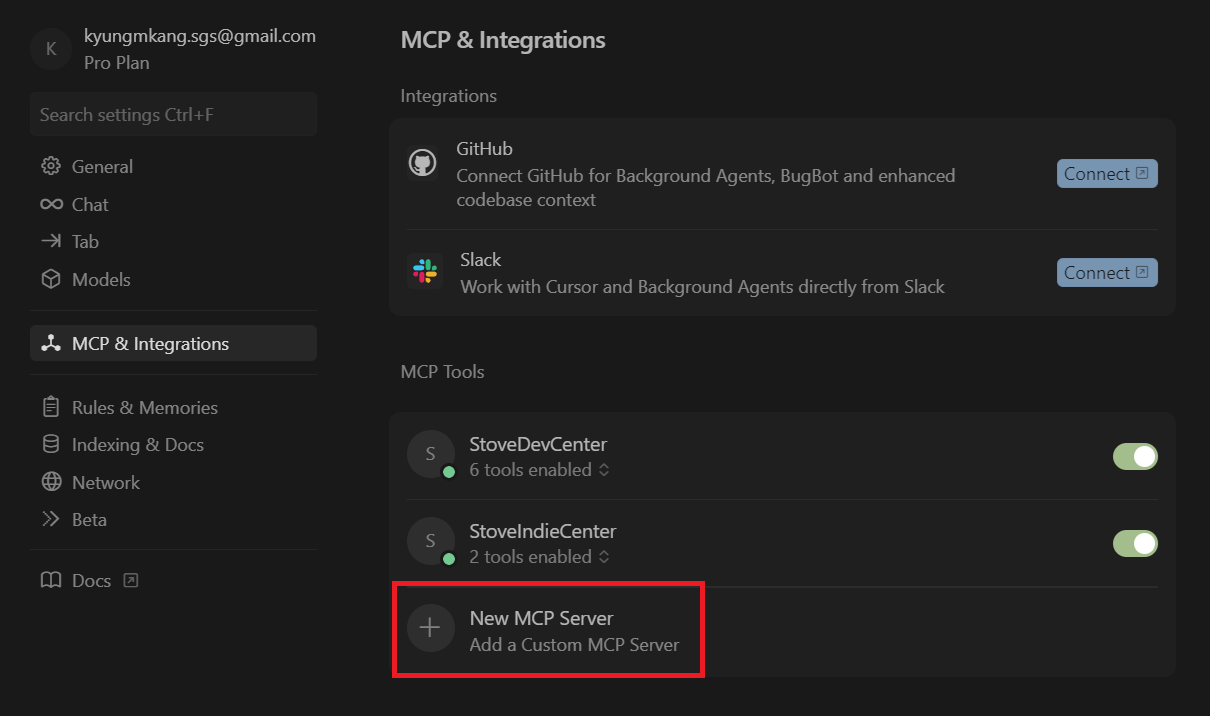
- Click
Tools & Integrations > New MCP server - Enter the following information
- Server Url :
https://api.onstove.com/store-developer-center-mcp
- Server Url :
③ Edit mcp.json
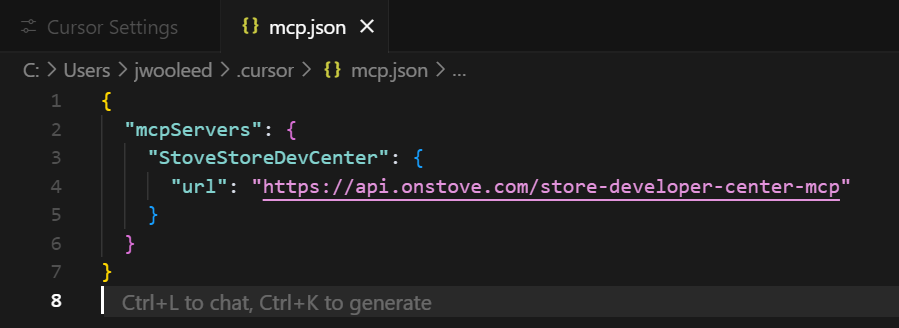
- Example configuration file path :
~/.cursor/config/mcp.json - Example configuration :
{
  "mcpServers": {
    "StoveStoreDevCenter": {
      "url": "https://api.onstove.com/store-developer-center-mcp"
    }
  }
}
If you have difficulty accessing
https://api.onstove.com/store-developer-center-mcp, please contact the technical support team.
④ Check the connection status
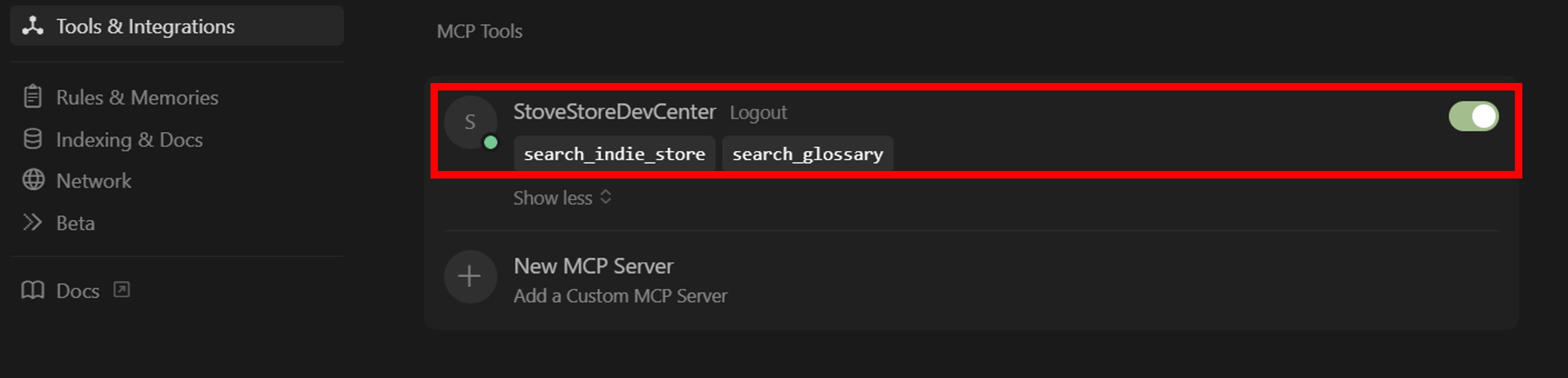
- In the MCP connection status window, check for the green light.
- A green light means the connection is successful.
If a yellow or red light appears, review the configuration settings or check the firewall policy.
6. Testing and Verification
- Verify normal responses by testing MCP API calls (see figure below).
- It is recommended to integrate the sample project (MCP-based) provided by the Developer Center.
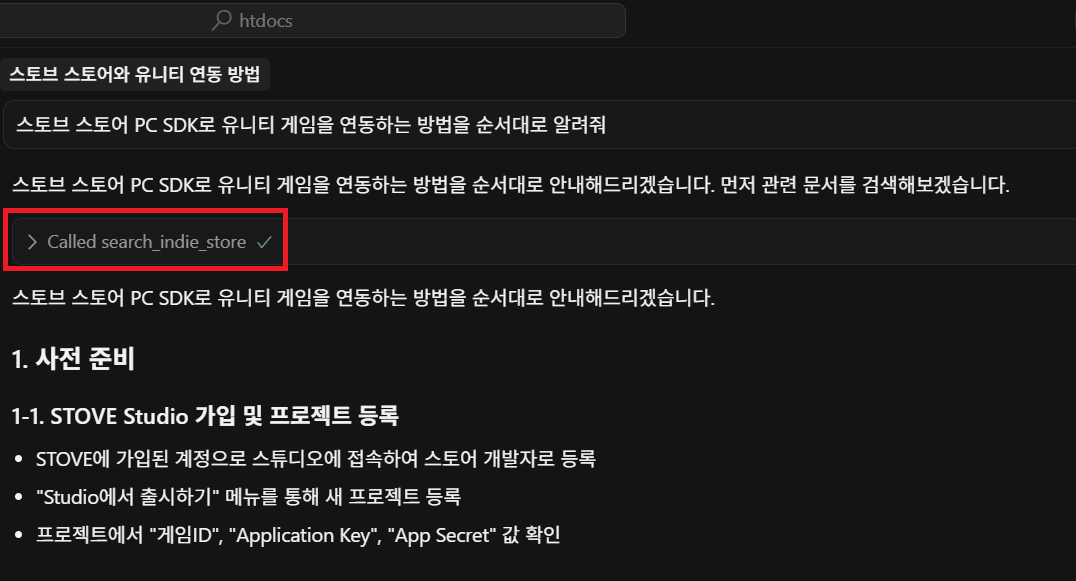
After configuring mcp.json, developers can connect to the MCP server and perform the required integration tasks.
For more details, refer to the official guide
7. Integration Scenario
Development Flow
- ① The developer opens the project folder to be integrated in Cursor and launches the chat window with ‘Ctrl + L’ in the code view.
- ② In the chat window connected to the MCP server, enter questions related to the integration.
- Example :
"How can I integrate STOVE STORE payments?" - Example :
"How do I integrate STOVE server authentication?" - Example :
"Provide the installation and configuration guide for STOVE PCSDK3." - Example :
"How to integrate STOVE STORE with Unity." - Example :
"How to configure the STOVE payment window in popup mode."- To explicitly use the StoveStoreDevCenter MCP, please add “use StoveStoreDevCenter” or “Stove” in your question.
- Example :
- ③ MCP extracts relevant information from the documentation or examples and provides an answer.
8. FAQ
Q. What if the MCP connection fails?
- Verify that the MCP url is correct.
- Check firewall and network settings.
- Check there are no syntax errors in mcp.json.
Q. The LLM responses in Cursor are inaccurate.
- Check the MCP connection status.
- Ask the LLM more specific questions.
- Example:
"When initializing the IAP SDK, where can I obtain the Shop Key?"
- Example:
9. Other AI Tools Guide
- Cursor Official Guide
- VS Code Official Guide
- Windsurf Official Guide
- Claude Desktop Official Guide
- To connect Claude Desktop with the STOVE STORE Developer Center MCP, you need to install npm mcp-remote and configure claude_desktop_config.json.
- How to install npm mcp-remote
jsonnpm install -g mcp-remote- How to configure Claude Desktop MCP
Example configuration file path :C:\Users\User_name\AppData\Roaming\Claude\claude_desktop_config.json
json{ "mcpServers": { "StoveStoreDevCenter": { "command": "npx", "args": ["mcp-remote", "https://api.onstove.com/store-developer-center-mcp"] } } } - Visual Studio 2022